Ready to get your website live with Hostinger but not sure where to start? You’re in the right place.
Uploading your website might sound tricky, but with the right steps, you can have your site online quickly and smoothly. Whether you’re working with HTML files, WordPress, or other content, this guide will walk you through the easiest and fastest ways to upload your website to Hostinger. Stick with me, and you’ll avoid common pitfalls that slow most people down. Plus, you’ll gain confidence handling your hosting like a pro. If you haven’t picked your hosting plan yet, check out Hostinger’s affordable and reliable options here: Hostinger Basic Plan. Let’s dive in and get your site online today!
Credit: www.hostinger.com
Introduction To Hostinger And Website Uploading
Hostinger is a popular web hosting platform known for its affordability and ease of use. It allows users to upload and manage websites with simple tools. Uploading your website to Hostinger means placing your files on its servers so visitors can access your site online.
This section explains what Hostinger offers, why uploading a website there benefits you, and the common ways to upload your site efficiently.
Overview Of Hostinger As A Web Hosting Platform
Hostinger provides reliable hosting services suitable for beginners and professionals. It features a user-friendly control panel called hPanel that simplifies website management. Key features include:
- Affordable plans with good performance
- Fast SSD storage
- 24/7 customer support
- One-click installer for popular CMS like WordPress
- Free SSL and domain options on some plans
Hostinger’s infrastructure supports various website types, making it a flexible choice for many users.
Purpose And Benefits Of Uploading Your Website To Hostinger
Uploading your website to Hostinger allows your site to be live and reachable by users worldwide. The benefits include:
- Visibility: Your website is accessible on the internet.
- Security: Hostinger offers SSL certificates and regular backups.
- Speed: SSD storage and optimized servers boost loading times.
- Control: Manage files easily using hPanel tools.
- Support: Assistance is available if you face issues.
Uploading your site ensures it can grow and reach your target audience effectively.
Common Methods To Upload A Website On Hostinger
Hostinger offers multiple ways to upload your website files. The most common methods are:
- File Manager in hPanel:
Login to Hostinger’s
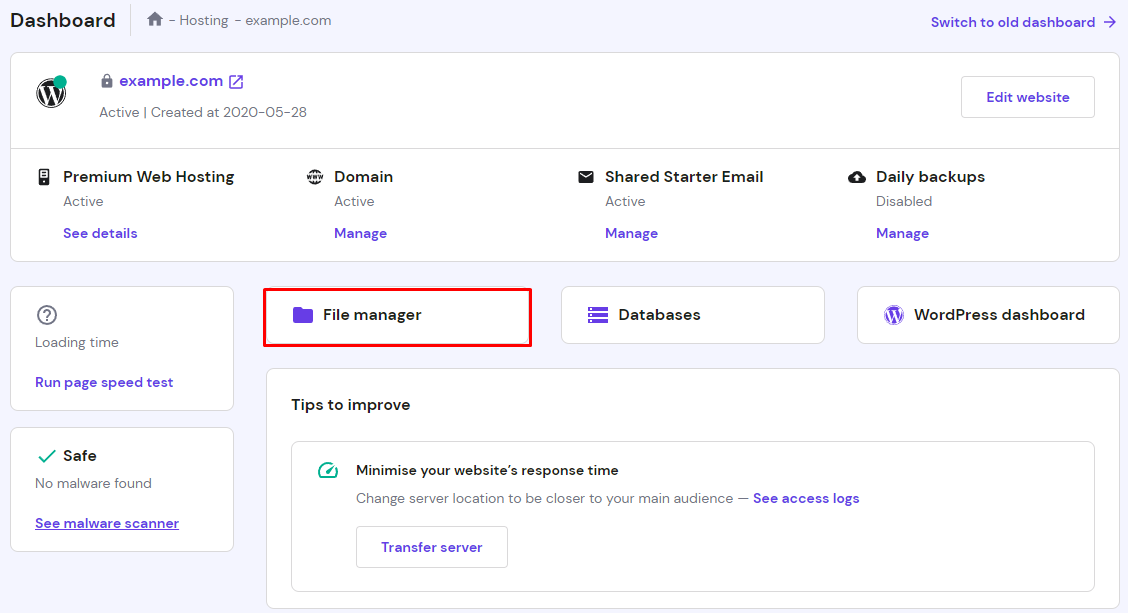
hPanel, go toFile Manager, then open thepublic_htmlfolder. Use the upload icon to select and upload your website files or archive. This method is simple and does not require extra software. - FTP (File Transfer Protocol):
Use an FTP client like FileZilla to connect to Hostinger’s server using your FTP credentials. Upload your website files directly to the
public_htmldirectory. This method suits users managing many files or frequent updates. - One-Click Installer:
For CMS platforms (WordPress, Joomla), Hostinger’s one-click installer can deploy your site quickly. It handles file uploads and database setup automatically.
Dragging and dropping files in File Manager or FTP clients is also supported, making uploads faster and easier.

Credit: www.youtube.com
Step-by-step Guide To Upload Your Website Using Hostinger’s File Manager
Uploading your website on Hostinger is simple and quick. Their File Manager tool allows direct file uploads without extra software. This guide walks you through each step to get your site live fast. Follow along to upload your files correctly and organize your website.
Accessing Hostinger’s Hpanel And Navigating To File Manager
Start by logging into your Hostinger hPanel. Use your account credentials at hostinger.com. Once logged in, find the File Manager icon under the Files section.
Clicking this opens the File Manager interface. This is where you control your website files directly on the server.
Uploading Website Files To The Public_html Directory
Inside File Manager, locate the public_html folder. This directory stores all website files visible on the internet.
- Click on public_html to open it.
- Use the Upload Files button at the top-right corner.
- Select your website files or archive (.zip) from your computer.
- Wait for the upload to complete before proceeding.
If you uploaded a zip file, right-click it and choose Extract to unpack the website files.
Managing Files And Organizing Your Website Structure
After upload, organize your files for smooth website functioning. Keep your main page as index.html or index.php inside public_html.
- Create folders for images, scripts, and stylesheets.
- Rename files clearly to avoid confusion.
- Delete unnecessary files to save space.
Use File Manager’s drag-and-drop feature to move files between folders easily.
Regularly check your folder structure. A clean setup improves loading speed and site maintenance.
Uploading Your Website Via Ftp Using Filezilla
Uploading your website files using FTP is a fast and reliable method. FileZilla is a free FTP client that helps transfer files between your computer and Hostinger’s server. It supports large files and multiple transfers at once. This guide explains how to set up FTP access, configure FileZilla, and transfer your website files efficiently.
Setting Up Ftp Access In Hostinger Hpanel
First, log in to your Hostinger hPanel. Follow these steps to create FTP access:
- Go to the FTP Accounts section in hPanel.
- Click on Create New FTP Account.
- Enter a username and set a strong password.
- Select the domain or directory for FTP access.
- Click Create to save the account.
Note the FTP server address, username, and password. You will need these details to connect via FileZilla.
Configuring Filezilla For Hostinger Ftp Connection
Download and install FileZilla on your computer. Open FileZilla and set up a new connection:
- Click on File > Site Manager.
- Click New Site and name it.
- Fill in the following details:
| Field | Value |
|---|---|
| Host | Your Hostinger FTP server address (e.g., ftp.yourdomain.com) |
| Port | 21 |
| Protocol | FTP – File Transfer Protocol |
| Encryption | Use explicit FTP over TLS if available |
| Logon Type | Normal |
| User | Your FTP username |
| Password | Your FTP password |
Click Connect to establish the FTP connection.
Transferring Website Files Efficiently With Ftp
Once connected, the FileZilla interface shows your local files on the left and server files on the right. Follow these tips to upload your website:
- Navigate to the public_html folder on the server side.
- Select all your website files on the local side.
- Drag and drop them into the public_html directory.
FileZilla will start transferring files. Monitor the progress at the bottom panel.
For faster uploads:
- Upload files in batches instead of all at once.
- Use a stable internet connection.
- Avoid uploading unnecessary files or folders.
After upload, visit your website URL to confirm it displays correctly.

Credit: www.youtube.com
Uploading Html, Css, And Javascript Files: Best Practices
Uploading your website files correctly ensures smooth performance and quick loading. Proper handling of HTML, CSS, and JavaScript files is essential for a clean, functional website on Hostinger. Follow simple best practices to avoid common errors and keep your site organized.
Handling Static Website Files On Hostinger
Hostinger’s File Manager in hPanel makes uploading files easy. Use these steps for your static files:
- Login to Hostinger’s hPanel.
- Go to File Manager and open the
public_htmldirectory. - Click the Upload Files icon in the upper-right menu.
- Select your HTML, CSS, and JavaScript files or folders from your computer.
- Wait for the upload to complete before closing the window.
You can also drag and drop multiple files or folders directly into the File Manager. This method helps when uploading entire websites with many files.
Ensuring Proper File Structure And Homepage Setup
Organize your website files clearly. Use this structure:
| Folder/File | Description |
|---|---|
public_html/ | Root directory for all website files |
index.html | Main homepage file. Must be in root folder |
css/ | Folder for CSS stylesheets |
js/ | Folder for JavaScript files |
images/ | Folder for images and media |
The index.html file must be at the root level inside public_html. Hostinger automatically loads this file as the homepage. Keep all supporting files (CSS, JS, images) in separate folders to maintain clarity.
Using .htaccess For Multi-page Website Configuration
The .htaccess file controls server settings and URL behavior. Use it to improve your multi-page website:
- Redirect URLs: Simplify URLs by hiding file extensions.
- Set default homepage: Confirm
index.htmlloads first. - Enable caching: Speed up loading by caching CSS and JS files.
Example .htaccess content:
Set default directory index DirectoryIndex index.html Remove .html extension from URLs RewriteEngine On RewriteCond %{REQUEST_FILENAME} !-f RewriteRule ^([^.]+)$ $1.html [NC,L] Enable browser caching for CSS and JS ExpiresActive On ExpiresDefault "access plus 1 month" This setup keeps URLs clean and improves website speed. Upload the .htaccess file to the public_html folder.
Hostinger Website Builder: Uploading And Managing Media Files
Managing media files is essential for building a professional website. Hostinger Website Builder makes this simple and efficient. You can upload images, videos, and documents directly to your site without any hassle. This section explains how to upload media files, link downloadable files, and the benefits of using Hostinger’s Website Builder for file management.
Uploading Files To The Media Library Via Website Builder
Start by logging into your Hostinger account and opening the Website Builder. Locate the Media Library section. Here, you can add new files easily:
- Click on the Upload button.
- Select files from your computer (images, videos, PDFs, etc.).
- Wait for the upload to finish; progress will show on screen.
- Your files will appear in the Media Library for easy access.
The Media Library supports common file types like .jpg, .png, .mp4, .pdf, and more. Uploaded files are stored securely on Hostinger’s servers.
Linking Downloadable Files On Your Website
To offer downloadable files, follow these steps:
- Go to the page where you want to add the link.
- Select the text or button to use as a download link.
- Click the Insert Link option in the editor.
- Choose Media Library and pick the file you want to link.
- Save and publish your changes.
Visitors can click the link to download files directly. This method works for documents, brochures, manuals, or any downloadable content.
Advantages Of Using Hostinger Website Builder For File Management
| Feature | Benefit |
|---|---|
| Easy Uploads | Drag-and-drop files with a simple interface. |
| Centralized Media Library | All files stored in one place for quick access. |
| File Linking | Add downloadable links without coding. |
| Secure Storage | Files are saved safely on Hostinger servers. |
| Supports Multiple Formats | Upload images, videos, documents, and more. |
Hostinger Website Builder simplifies file management so you can focus on content. It removes the need for external tools or complex FTP processes.
Pricing And Affordability Of Hostinger Hosting Plans
Hostinger offers a range of hosting plans that fit different budgets. Their pricing is simple and affordable. Whether starting a small website or managing a large project, Hostinger has options that match your needs. Understanding these plans helps you choose the best one for your website upload and hosting.
Overview Of Hostinger’s Hosting Plans Suitable For Website Uploads
Hostinger provides several hosting plans tailored for easy website uploads and smooth performance. Here are the main types:
- Single Shared Hosting: Best for beginners with one website and basic needs.
- Premium Shared Hosting: Supports multiple websites, more resources, and better speed.
- Business Shared Hosting: Designed for small businesses with extra power and daily backups.
- Cloud Hosting: Offers more scalability and faster load times for growing websites.
- VPS Hosting: Gives full control and dedicated resources for advanced users.
Each plan supports uploading your website files through Hostinger’s File Manager or FTP. The plans differ by storage, bandwidth, and additional features.
Cost-benefit Analysis For Beginners And Advanced Users
| Plan | Monthly Cost (Approx.) | Best For | Key Benefits |
|---|---|---|---|
| Single Shared Hosting | $1.99 | Beginners | One website, basic features, easy upload |
| Premium Shared Hosting | $2.99 | Intermediate users | Multiple websites, faster speed, more storage |
| Business Shared Hosting | $4.99 | Small businesses | Daily backups, SSL included, more resources |
| Cloud Hosting | $9.99 | Growing sites | High speed, scalability, isolated resources |
| VPS Hosting | $3.95 | Advanced users | Full root access, dedicated CPU & RAM |
Beginners benefit most from shared hosting due to low cost and simplicity. Advanced users gain value from VPS or Cloud hosting for better control and power.
Additional Costs To Consider When Uploading Your Website
Besides the hosting plan fee, some extra costs may apply:
- Domain Name: Usually costs around $10–$15 per year if not included.
- SSL Certificate: Free with most plans but may cost for advanced types.
- Website Builder or CMS Plugins: Some add-ons require payment.
- Backup Services: Included in business plans, else may need extra fees.
- Premium Support: Basic support is free; priority help can cost more.
Review your needs carefully to avoid surprise expenses. Hostinger’s transparent pricing helps plan your budget well.
Pros And Cons Of Using Hostinger For Website Uploading
Hostinger offers a popular platform for uploading websites. It provides several benefits for beginners and experienced users alike. At the same time, it has some drawbacks that may affect your experience. Understanding both sides helps you decide if Hostinger fits your needs.
Advantages: User-friendly Interface And Multiple Upload Options
Hostinger features a simple, easy-to-navigate interface called hPanel. It allows users to manage files with minimal effort. The File Manager tool supports drag-and-drop uploads and direct file selection.
- Upload website files via File Manager in the
public_htmlfolder - Supports uploading zipped archives and extracting them on the server
- Drag-and-drop feature reduces hassle for bulk uploads
- Supports HTML, CSS, JavaScript, and other common web files
This variety of options makes website deployment fast and straightforward. Even users with limited technical skills can upload their sites successfully.
Disadvantages: Customer Support Challenges And Feature Limitations
Hostinger’s customer support can be difficult to reach. The AI chatbot often blocks direct contact with human agents. This slows down problem resolution.
The entry-level plan has certain feature limitations:
| Limitations | Effect on Website Uploading |
|---|---|
| No integrated CDN | Slower content delivery for global visitors |
| No ecommerce support | Not suitable for online stores |
| Older-generation SSD storage | Potentially slower file access speeds |
These factors can impact website performance and support quality, especially for demanding users.
Real-world User Experiences And Feedback
Many users praise Hostinger for its easy uploading process and affordable pricing. The hPanel File Manager is often highlighted as intuitive and effective.
Users report uploading large files by dragging folders directly into the interface. This method saves time and reduces errors.
On the downside, some users express frustration with customer support delays. Complex issues sometimes require multiple attempts to get human help.
Feature limitations on basic plans prompt some users to upgrade to higher tiers for better performance and tools.
Overall, Hostinger works well for small to medium websites but may challenge users needing advanced features or quick support.
Recommendations And Ideal Use Cases For Hostinger Website Uploading
Hostinger offers versatile tools for uploading and managing websites. Choosing the right method depends on your skills, website size, and goals. This section helps you find the best fit for your needs. Clear guidance ensures smooth website deployment and management.
Who Should Choose Hostinger For Hosting And Uploading?
Hostinger suits users who want affordable hosting with easy management. Ideal for beginners and small businesses. It offers a user-friendly control panel called hPanel. Users with basic technical skills can upload sites without hassle.
Developers and freelancers benefit from Hostinger’s support for FTP and File Manager. It fits those needing fast, reliable hosting without complex setups. Also great for users who want to build sites using the Website Builder tool.
Best Scenarios For Using File Manager Vs Ftp Vs Website Builder
| Method | Best Use Case | Advantages | Limitations |
|---|---|---|---|
| File Manager | Uploading small to medium website files directly via hPanel |
|
|
| FTP (File Transfer Protocol) | Uploading large websites or multiple files at once |
|
|
| Website Builder | Creating and uploading sites without coding |
|
|
Tips For Optimizing Your Website Upload And Management Process
- Organize Files Locally: Keep files in clear folders before upload.
- Compress Large Files: Use ZIP archives to speed up upload time.
- Use File Manager for Quick Updates: Edit or replace small files directly in hPanel.
- Choose FTP for Bulk Uploads: Upload many files faster and resume if interrupted.
- Clear Cache Regularly: Ensure visitors see the latest website version.
- Backup Files Often: Download backups before major updates.
- Check File Permissions: Set correct permissions to avoid access issues.
- Test After Upload: Verify website functionality on multiple devices.
Following these tips leads to smooth website deployment and easier management on Hostinger.
Conclusion And Additional Resources
Uploading your website to Hostinger is a simple process with the right steps. This section wraps up the essential points and shares helpful resources. It also encourages new users to start their web hosting journey confidently.
Summary Of Key Steps To Upload Your Website On Hostinger
Follow these main steps to get your site online quickly:
- Login to Hostinger’s hPanel: Use your account credentials to access the control panel.
- Open File Manager: Navigate to the
public_htmldirectory, where your website files go. - Upload Your Files: Click the Upload Files icon, then select your website archive or individual files from your computer.
- Extract Files (if needed): Use the extract option if you uploaded a compressed archive like a ZIP file.
- Check Your Homepage: Ensure the main file, usually
index.html, is in place to display your site properly.
Where To Find Further Tutorials And Support
Hostinger offers many resources to help you along the way:
- Hostinger Tutorials: Visit their official tutorial page for step-by-step guides and videos.
- hPanel Help Center: Access detailed articles on managing files, domains, and more.
- Community Forums: Join discussions with other users for tips and solutions.
- Customer Support: Use Hostinger’s live chat or ticket system for direct help, though reaching a human can sometimes take time.
Encouragement For New Users To Get Started Confidently
Starting with Hostinger is easier than it seems. The control panel is user-friendly and designed for beginners.
Don’t worry about technical details. Uploading files is mostly drag-and-drop or simple clicks.
Every expert was once a beginner. Take small steps, learn from resources, and your website will be live soon.
Explore, experiment, and keep your site updated. Your online presence is just a few uploads away!
Frequently Asked Questions
How Do I Upload My Website To Hostinger?
Log in to Hostinger’s hPanel and open File Manager. Go to the public_html folder, click Upload, and select your website files. Wait until the upload finishes to publish your site.
What Is The Disadvantage Of Hostinger?
Hostinger’s disadvantage includes limited features in the entry-level plan and difficulty reaching human support beyond the AI chatbot.
How Do I Deploy My Website On Hostinger?
Log into Hostinger’s hPanel, open File Manager, and go to the public_html folder. Upload your website files there. Alternatively, use an FTP client like FileZilla to transfer your files to the server. After uploading, your website will be live.
Can I Upload Html Files To Hostinger?
Yes, you can upload HTML files to Hostinger using their hPanel File Manager or an FTP client like FileZilla. Upload files to the public_html directory to make your website live.
Conclusion
Uploading your website to Hostinger is simple and fast. Use the File Manager or FTP for easy file transfer. Keep your files organized in the public_html folder. Check your site after uploading to ensure it works well. Hostinger offers affordable plans suited for beginners. Start your website journey confidently with Hostinger’s reliable service. For a smooth start, consider this Hostinger basic plan. Your online presence is just a few clicks away.