

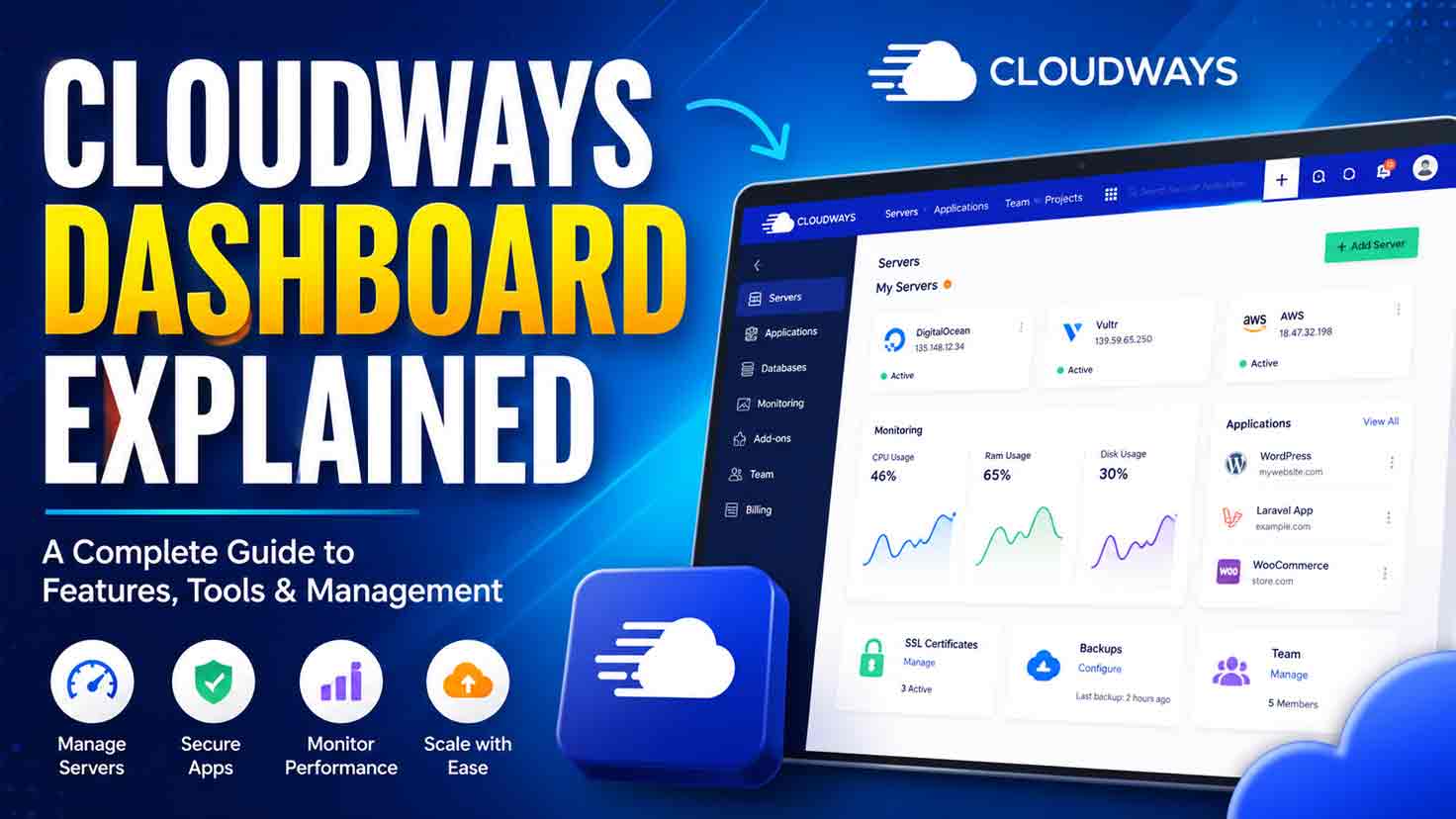
Summarize this blog post with: ChatGPT | Perplexity | Claude | Grok
You probably already use dashboards to update websites, check hosting resources, and manage domains. However, Cloudways separates account, server, application, and WordPress controls, which makes it easy to search in the wrong place or modify the wrong management layer. This guide maps the current Cloudways Hosting Dashboard and explains how to complete its most important tasks safely.
Interface verification: Dashboard navigation, Site Manager, automation tools, and operational paths in this guide were checked against official Cloudways documentation on August 4, 2026. Cloudways may continue changing menu names and locations. he Cloudways Hosting Dashboard** is a proprietary interface for managing Cloudways products, servers, applications, billing, integrations, teams, projects, and support.
- Cloudways Flexible provides direct server and application controls, while Cloudways Autonomous reduces the number of infrastructure decisions the user must make.
- Server Management controls infrastructure shared by applications, while Application Management controls an individual website’s domains, credentials, backups, staging, and deployment settings.
- Application backups and staging environments reduce the risk of data loss or production breakage during updates and deployments.
- Cloudways Site Manager centralizes WordPress updates, plugins, themes, users, performance data, activity logs, and multi-site operations.
- Projects and Teams help agencies organize client websites and grant collaborators only the access required for their roles.
- A safe Cloudways workflow begins with a verified backup, tests significant changes on staging, validates production, and reviews monitoring data afterward.
What Is the Cloudways Hosting Dashboard?
The Cloudways Hosting Dashboard is a proprietary web interface for managing Cloudways products, servers, applications, billing, integrations, teams, projects, and support from one account. It replaces many command-line hosting tasks with graphical controls, but it does not replace the WordPress admin area or provide the same structure as cPanel. een you and the underlying cloud infrastructure. For example, a Cloudways Flexible server may run on DigitalOcean, Amazon Web Services, Google Cloud Platform, Vultr, or Linode, while Cloudways provides the management interface and managed service layer.
ion to the underlying service, read this guide to the Cloudways hosting platform explained.
Does Cloudways Use cPanel?
Cloudways does not use cPanel. Cloudways provides its own hosting control panel for managing server resources, applications, domains, SSL certificates, backups, monitoring, staging, and access credentials. Cloudways also does not provide the traditional cPanel File Manager; file access normally occurs through SFTP, SSH, Git, or supported database tools. because cPanel users often search for a familiar icon grid. Cloudways instead organizes controls according to the resource being managed.
| Interface | Primary Purpose | Typical Tasks | What It Does Not Control |
|---|---|---|---|
| Cloudways Hosting Dashboard | Hosting infrastructure and application environments | Server scaling, domains, SSL, backups, staging, monitoring, SFTP, services | WordPress content and editorial settings |
| cPanel | General web-hosting account administration | Files, domains, databases, email, cron jobs, application installers | Cloudways-specific managed infrastructure |
| WordPress Admin | WordPress website management | Posts, pages, plugins, themes, users, WooCommerce | Server size, hosting backups, server services |
| Cloud Provider Console | Raw infrastructure management | Virtual machines, networking, disks, cloud accounts | Cloudways-managed platform controls |
A simple rule prevents most navigation mistakes:
- Hosting resource problem: Open Cloudways.
- Website content problem: Open WordPress Admin.
- Cloudways account or invoice problem: Open account or billing controls.
- Raw root-server requirement: Cloudways Flexible may not be suitable because Cloudways does not provide root access.
the Cloudways dashboard, WordPress Admin, and cPanel in a three-panel interface diagram | Alt text: “Compare Cloudways Hosting Dashboard with cPanel and WordPress Admin”]
Prospective customers who want to test the interface before migrating can explore current Cloudways hosting options after reviewing the management limitations explained in this guide.
Why Does the Cloudways Hosting Dashboard Matter?
The Cloudways Hosting Dashboard matters because it centralizes infrastructure, website environments, access, monitoring, backups, security, and collaboration without requiring routine command-line server administration. The dashboard can reduce operational friction, but users must still understand whether an action affects an account, server, application, or WordPress installation.
→ Explore Cloudways Dashboard Features
For example, restarting PHP-FPM is a server-level operation that may affect multiple applications. Updating a WordPress plugin is a WordPress-level operation that normally affects only one website.
The Four Cloudways Management Layers
The most practical way to learn Cloudways is to separate the dashboard into four management layers.
| Management Layer | What It Controls | Examples | Typical Risk |
|---|---|---|---|
| Account layer | Ownership and platform-wide settings | Billing, teams, integrations, projects, security, API access | Medium to high |
| Server layer | Shared infrastructure | CPU, RAM, disk, PHP, databases, services, backups, security | Medium to high |
| Application layer | One hosted application | Domains, SSL, credentials, staging, Git, cron, restore | Low to high |
| WordPress layer | One WordPress installation | Plugins, themes, users, content, WooCommerce settings | Low to high |
The management layer determines the possible blast radius. For example, purging one application’s cache is usually narrower than restarting Redis or changing the PHP version on a server hosting 20 websites.
“Before you change anything, know what you’re working with.”
— Zafar Iqbal, Senior Technical Writer, Cloudways Blog, 2026.
T is especially important for agencies. Before changing a service or package, identify the server, list every application hosted on it, and determine whether the change could affect multiple clients.
The Cloudways “Before You Click” Safety System
Classify every meaningful dashboard action before executing it:
- Reversible: Cache purge, monitoring filter, temporary access rule.
- Requires a backup: Plugin deployment, PHP change, database operation, staging push.
- May cause downtime: Service restart, server scaling, server restart.
- Potentially destructive: Restore, application deletion, server deletion, database overwrite.
- Production-safe only after testing: Stack changes, major updates, custom deployment, database restructuring.
A verified backup is not simply a displayed timestamp. A verified backup is a restore point that covers the files and database you may need to recover.
How Is the New Cloudways Dashboard Structured?
The new Cloudways dashboard is structured around a homepage, product tiles, a persistent sidebar, Cloudways Flexible, Cloudways Autonomous, integrations, support, teams, projects, billing, and account tools. Servers and applications that once appeared as top-level resources are now grouped under Cloudways Flexible in the redesigned interface.
Tcan display product tiles, recently created applications, and Resource Center links. The persistent sidebar provides access to major product and account areas without returning to the homepage.
[e current Cloudways dashboard homepage, product tiles, recent applications, Resource Center, profile menu, and sidebar | Alt text: “Navigate the current Cloudways Hosting Dashboard homepage”]
Where Are Servers and Applications in the New Cloudways Interface?
Servers and applications are located inside Cloudways Flexible in the current interface. Open the Flexible section and select either the Servers or Applications view, depending on the resource you need. Cloudways documentation may still show older paths such as a top-menu Servers tab, so match the task rather than relying only on an old screenshot. plications follow a separate product path because Autonomous abstracts much of the manually managed server layer.
The Cloudways Flexible vs Autonomous comparison explains which management model suits different workloads.
New Cloudways UI Versus Classic UI
Cloudways is transitioning users from its Classic UI toward the redesigned experience. Some accounts may still show a temporary option to return to Classic UI, but Cloudways recommends the new interface and reserves some newer controls for it.
| el | Current New-UI Location |
|---|---|
| Servers and Applications | Cloudways Flexible |
| Add-ons and Integrations | Integrations |
| Team | Teams in the sidebar |
| Projects | Projects in the sidebar |
| Server or application actions | Quick Actions inside the selected resource |
| SSH/SFTP credentials | Application Access Details |
| Rename server or application | Quick Actions |
| Server specifications | Tooltip or information area beside the server name |
| Account and billing | Profile or account menu |
A tutorial screenshot should always include a capture date. An undated interface screenshot can become misleading after a menu redesign.
Cloudways Flexible Versus Cloudways Autonomous
Cloudways Flexible groups manually managed servers and applications in one interface, while Cloudways Autonomous provides a more automated hosting environment with simplified infrastructure controls. Flexible is appropriate when you need direct service, package, scaling, and server-level decisions. Autonomous is designed for WordPress workloads that benefit from managed autoscaling and fewer infrastructure choices. nstructions automatically to Autonomous. Backup options, resource analytics, staging behavior, scaling, credentials, and domain workflows can differ between the products.
[Insert image: Compare the Flexible Servers and Applications tabs with an Autonomous application overview | Alt text: “Compare Cloudways Flexible and Autonomous dashboard controls”]
How Do You Log In and Find Servers and Applications?
You log in to the Cloudways dashboard with your registered email address and password, complete two-factor authentication when enabled, and then open Flexible or Autonomous according to your hosting product. Flexible users can switch between Servers and Applications, while Autonomous users manage applications through the Autonomous product area.
How to Log In to Cloudways
- Open the official Cloudways platform login page.
- Enter the email address registered to the account.
- Enter the account password.
- Complete the two-factor authentication challenge when enabled.
- Confirm that you are working inside the correct owner or team-member environment.
- Open Flexible or Autonomous from the sidebar.
Cloudways allows account owners and team members to enable two-factor authentication from the account security settings. Authenticator codes, backup codes, and supported account-recovery options can help restore access when the primary authentication device is unavailable.
ecurity setup:**
- Enable two-factor authentication.
- Download backup codes and store them outside the Cloudways account.
- Use a unique password.
- Remove former contractors promptly.
- Avoid sharing the account owner’s password.
- Review access tokens and integrations periodically.
[Insert image: Show the Cloudways account security page with two-factor authentication and backup-code controls | Alt text: “Enable two-factor authentication in the Cloudways dashboard”]
What Should You Do If You Forget Your Password?
Use the password-reset option on the login screen and check the inbox associated with the account. Cloudways documents separate processes for changing a known password and resetting a forgotten password.
es not arrive, check:
- Spam and filtered folders.
- The email address used for Cloudways notifications.
- Whether you are a team member under another account.
- Whether your organization filters automated security emails.
How to Find a Flexible Server
- Open Flexible.
- Select Servers.
- Search, filter, or sort the server list.
- Select the intended server.
- Confirm its name, public IP address, region, provider, and hosted applications.
- Open the relevant Server Management control.
Use structured names such as client-purpose-region-environment. For example, acme-store-london-production is more useful than server-4.
How to Find a Flexible Application
- Open Flexible.
- Select Applications.
- Search by application name, domain, project, or server.
- Open the intended application.
- Confirm the domain, server, and environment label before making changes.
This direct application view is usually faster than opening a server and then selecting an application from its hosted-application list.
How to Access WordPress Admin from Cloudways
Open the WordPress application and locate its administrative access details. Depending on the interface and enabled features, you can use the displayed WordPress admin URL and credentials or open WordPress through Site Manager’s Single Sign-On feature.
T controls hosting. WordPress Admin controls the website itself.
New users can follow the planned Cloudways for beginners guide for account creation, server launch, application setup, and initial security configuration.
What Is the Difference Between Cloudways Server Management and Application Management?
Server Management controls infrastructure shared by applications, whereas Application Management controls the domains, credentials, backups, staging environments, deployment settings, and other resources of an individual application. Choosing the correct layer prevents an application-specific task from becoming a server-wide incident.
→ Assess Cloudways Management Fit
Cloudways Server Management Controls
Server Management commonly includes:
- Master credentials and public IP information.
- Server resource monitoring.
- Manage Services.
- Settings and Packages.
- Security controls.
- Vertical Scaling.
- Automated backup configuration.
- SMTP configuration.
- Disk cleanup.
- Server cloning or transfer actions.
Cloudways does not provide root access, but it exposes selected server settings and package controls through the platform. erver Services Do?
The Manage Services area can start, stop, restart, enable, disable, or purge supported server services. Available services can vary by product, stack, database selection, and server configuration.
|e | When You Might Inspect It |
|—|—|—|
| Nginx | Handles web traffic and commonly serves static content | Static files fail or web service health is questioned |
| Apache | Processes supported web requests in relevant stacks | Rewrite or dynamic-request problems occur |
| PHP-FPM | Manages PHP worker processes | PHP requests hang, fail, or exhaust workers |
| Varnish | Full-page HTTP caching | Visitors see stale pages |
| Redis | In-memory data store used for object caching | Object cache fails or stale object data persists |
| Memcached | In-memory caching | Cached database results appear inconsistent |
| MariaDB or MySQL | Stores application data | Database connectivity or query problems occur |
| New Relic | Application performance monitoring | APM-level tracing and transaction analysis are required |
| OpenSearch or Elasticsearch | Search and data retrieval | Application search requires the supported service |
A service restart should not be your first response to every performance problem. Check monitoring, logs, recent deployments, application traffic, and disk usage before restarting a shared component.
[Insert image: Show Cloudways Server Management with Manage Services, Monitoring, Settings and Packages, Security, Scaling, and Backups | Alt text: “Manage server services in the Cloudways Hosting Dashboard”]
Cloudways Application Management Controls
Application Management commonly includes:
- Application and WordPress access details.
- Application-specific SSH and SFTP credentials.
- Public IP and database details.
- Domain Management.
- SSL Certificate.
- Backup and Restore.
- Staging Management.
- Git deployment.
- Cron Job Management.
- Application settings.
- Migration tools.
- Database Manager.
- Cache controls.
- Application-level security.
The planned Cloudways WordPress hosting setup guide will cover WordPress-specific onboarding from launch through DNS, SSL, caching, and final validation.
Task-to-Location Dashboard Matrix
| Task | Management Layer | Current Location | Risk Level |
|---|---|---|---|
| Enable two-factor authentication | Account | Account → Security | Low |
| Add a contractor | Account | Teams | Medium |
| Organize client websites | Account | Projects | Low |
| View CPU or RAM | Server | Monitoring | Low |
| Restart PHP-FPM | Server | Manage Services | Medium |
| Change PHP version | Server | Settings and Packages | Medium |
| Scale server resources | Server | Vertical Scaling | High |
| Configure automated backups | Server | Backups | Medium |
| Connect a domain | Application | Domain Management | Medium |
| Install SSL | Application | SSL Certificate | Low |
| Create an application backup | Application | Backup and Restore | Low |
| Restore an application | Application | Backup and Restore | High |
| Create staging | Application | Staging Management | Low |
| Push staging to production | Application | Staging Management | High |
| Create SFTP credentials | Application | Access Details | Medium |
| Update a WordPress plugin | WordPress/Site Manager | WP-Admin or Site Manager | Low to high |
A neutral assessment of the platform’s interface, limitations, and overall value is available in this Cloudways hosting review.
How Do You Complete Essential Cloudways Dashboard Tasks Safely?
Essential Cloudways dashboard tasks should follow a repeatable sequence: identify the correct resource, verify a current backup, test significant changes on staging, execute the change, validate the website, and monitor the result. The level of testing should increase with the action’s blast radius and reversibility.
The Safe Cloudways Workflow
- Identify the management layer.
- Confirm the server, application, domain, and environment.
- Create or verify the required backup.
- Test the change on staging when practical.
- Schedule production work during an appropriate traffic window.
- Make one controlled change at a time.
- Validate frontend, backend, forms, payments, analytics, and integrations.
- Review logs and resource monitoring.
- Document the result and rollback point.
This workflow is more reliable than memorizing every menu.
How Do You Connect a Domain and Install SSL?
A custom domain should be added to the Cloudways application, pointed to the correct server through DNS, verified, and then secured with SSL. Adding a domain inside Cloudways does not automatically change records at your DNS provider.
Step 1: Add the Domain to the Application
- Open Flexible → Applications.
- Select the application.
- Open Domain Management.
- Add the primary domain.
- Add required aliases or additional domains.
- Save the configuration.
Step 2: Update DNS
At your DNS provider, create the records Cloudways requires. A root domain commonly uses an A record that points to the server’s public IP, while www may use an A or CNAME record according to the intended configuration.
DNS changes are not instantaneous. Propagation depends on TTL values, authoritative nameservers, recursive resolver caching, and the accuracy of the published records. Cloudways notes that changes may take up to 24 hours in its standard go-live workflow, but the actual time varies. he Domain
Confirm that:
- The root domain resolves to the Cloudways server.
- The
wwwversion resolves correctly. - Both versions open the intended application.
- The old host is not still serving some visitors.
- Cloudflare or another proxy is configured correctly.
Step 4: Install Let’s Encrypt SSL
- Open the application.
- Select SSL Certificate.
- Choose Let’s Encrypt.
- Enter the required email address.
- Add the primary domain and relevant aliases.
- Install the certificate.
- Enable HTTPS redirection when appropriate.
- Test HTTPS on every hostname.
Watch: Connect a Domain and Install SSL on Cloudways
This official Cloudways walkthrough demonstrates how domain pointing and Let’s Encrypt SSL installation work together. Use it to visualize the DNS, domain-mapping, and certificate steps before making changes to a production website.
Video: “How to Point Domains and Install SSL Certificates on Cloudways | Cloudways 101” by Cloudways.
Cloudways requires the domain and DNS records to point correctly before the standard Let’s Encrypt installation. Integrated Cloudflare Enterprise configurations can follow a different certificate workflow.
[ain Management, DNS verification, and the Let’s Encrypt SSL installation screen in sequence | Alt text: “Connect a domain and install SSL in Cloudways”]
How Do You Create an On-Demand Backup?
An on-demand application backup captures the application files and database covered by the selected backup operation, creating a recovery point before a risky change. In Cloudways Flexible, the documented application backup covers the relevant application web directories and database rather than every server-level item.
- Select Backup and Restore.
- Start an on-demand application backup.
- Wait for completion.
- Confirm that the displayed last-backup time has updated.
- Record the timestamp in the deployment ticket or change log.
Do not begin a production deployment while the required backup is still processing.
Watch: Create and Manage Cloudways Backups
This official tutorial shows how Cloudways server and application backups are configured and created. It also helps clarify the difference between platform-managed backups, on-demand recovery points, and locally downloaded backup files.
Video: “How to Backup Servers and Applications | Cloudways 101” by Cloudways.
How Do You Download a Cloudways Backup?
Cloudways off-site backups and downloadable local copies are different concepts. To download a backup, the documented workflow requires enabling local backups where supported and retrieving the files through SFTP or SSH.
erver disk space. Remove obsolete local backups after confirming that they are no longer required.
How Do You Restore a Cloudways Application?
A Cloudways restore replaces selected application data with data from a chosen restore point, so the operation can remove newer files, orders, form entries, comments, or configuration changes. Confirm the incident time and business-data impact before proceeding.
- Open the application.
- Select Backup and Restore.
- Choose the restore point.
- Select a full or partial restore when the product supports that choice.
- Review the restore-point timezone.
- Confirm sufficient disk space.
- Start the restore.
- Validate files, database data, logins, forms, checkout, and integrations.
- Use the rollback option when available if the restored state is incorrect.
Cloudways Flexible supports documented full and partial restore options, while Autonomous restore capabilities may differ. Cloudways also creates a pre-restore backup for supported rollback workflows.
Tbackup and restore](https://asrafmasum.com/cloudways-backup-and-restore/) tutorial will cover incident-specific restore decisions in greater depth.
How Do You Create a Cloudways Staging Site?
A Cloudways staging site is an isolated clone used to test updates, code, design changes, and integrations before pushing selected changes to production. Staging reduces risk, but it does not eliminate the need for backups, access control, and post-deployment validation.
- Open the production application.
- Select Staging Management.
- Choose Launch Staging Application.
- Select the same server or another compatible server.
- Confirm that the application should be created as staging.
- Wait for the clone to complete.
- Confirm password protection and indexing restrictions.
- Test the intended change.
Cloudways allows staging changes to be pushed or pulled, with controls for files, databases, overwrite behavior, and incremental operations. The live application should be backed up before a staging-to-production push.
g environment was designed to let you develop and test as many staging sites as you want.”
— Arsalan Sajid, Startups and Digital Agencies Community Manager, Cloudways Blog, 2021.
Sable excuse to skip testing. A proper staging test should cover representative pages, forms, user roles, caching, scheduled tasks, integrations, and database writes.
[Insert image: Show the Cloudways Staging Management screen with create, push, pull, files, database, and deployment-log controls | Alt text: “Create and manage a Cloudways staging environment”]
A dedicated Cloudways staging tutorial can provide separate workflows for content sites, WooCommerce stores, and custom PHP applications.
How Do You Push Staging Changes to Production?
- Create a fresh production backup.
- Confirm that staging contains the intended code and content.
- Identify whether files, database tables, or both must move.
- Check whether production received new orders, form submissions, comments, or user changes after staging was created.
- Choose overwrite or incremental behavior carefully.
- Push during a low-risk traffic window.
- Clear only the necessary cache layers.
- Validate production immediately.
- Monitor error logs and transaction flows.
A WooCommerce database overwrite is particularly risky because the production database may contain orders created after the staging copy. Use selective or specialist deployment methods when live transactional data must be preserved.
How Do You Purge Cloudways Caches?
Cloudways cache clearing should target the layer responsible for the stale result rather than clearing every cache indiscriminately. A WordPress page can pass through browser, CDN, full-page, object, plugin, and PHP-related layers.
| Cache Layer | Typical Symptom | Appropriate Action |
|---|---|---|
| Browser cache | Only one device shows old content | Hard refresh or clear browser cache |
| WordPress plugin cache | WordPress-generated page remains old | Purge the plugin cache |
| Varnish | Many visitors see an old full page | Purge application Varnish |
| Redis or Memcached | Logged-in or database-derived data appears stale | Purge or investigate object cache |
| Cloudflare/CDN | Static assets differ by location | Purge the affected CDN asset or zone |
| PHP OPcache | Deployed PHP code appears unchanged | Restart or reset only when justified |
Always test with a private browser window and an uncached request before assuming that the deployment failed.
How Do You Restart a Cloudways Service?
- Open the affected server.
- Review monitoring and logs.
- Identify the failed service.
- Confirm the applications sharing that server.
- Create a backup when the broader change warrants one.
- Open Manage Services.
- Restart only the affected service.
- Validate every critical application on the server.
The Manage Services section supports controls for components such as Apache, Nginx, PHP-FPM, Redis, Varnish, supported databases, New Relic, and search services.
#Cloudways Server?
Cloudways vertical scaling changes the server’s resource allocation, but reversibility, storage behavior, and downtime depend on the underlying infrastructure provider. Some providers require cloning to move back to a smaller configuration, and increased disk capacity may be permanent.
Bew at least one relevant historical monitoring window.
- Identify the process or application consuming resources.
- Check whether disk cleanup, cache configuration, database queries, bots, or PHP workers are the real cause.
- Take an on-demand backup.
- Schedule scaling during an off-peak period.
- Read the provider-specific warning in the dashboard.
Scaling a poorly optimized application can postpone the next failure without correcting the root cause.
How Do You Add SSH or SFTP Access?
Application Credentials provide access to a specific application, while Master Credentials provide broader server-level access. Contractors should normally receive the narrowest credentials that allow them to complete the assigned task.
- Locate Access Details.
- Create a unique application credential.
- Enable SSH only when required.
- Add or verify IP allowlisting when applicable.
- Share credentials through a secure password manager.
- Test the connection.
- remove or disable access after the work is complete.
Do not send server passwords through unencrypted email or chat.
How Do You Check CPU, RAM, Disk, and Bandwidth?
Cloudways monitoring separates server-level capacity metrics from application-level traffic and performance metrics. Server monitoring includes CPU, RAM, disk, network, database, and caching data, while application monitoring can include traffic, PHP activity, database queries, cron jobs, and disk usage.
Uhan reading one graph in isolation:
- Select the incident timeframe.
- Check CPU and idle CPU.
- Check RAM, swap, and auto-healing events.
- Check disk usage and disk input/output.
- Review bandwidth and request volume.
- Identify the application contributing the load.
- Inspect PHP processes, slow URLs, database connections, and bot traffic.
- Correlate the spike with deployments, campaigns, cron jobs, or attacks.
- Optimize before scaling when the bottleneck is application-specific.
[Insert image: Show Cloudways CPU, RAM, disk, bandwidth, traffic, PHP, and database monitoring charts for the same incident window | Alt text: “Monitor Cloudways server and application resource usage”]
How Do Cloudways Tools Support WordPress, Agencies, and Automation?
Cloudways supports WordPress and agency operations through Site Manager, Projects, Teams, activity logs, Copilot, API access, and Model Context Protocol integrations. These tools can centralize repetitive work, but automation should operate with restricted permissions, verified targets, backups, testing, and human review.
Watch: Manage WordPress Sites with Cloudways Site Manager
This walkthrough demonstrates the centralized Cloudways Site Manager interface and its multi-site WordPress management workflow. It is particularly useful for agencies, affiliate publishers, and site owners managing several WordPress applications.
Video: “Cloudways Site Manager — Manage All Your WordPress Sites From One Place” by Ali Bouali.
What Is Cloudways Site Manager?
Cloudways Site Manager is a centralized WordPress management tool that lets users monitor, update, and manage multiple WordPress websites from within the Cloudways platform. Cloudways announced general availability on April 21, 2026, with Free and Pro feature sets subject to current terms and entitlements.
er is a centralized WordPress management tool built into the Cloudways platform.”
— Zafar Iqbal, Senior Technical Writer, Cloudways Blog, 2026.
Mnabled the Site Manager public preview across over 15,000 WordPress applications before general availability — Source: Cloudways, 2026.
Se:
- A centralized WordPress site overview.
- WordPress Single Sign-On.
- Plugin and theme management.
- WordPress user management.
- Core, plugin, and theme updates.
- Bulk update controls.
- Scheduled update workflows.
- SafeUpdates and temporary staging tests on supported plans.
- Visual regression testing.
- Performance monitoring.
- Activity logs and update history.
Cloudways distinguishes Quick Operations, which can act directly on production, from Safe Operations that use temporary staging and testing before deployment. Feature availability depends on the current Site Manager plan. Site Manager centralized application list, available updates, WordPress SSO, PSI score, and bulk actions | Alt text: “Manage multiple WordPress sites with Cloudways Site Manager”]
The current Cloudways pricing guide should be checked before quoting Site Manager entitlements or per-application costs.
→ Compare Cloudways Plan Options
How Should an Agency Use Cloudways Projects?
Cloudways Projects group related servers and applications under a meaningful business structure. An agency can create projects by client, brand, business unit, environment, or service team. Cloudways documents Projects as an organizational method for grouping servers and applications by purpose or workflow.
cture might use:
Client – Acme RetailClient – Northstar MediaInternal – Agency WebsiteInternal – DevelopmentArchived – Pending Removal
Projects improve navigation, but naming conventions remain essential. A project named Client 3 provides little operational context during an outage.
[Insert image: Show a Cloudways Projects page organized by client and environment | Alt text: “Organize client websites with Cloudways Projects”]
How Do Cloudways Teams and Permissions Work?
Cloudways Teams give collaborators individual platform logins and configurable access to servers, applications, projects, billing, and support functions. Team members see only the resources and controls permitted by the account owner. oper receives staging and application access.
- A finance employee receives billing access but no server credentials.
- A support specialist receives monitoring and support access.
- A contractor receives access to one application and creates an individual SFTP credential.
- A senior infrastructure lead receives selected server-management permissions.
Review permissions after every project handoff. Dormant access is a security liability.
[Insert image: Show the Cloudways Teams permission screen with server, application, billing, support, and project access | Alt text: “Assign restricted team permissions in Cloudways”]
What Are Cloudways Copilot, API v2, and MCP?
Cloudways Copilot, API v2, and Cloudways MCP provide different levels of monitoring, programmatic control, and AI-assisted infrastructure interaction. Copilot focuses on operational insights and issue investigation, API access supports custom automation, and MCP connects supported AI clients to structured Cloudways actions. lude:
- Listing servers and applications.
- Reviewing resource monitoring.
- Creating application backups.
- Restarting services.
- Scaling servers.
- Managing SSH keys.
- Deploying through Git.
- Managing DNS and SSL operations.
- Building internal dashboards.
- Automating client billing workflows.
- Standardizing agency maintenance routines.
Cloudways’ MCP documentation states that API actions should be tested carefully in the API Playground, preferably against a test server or application before entering production workflows. Access should be limited to trusted and authorized users.
ead-only Cloudways MCP request listing servers beside the API Playground permission controls | Alt text: “Test Cloudways MCP and API actions on non-production resources”]
A safe automation rollout has three stages:
- Read-only: List resources, inspect monitoring, and retrieve status.
- Controlled non-production: Back up, clone, deploy, and restart test resources.
- Restricted production: Permit only documented actions with logging, review, and rollback procedures.
Natural-language commands can still target the wrong server. Always name the application, server, environment, action, and timeframe explicitly.
What Are Practical Cloudways Dashboard Workflows?
Practical Cloudways dashboard workflows combine the correct management layer with a backup, controlled execution, validation, and monitoring process. The following examples show how bloggers, affiliates, WooCommerce stores, developers, agencies, and contractors can apply the dashboard without memorizing every menu.
Blogger Connecting a New Domain
Scenario: A blogger has launched WordPress on a temporary Cloudways URL.
Workflow:
- Open the WordPress application.
- Add the production domain under Domain Management.
- Update DNS at the domain’s DNS provider.
- Verify the domain resolves to Cloudways.
- Install SSL.
- Enable the preferred HTTPS and
wwwredirect. - Update WordPress URLs when required.
- Test posts, images, forms, sitemap, robots directives, and analytics.
Overlooked check: Confirm that the temporary domain is not indexed and that canonical tags use the production domain.
Affiliate Publisher Updating Plugins
Scenario: An affiliate website earns revenue from high-ranking commercial pages and needs several plugin updates.
Workflow:
- Record current rankings, conversions, and important page templates.
- Create an on-demand backup.
- Clone the site to staging.
- Update one plugin group at a time.
- Test affiliate-link redirects, comparison tables, schema output, tracking, forms, and caching.
- Push only the required changes.
- Clear the appropriate caches.
- Compare frontend output and Search Console signals after deployment.
Overlooked check: Test redirect and link-management plugins before pushing changes because a failed redirect can affect both revenue and crawlability.
WooCommerce Owner Recovering From a Failed Deployment
Scenario: A deployment breaks checkout while new orders may still be entering the database.
Workflow:
- Stop further deployment changes.
- Record the failure time.
- Check recent orders and customer activity.
- Identify whether the failure is file-based, database-based, or both.
- Consider a partial file restore before a full restore.
- Preserve new transactional data.
- Validate cart, checkout, payment gateway, transactional email, stock, and order status.
- Monitor PHP errors and database activity.
Overlooked check: A full database restore can remove orders created after the selected restore point.
Agency Organizing 20–100 Client Sites
Scenario: An agency needs faster navigation and clearer accountability.
Workflow:
- Create a naming standard for clients, environments, regions, and purposes.
- Assign each application to a Project.
- Give team members role-based access.
- Enable Site Manager on supported WordPress applications.
- Group maintenance by risk and business criticality.
- Use activity logs and update history.
- Schedule maintenance windows.
- document backup, staging, and escalation procedures.
Overlooked check: Do not run simultaneous bulk updates across every high-value client site without first testing representative configurations.
Developer Accessing an Application Through SSH
Scenario: A developer needs log and deployment access to one Laravel or WordPress application.
Workflow:
- Create application-specific credentials.
- Enable SSH only when required.
- Allowlist the developer’s IP when appropriate.
- Confirm the correct application path.
- Create a backup before code or database changes.
- Use Git for repeatable deployments when suitable.
- review logs after deployment.
- Revoke access after the engagement.
Overlooked check: Avoid Master Credentials when Application Credentials provide sufficient access.
Site Owner Investigating High CPU
Scenario: CPU usage rises during a campaign.
Workflow:
- Set the monitoring window around the spike.
- Compare CPU, RAM, disk input/output, and bandwidth.
- Identify the application receiving traffic.
- Check PHP processes, slow requests, database activity, bots, and cron jobs.
- Compare the timing with marketing campaigns or deployments.
- Purge caches only if stale or corrupted caching is involved.
- optimize the bottleneck.
- Scale only when sustained legitimate demand exceeds capacity.
Overlooked check: A traffic spike caused by aggressive bots requires a security or traffic-control response, not only a larger server.
Team Assigning Access to a Contractor
Scenario: A contractor must fix a theme issue.
Workflow:
- Create a team-member account or application credential.
- Grant access only to the affected staging application.
- Keep billing and unrelated servers inaccessible.
- Require two-factor authentication where possible.
- Review activity during the project.
- Test the fix on staging.
- Have an authorized owner deploy to production.
- Remove access when work is complete.
Overlooked check: A contractor with staging-only access cannot push to production unless the required production permissions are also granted.
Tate several common Cloudways use cases without assuming that one hosting configuration suits every website.
How Do You Fix Common Cloudways Dashboard Problems?
Common Cloudways dashboard problems are resolved most effectively by identifying whether the symptom concerns account access, resource visibility, permissions, credentials, DNS, SSL, cache, deployment, or server capacity. Troubleshooting should begin with observation and scope confirmation rather than random restarts or repeated configuration changes.
| Symptom | First Checks | Likely Management Layer |
|---|---|---|
| Cannot log in | Password, 2FA, account email, browser session | Account |
| Server is missing | Flexible section, filters, team environment, permissions | Account/server |
| Application is missing | Applications tab, project, server, team access | Account/application |
| SFTP fails | Host, port, credentials, IP allowlist, access status | Application/server |
| SSL installation fails | DNS, domain mapping, proxy/WAF, hostname coverage | Application/DNS |
| Site shows old content | Browser, plugin, Varnish, object cache, CDN | Application/cache |
| CPU remains high | Traffic, PHP, database, bots, cron, application load | Server/application |
| Update fails | Backup process, filesystem, firewall, plugin conflict | WordPress/application |
| Staging cannot connect | Authentication, firewall, CDN, database configuration | Application |
| Old tutorial does not match | Classic UI path versus Flexible new UI | Navigation |
What Should You Do When the Cloudways Dashboard Is Not Loading?
- Test another browser or private window.
- Disable extensions that may block scripts.
- Clear the Cloudways session cookies.
- Check whether the login page loads on another network.
- Confirm that the issue is not limited to one team environment.
- Check official support channels for a current platform incident.
- Contact Cloudways Support with the timestamp, browser, account email, and screenshot.
Do not repeatedly reset passwords when the underlying problem is a browser session or platform availability issue.
Why Can’t You Find a Server or Application?
A missing resource often results from:
- Opening Autonomous instead of Flexible.
- Viewing the wrong team or account environment.
- Active filters or search terms.
- Restricted team permissions.
- An application being assigned to an unexpected server or project.
- Following a Classic UI tutorial.
Open Flexible and inspect both Servers and Applications. If you are a team member, ask the owner to confirm your resource permissions.
Why Is SFTP Access Failing?
Check:
- Correct server IP or hostname.
- SFTP rather than insecure FTP.
- Correct port.
- Current application username and password.
- SSH enablement when using SSH.
- IP allowlisting.
- Local firewall or VPN interference.
- Whether the application has been disabled.
- Whether you used application credentials for the correct application.
Cloudways documents application-specific credentials and broader Master Credentials as separate access types.
#ypt SSL Installation Fail?
Common causes include:
- The domain does not resolve to Cloudways.
- A required hostname is missing from DNS.
- Cloudflare or another proxy interferes with validation.
- The application’s domain list is incorrect.
- A previous certificate configuration conflicts.
- A wildcard certificate’s DNS challenge is incomplete.
- DNS changes have not propagated.
Verify DNS from multiple resolvers before repeatedly submitting the certificate request.
Why Does the Website Still Show Old Content?
Identify who sees the old content:
- One browser: Browser cache.
- One geographic region: CDN or resolver cache.
- All logged-out users: Full-page or CDN cache.
- Logged-in users: Object cache or WordPress/plugin behavior.
- Only one asset: Static file or CDN cache.
- PHP code remains old: OPcache or deployment path.
Clear the narrowest applicable layer first.
What Causes High CPU or RAM?
Common causes include:
- Legitimate traffic growth.
- Bot or attack traffic.
- Uncached pages.
- Slow PHP code.
- Expensive database queries.
- Too many PHP workers.
- Failed or overlapping cron jobs.
- Backup, import, or indexing processes.
- Malware or compromised scripts.
- Too many active applications on one server.
A server upgrade can be appropriate after the workload is validated. It should not replace application diagnosis.
Why Do Site Manager Updates Fail?
Site Manager can fail when its plugin is inactive, the application is disabled, a backup job is already running, or a CDN, firewall, security plugin, or authentication layer blocks its requests. Cloudways advises allowing the required Site Manager IP addresses when external security controls prevent access.
Den the site firewall. Add only the currently documented allowlist entries and review the rule periodically.
What If You Need cPanel, Root Access, or a Different Workflow?
Cloudways may not be appropriate when your workload requires:
- cPanel or WHM.
- Full root access.
- Windows hosting.
- A traditional bundled email-hosting control panel.
- Direct ownership of the infrastructure-provider account.
- Unsupported operating-system or server-level customization.
In those cases, compare the Cloudways alternatives rather than forcing the workload into an unsuitable management model.
What Should You Do Next After Learning the Cloudways Dashboard?
The next step is to convert dashboard knowledge into a documented operating standard for security, backups, naming, staging, monitoring, collaboration, and recovery. A repeatable system is more valuable than remembering where every button appears because interface labels will continue evolving.
Initial Cloudways Setup Checklist
- Enable two-factor authentication.
- Download and secure backup codes.
- Rename servers and applications clearly.
- Create Projects for clients or business units.
- Confirm each application’s production, staging, or development status.
- Configure automated server backups.
- Create and verify an on-demand application backup.
- Connect the production domain.
- Verify DNS and install SSL.
- Test HTTPS redirection.
- Review security controls and access rules.
- Create application-specific credentials for collaborators.
- Establish a staging environment.
- Review CPU, RAM, disk, bandwidth, PHP, and database monitoring.
- Configure alerts and escalation procedures.
- Audit team permissions.
- Document restore and rollback steps.
- Record every production change.
Monthly Operations Checklist
- Review team members and API tokens.
- Confirm backup timestamps and retention.
- Test a representative restoration procedure.
- Review server disk growth.
- Check CPU, RAM, bandwidth, and application trends.
- Inspect failed cron jobs and update history.
- Remove unused staging or cloned applications.
- Review SSL renewal status.
- Check security incidents and malware alerts.
- Update the internal application inventory.
Agency Naming Convention
Use a naming format that answers four questions:
client-purpose-location-environment
Examples:
acme-store-london-productionacme-store-london-stagingnorthstar-blog-toronto-productionagency-tools-frankfurt-internal
The name should remain useful during a high-pressure incident when the person responding may not have built the server.
Conclusion: How Should You Manage Cloudways Consistently?
Cloudways should be managed through a repeatable workflow that identifies the correct management layer, verifies a backup, tests significant changes on staging, validates production, and reviews monitoring data afterward. You do not need to memorize every menu when you understand the relationship between accounts, servers, applications, and WordPress.
Cloudways Flexible provides deeper server and application control. Cloudways Autonomous reduces manual infrastructure decisions. Site Manager adds a centralized WordPress operations layer, while Teams, Projects, API access, Copilot, and MCP support larger portfolios and automated workflows.
The most important habit is simple: protect the current state before changing it. A current backup, realistic staging test, controlled deployment, and documented validation process can turn a serious production failure into a recoverable incident.
FAQs About the Cloudways Hosting Dashboard
The following Cloudways dashboard questions address distinctions and edge cases that commonly confuse new users, cPanel migrants, WordPress owners, developers, and agency teams. Menu labels may continue changing, so always verify the selected product, resource, and environment before following a dashboard action.
Is Cloudways Suitable for Beginners?
Cloudways can suit beginners who understand basic domains, DNS, WordPress, backups, and hosting terminology. The main learning curve comes from separating server-level and application-level controls rather than from routine WordPress administration.
Can You Manage Multiple Websites From One Cloudways Account?
Yes. Cloudways Flexible can host multiple applications on a server subject to available resources, while Projects, Teams, filtering, naming conventions, and Site Manager can help organize larger portfolios.
Where Can You Find the Cloudways Server IP Address?
Select the relevant Flexible server and review its server information or Master Credentials area. Application Access Details also display the public IP information required for supported SFTP, SSH, database, and DNS workflows.
#ess One Application Without Seeing Everything Else?
Yes. An account owner can grant access to selected applications and create application-specific credentials. The developer’s platform and SFTP/SSH permissions should be restricted to the resources required for the assignment. ain in Cloudways Update DNS Automatically?
No. Adding the domain tells the Cloudways application which hostname it should serve. You must separately update the required records at the authoritative DNS provider unless you use a specifically configured DNS integration.
Should You Install SSL Before Updating DNS?
The standard Let’s Encrypt workflow should normally occur after the domain resolves correctly to the Cloudways application. Cloudways lists correct domain mapping and DNS pointing as prerequisites for certificate installation.
#store Affect New WooCommerce Orders?
A database restore can replace newer production database records with data from the chosen restore point. Review the time of the last valid order and consider whether files-only recovery, selective database work, or specialist intervention is safer than a full restore.
Does Cloudways Have a Built-In File Manager?
Cloudways does not provide a traditional cPanel-style File Manager. Users normally manage files through SFTP, SSH, Git, an integrated terminal, or application-specific deployment tools. anager a Replacement for Server Management?
No. Site Manager manages WordPress operations such as updates, users, plugins, themes, performance data, and activity history. Server Management still controls infrastructure, services, packages, security, backups, and scaling.
Can AI Safely Manage a Cloudways Production Server?
AI-assisted Cloudways management can support monitoring and structured operations, but it should not receive unrestricted production access by default. Begin with read-only permissions, test state-changing actions on non-production resources, use backups, and require human review for destructive or downtime-sensitive operations.
References
Cloudways. (2025, December 12). Navigating the new Cloudways interface: How to use it and what’s new. Cloudways Help Center.
Cry 20). What can I do in the Manage Services section on Cloudways? Cloudways Help Center.
Cry 30). Enabling two-factor authentication for Cloudways account. Cloudways Help Center.
21). Cloudways Site Manager is now generally available. Cloudways Blog.
C 24). How to install Let’s Encrypt SSL certificate. Cloudways Help Center.
C18). How to do a point-in-time restore of your application. Cloudways Help Center.
C to use Cloudways Site Manager*. Cloudways Help Center.
C to monitor server and application resources*. Cloudways Help Center.
Cde to scale servers on the Cloudways Platform*. Cloudways Help Center.
C to create and update team members*. Cloudways Help Center.
udways MCP Server tools*. Cloudways Help Center.
mber 23). How to create, edit, and delete SFTP and SSH credentials. Cloudways Help Center.
Cmber 24). How to back up a specific application. Cloudways Help Center.
Cmber 25). How to create a staging environment. Cloudways Help Center.
C21). The Cloudways MCP prompt library: Core server and app commands you’ll actually use. Cloudways Blog.