Securing your website is essential. SSL certificates are crucial for this security.
Imagine browsing with confidence, knowing your site is safe. That’s the peace of mind SSL brings to website owners and visitors alike. Cloudways offers a streamlined process to install SSL, ensuring your website’s connections are encrypted and trusted by users worldwide.
Installing an SSL certificate on Cloudways doesn’t have to be a headache. With a few simple steps, you can enhance your site’s credibility and security. This guide will walk you through the process, from start to finish, making it manageable even if you’re not tech-savvy. Think of SSL as a protective barrier; it safeguards data between your site and its visitors, keeping sensitive information away from prying eyes. By the end of this post, you’ll have a clear understanding of how to set up SSL on Cloudways, boosting your website’s integrity and your audience’s trust. Let’s dive in and secure your online presence together!
Introduction To Ssl On Cloudways
Hey there! Today we’re diving into the world of website security on Cloudways. Ever heard of SSL? It’s like a secret code between your site and your visitors, keeping everything safe. Let’s see how you can set this up on Cloudways, step by step.
Importance Of Ssl For Security
Think of SSL like a sturdy lock on your front door. It’s super important because it:
- Protects data: Keeps your visitor’s info safe from sneaky hackers.
- Boosts trust: When people see that lock icon in their browser, they feel good about your site.
- Helps with SEO: Search engines love secure sites and might give you a little bump in rankings.
Basics Of Ssl Certificates
SSL certificates are like ID badges for websites. They tell your visitors that your site is legit and secure. Here’s the lowdown:
- You get them from a Certificate Authority (CA). Think of it as getting a passport.
- They use something called encryption. This scrambles data so only the right people can read it.
- They come in different types, but even a simple free one does the trick for most sites.

Prerequisites For Ssl Installation
Before adding SSL to your website, some steps are necessary. These steps ensure a smooth installation. Let’s discuss them.
Domain Ownership Verification
First, prove you own the domain. This step is crucial. Without it, no SSL. A simple email or a DNS record can work. This shows you control the domain. It’s a safety measure. It prevents others from claiming your domain.
Cloudways Account Set-up
Next, set up your Cloudways account. Easy and fast. Just sign up and log in. You need an active account for SSL. This account lets you manage your website. It’s your website’s control room.
Selecting The Right Ssl Certificate
Choosing the right SSL certificate is crucial for website security. It protects user data and boosts trust. Let’s explore SSL certificate types and the differences between free and paid options.
Types Of Ssl Certificates
Different SSL certificates serve various security needs. Domain Validated (DV) certificates offer basic protection. Organization Validated (OV) certificates provide more trust. Extended Validation (EV) certificates give the highest security level. Each has unique validation processes and use cases.
Free Vs. Paid Ssl Options
Free SSL certificates, like Let’s Encrypt, are good for small websites. They offer basic security but have shorter validity periods. Paid SSLs offer more features like warranty and support. They suit businesses needing robust security solutions.
Accessing The Ssl Management On Cloudways
Hey friends! Are you looking to secure your website with SSL on Cloudways? Let’s walk through the simple steps. Securing your site is like putting a strong lock on your door – it keeps your visitors safe. And the good news? It’s not as hard as it sounds. Let’s dive in!
Accessing the SSL Management on Cloudways
Navigating the Cloudways Platform
Navigating The Cloudways Platform
First up, logging into Cloudways is like stepping into your digital home. Once you’re in, you’ll see a bunch of options. Look for Servers on the top menu and click it. Here’s where the magic happens.
SSL Application Access
Ssl Application Access
Now, let’s find the Applications tab. Think of it as your toolshed where all your website tools hang out. Click on it, and you’ll see a list of your websites. Choose the one you want to secure. Got it? Great! Now, look for the SSL Certificate option. It’s like finding the key to your security lock.
Here’s a quick checklist to make sure you’re on the right path:
- Login to your Cloudways account.
- Hit the Servers button.
- Click on Applications and pick your website.
- Look for the SSL Certificate section.
And there you have it. You’re now in the SSL management area of Cloudways. In my experience, it’s always easier when you know where things are, right? Just like when I was looking for my glasses and found them on my head! We’ve all been there.
Next, we’ll tackle how to set up your SSL certificate. It’s as easy as pie – and I’ll be here to guide you through it, step-by-step. Ready? Let’s roll!
Step-by-step Ssl Installation
Let’s dive into the step-by-step SSL installation on Cloudways. This guide makes it simple and clear. Follow each step carefully for a successful setup.
Generating Csr And Private Key
First, we need to create a CSR (Certificate Signing Request). This process also generates a private key. Both are crucial for your SSL certificate. Here’s how:
- Log into your Cloudways account.
- Go to your server management tab.
- Click on “SSL Certificate” from the menu.
- Select “Add Certificate” and choose “Custom SSL”.
- Fill in your domain details.
- Click “Generate CSR”. You now have your CSR and private key.
Configuring Dns For Validation
Next, we validate your domain. This step proves you own the domain. Do this through DNS configuration:
- Access your domain’s DNS settings. This is usually in your domain registrar account.
- Look for the DNS record details provided by Cloudways.
- Add these details to your DNS settings.
- It may take some time to update. Wait a bit.
- Once updated, Cloudways can verify your domain.
After these steps, your SSL is ready. Your site is now more secure. Visitors will see a lock icon next to your URL. This shows them your site is safe.
Activating The Ssl Certificate
Hey friends, today we’re going to walk through the steps to activate an SSL certificate on Cloudways. Keeping your website secure is a top priority, and adding an SSL certificate is a crucial part of that. Let’s make your site safe and build trust with your visitors. It’s simpler than you think!
Certificate Signing Request (CSR)
Certificate Signing Request (csr)
First things first. You’ll need a CSR to get started. Think of it as your website’s ID for the SSL certificate. Here’s how you get it:
- Log into your Cloudways account.
- Head over to your server dashboard.
- Select your domain from the list.
- Click on the “SSL Certificate” tab.
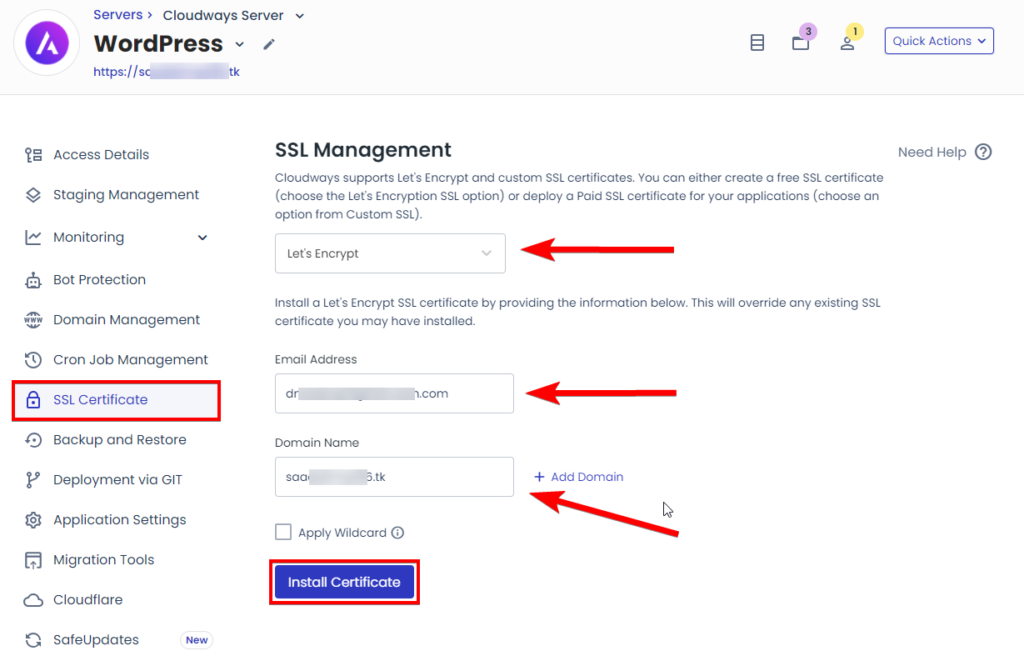
- Choose “Let’s Encrypt” for a free SSL or input details for a custom SSL.
- Fill in the necessary details like your email and domain name.
- Hit the “Create” button and wait for the magic to happen.
Installing the SSL Certificate
Installing The Ssl Certificate
Got your CSR? Great! Now, let’s install that SSL certificate. It’s like giving your website a shield. Here’s how:
- Once the CSR is ready, Cloudways will automatically generate your SSL certificate.
- It will handle the technical stuff, so sit back for a moment.
- After a short wait, you’ll see a success message. That’s your cue!
And then… you’re done. Your heart can rest easy, and your site is now secure. If you hit a bump, just reach out to Cloudways support. They’re friendly folks who are always ready to help.
Verifying Ssl Installation
Hey friends, installing an SSL certificate on Cloudways is a big step towards securing your website. But how do you make sure it’s working right? Let’s check that your SSL is set up properly. It’s like making sure the lock on your front door is working. You wouldn’t want to leave it to chance, right?
Ssl Checker Tools
Once you’ve got your SSL certificate up and running, it’s smart to double-check that everything’s in order. Think of it as looking both ways before you cross the street. Here are some handy tools you can use:
- SSL Labs: A free tool that checks your SSL configuration and gives you a score.
- Why No Padlock?: Helps you find out why your SSL padlock isn’t showing up in browsers.
- SSL Checker: Just enter your domain, and it’ll tell you if your SSL certificate is valid and more.
Using these tools is as easy as pie. Just type in your website’s address, and they do the rest. They’ll tell you if something’s off so you can fix it.
Troubleshooting Common Issues
Sometimes, even with the best setup, things don’t work as they should. Don’t worry! Here’s how you can tackle some common hiccups:
- Mixed Content Errors: This happens when your site has both secure and non-secure content. Like having both fresh and spoiled milk in your fridge. You need to find and fix these to make sure everything is secure.
- Expired Certificates: SSL certificates have an expiry date. It’s like your milk’s sell-by date. Make sure yours is up-to-date.
- Wrong Domain Name: Your SSL certificate needs to match your domain. It’s like a key fitting into the right lock.
Most of the time, these issues are simple to fix. A little bit of tweaking here and there, and you’re all set. And if you get stuck, Cloudways support is like a good neighbor, always there to help out.
Maintaining Ssl Health
Maintaining SSL health is crucial for website security. It keeps data safe. Regular checks ensure it works well. Let’s explore how to keep SSL in top shape on Cloudways.
Renewal Process
SSL certificates need renewal. On Cloudways, this is simple. The platform sends reminders. This way, you don’t forget. Follow the steps provided. Your SSL stays updated. Always check the expiry date. Renew before it’s too late. This keeps your site secure.
Monitoring Ssl Status
Keep an eye on SSL status. Cloudways offers tools for this. These tools alert you about any issues. Quick action can fix problems. This prevents site risks. Regular monitoring is key. It ensures SSL health. This makes your site safe for visitors.
Best Practices For Ssl On Cloudways
Securing your website with SSL is crucial on Cloudways. It protects data and builds trust. Follow best practices for a smooth experience. Let’s explore key steps for SSL on Cloudways.
Regular Updates And Patches
Keep SSL secure with updates. Cloudways makes this easy. Regularly check for SSL updates. Apply patches promptly. This keeps hackers away. Your website stays safe and sound.
Using Strong Ssl Protocols
Choose robust SSL protocols. TLS 1.2 and 1.3 are strong choices. Cloudways supports them. They help secure your data. Strong protocols mean better security. Your website visitors stay protected.

Frequently Asked Questions
How To Install Ssl On Cloudways?
To install SSL on Cloudways, navigate to your application’s “SSL Certificate” tab, enter your domain name, and click “Install Certificate. ” Your free Let’s Encrypt SSL will activate shortly.
Does Cloudways Come With Ssl?
Yes, Cloudways provides a free SSL certificate with its hosting plans to ensure secure connections for websites.
How To Install An Ssl Certificate?
Purchase an SSL certificate from a trusted authority. Access your hosting control panel and navigate to the SSL/TLS section. Generate a Certificate Signing Request (CSR) and submit it to the certificate authority. Once approved, upload the provided certificate files to your server.
Finally, configure your website to use SSL.
How To Install Ssl Certificate On Shared Hosting?
To install an SSL certificate on shared hosting, access your hosting control panel, navigate to the security section, and select SSL/TLS manager. Upload your certificate files there, following your host’s specific instructions to complete the installation.
Conclusion
Securing your website with SSL on Cloudways is a smart move. You’ve seen the steps, clear and simple. Follow them and you’re set. Your site’s security will be stronger, and your visitors will trust you more. Remember, Google likes secure sites too.
So, you’re not just protecting your users, you’re boosting your SEO. Need help? Cloudways support is always there. Start today and keep your site safe. It’s easy, and it’s worth it.