Are you ready to move your WordPress site to a faster, more reliable home? Switching your website to Hostinger can boost your site’s performance without the hassle.
But you might be wondering, how exactly do you migrate your WordPress site smoothly and safely? That’s where this Hostinger WordPress Migration Guide comes in. You’ll discover simple, step-by-step instructions to move your site without losing any content or downtime. Whether you’re new to hosting or just want a stress-free transfer, this guide will help you take control of your website’s future. Ready to get started? Check out Hostinger’s affordable plans and seamless migration options right here: Hostinger Hosting.
Introduction To Hostinger WordPress Migration
Migrating your WordPress website to Hostinger offers a fresh start with better performance. This process moves your entire site, including files and databases, to Hostinger’s servers. It ensures your website remains live with minimal downtime during transfer.
Hostinger provides tools and support to make migration smooth and secure. Understanding why and how to migrate helps avoid common issues and saves time.
Understanding The Purpose Of WordPress Migration To Hostinger
WordPress migration means transferring your website from one hosting provider to another. It includes moving all content, themes, plugins, and databases to Hostinger.
Reasons to migrate to Hostinger:
- Better website speed through optimized servers.
- Improved security with regular updates and backups.
- Cost-effective plans that fit small to large websites.
- Expert support available 24/7 to help during migration.
- Advanced control panel (hPanel) for easy site management.
Migrating helps improve user experience and search engine ranking by hosting on reliable infrastructure.
Why Choose Hostinger For Your WordPress Website?
Hostinger offers features tailored to WordPress users. These benefits simplify website management and boost performance.
| Feature | Benefit |
|---|---|
| Optimized WordPress Hosting | Faster loading times with servers tuned for WordPress. |
| Free SSL Certificate | Secure your website and improve SEO rankings. |
| One-Click WordPress Installer | Easy setup for beginners without technical skills. |
| 24/7 Customer Support | Get help anytime with WordPress-specific assistance. |
| Affordable Plans | Multiple options to fit budgets of all sizes. |
Hostinger’s migration tools let you transfer sites fast. The process can be done manually or with automated help from Hostinger’s support team. This reduces errors and downtime.
Credit: www.hostinger.com
Key Features Of Hostinger’s WordPress Migration Service
Hostinger offers a WordPress migration service designed to make website transfers simple and efficient. The service includes several features that help users move their sites with minimal hassle and downtime. These features focus on ease of use, support, and keeping your site live during the move.
Automated Migration Tool: Simplifying The Transfer Process
The Automated Migration Tool allows users to transfer their WordPress sites quickly. It handles most of the technical work automatically.
- Easy to start via the Hostinger control panel.
- Transfers website files and databases securely.
- Reduces errors by automating complex steps.
This tool is ideal for users who want a fast, hands-off migration experience.
Hpanel Integration: Managing Migration With Ease
Hostinger’s hPanel integrates migration features directly into its control panel.
- Users can start and track migrations from one place.
- All migration steps are guided through a simple interface.
- Domain pointing can be done after migration within hPanel.
This integration simplifies managing your site and hosting in one dashboard.
Free Migration Support: Ensuring A Smooth Transition
Hostinger offers free migration assistance for WordPress sites.
- Experts help with complex transfers.
- Support ensures no data is lost during migration.
- Helps users unfamiliar with technical migration steps.
This support reduces stress and ensures a smooth site transfer.
Minimal Downtime Guarantee: Keeping Your Site Live
Hostinger guarantees minimal downtime during migration.
| Feature | Benefit |
|---|---|
| Staged Migration | Your old site remains online until the new site is ready. |
| Domain Pointing after Migration | Only switch your domain after the new site works perfectly. |
| Fast Transfer | Reduces the time your site is unavailable to visitors. |
This approach helps maintain your site’s availability and visitor experience.
Manual Email Migration: What You Need To Know
Email services are not automatically migrated by Hostinger’s service.
- Users must manually transfer email accounts and data.
- Backup important emails before starting the migration.
- Hostinger support can guide manual email migration steps.
Planning email migration separately prevents data loss and service interruptions.
Step-by-step Guide To Migrating Your WordPress Site To Hostinger
Migrating your WordPress site to Hostinger can be simple and smooth. This guide walks you through each step clearly. Follow these instructions to move your website with minimal downtime and effort.
Preparing Your Website For Migration
Start by backing up your entire WordPress site. Save your files, database, themes, and plugins. Check your current hosting for any migration restrictions.
- Backup all website data using a plugin or manual export.
- Update WordPress and all plugins to the latest versions.
- Deactivate caching plugins to avoid conflicts during migration.
- Note down your current admin credentials for login access.
Signing Up And Accessing The Migration Tool In Hpanel
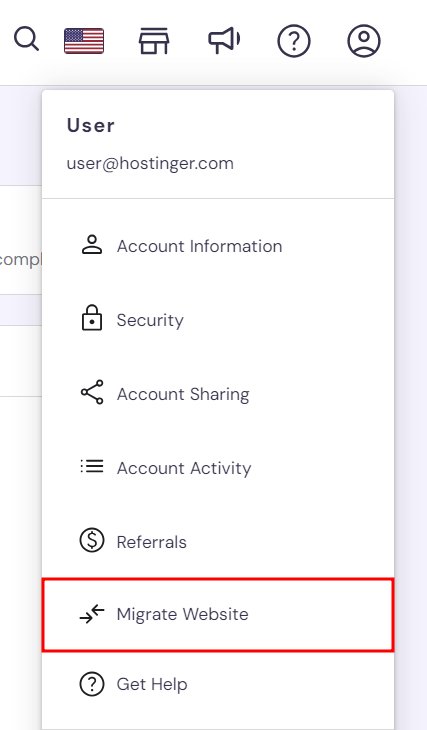
Create a Hostinger account if you don’t have one. After signing up, log into hPanel, Hostinger’s control panel.
- Go to the Websites section.
- Click on Migrations.
- Select Migrate Website to start the process.
Hostinger’s migration tool automates most steps. It helps transfer your site quickly and safely.
Providing Domain And Admin Credentials Securely
Enter your website’s domain and WordPress admin login details into the migration form. This allows Hostinger to access your site and copy data.
- Use your current WordPress admin username and password.
- Double-check domain spelling to avoid errors.
- Hostinger uses secure protocols to protect your information.
Never share your credentials outside the official migration tool interface.
Monitoring The Migration Progress
After submitting your data, the migration begins automatically. You can track progress in hPanel.
- The tool shows status updates and estimated time.
- Do not close the browser until migration finishes.
- Expect an email notification when migration completes successfully.
Post-migration Checks And Domain Pointing
Once migration ends, verify your site’s content and functionality on Hostinger.
- Test pages, plugins, and forms to ensure proper operation.
- Check SSL certificates and security settings.
- Manually migrate your email service if needed.
After confirming everything works, update your domain’s DNS records to point to Hostinger’s servers. This step makes your site live on Hostinger hosting.
| DNS Record | Value | Purpose |
|---|---|---|
| A Record | Hostinger IP address | Directs domain to Hostinger server |
| CNAME | www.yourdomain.com | Points subdomains to main domain |
DNS changes may take a few hours to propagate fully.
Pricing And Affordability Of Hostinger WordPress Hosting
Hostinger offers WordPress hosting plans designed to fit budgets of all sizes. Its pricing structure balances cost and features, making it a solid choice for website owners. Understanding the costs and benefits helps you choose the best plan for your needs.
Overview Of Managed WordPress Hosting Plans
Hostinger provides several managed WordPress hosting plans with varying features and prices. The main plans include:
| Plan | Price (per month) | Websites | Storage | Bandwidth | SSL Certificate |
|---|---|---|---|---|---|
| Single | $1.99 | 1 | 30 GB SSD | 100 GB | Free SSL |
| Starter | $2.99 | Up to 100 | 100 GB SSD | Unlimited | Free SSL |
| Business | $4.99 | Up to 100 | 200 GB SSD | Unlimited | Free SSL + Daily Backups |
All plans include managed WordPress features like automatic updates and caching.
Cost Benefits Compared To Other Providers
- Lower monthly rates than many popular hosts.
- No hidden fees or expensive add-ons.
- Long-term discounts for multi-year commitments.
- Free domain for the first year on some plans.
- High performance with affordable pricing.
Hostinger’s plans offer a cost-effective solution for personal blogs and small businesses.
Value Added By Free Migration Services
Hostinger includes free WordPress migration with its plans. This service:
- Saves time and effort during website transfer.
- Minimizes downtime for your site.
- Ensures safe and smooth migration by experts.
- Allows you to focus on your content, not technical tasks.
Free migration adds great value by reducing migration costs and stress.
Pros And Cons Based On Real-world Usage
Hostinger’s WordPress migration service offers a mix of strong benefits and some challenges. Many users appreciate the simplicity and speed of the process. Still, some tasks require manual effort, such as email and domain handling. This section breaks down real-world advantages and potential limitations, along with common user feedback.
Advantages: Ease Of Use, Speed, And Customer Support
Ease of Use: Hostinger’s migration tool is designed for simplicity. Users only need to sign up, access the Websites → Migrations section in hPanel, and submit their domain and admin login details. This process minimizes technical barriers.
Speed: The migration happens quickly, allowing users to move their WordPress site without long downtime. This fast transfer helps maintain website availability and user experience.
Customer Support: Hostinger provides responsive support throughout the migration. Their team assists with the migration steps and solves common issues, which reassures users during the transition.
Potential Limitations: Manual Email Migration And Domain Management
Manual Email Migration: Hostinger does not automate email service migration. Users must move their emails manually, which can be complex for those unfamiliar with email settings or backups.
Domain Management: Domain pointing should only occur after completing the migration. Managing DNS settings and domain transfers requires careful attention to avoid downtime or misconfiguration.
| Task | Automation | User Effort |
|---|---|---|
| WordPress Site Migration | Automated via hPanel | Low |
| Email Migration | Manual | High |
| Domain Pointing | Manual | Medium |
User Feedback And Common Challenges
- Users praise the migration tool’s clear interface and quick setup.
- Some struggle with moving emails due to lack of automation.
- Domain pointing errors arise when changes happen before migration finishes.
- Support receives positive remarks for timely and helpful responses.
- Occasional technical hiccups appear with large or complex sites.
Overall, Hostinger’s WordPress migration suits users wanting a fast, easy site move. Extra care is needed for email and domain management tasks.
Who Should Consider Migrating To Hostinger?
Hostinger offers a reliable and affordable hosting solution ideal for many WordPress users. Migrating to Hostinger fits those seeking better performance, user-friendly tools, and strong support. Understanding who benefits most helps decide if Hostinger is the right choice for your website needs.
Ideal Users: Small To Medium Businesses And Bloggers
Hostinger suits small to medium businesses aiming for affordable, scalable hosting. These businesses need stable uptime and easy management without high costs.
Bloggers also find Hostinger appealing due to its beginner-friendly interface and WordPress optimization. It supports growing traffic with fast loading speeds and simple migration tools.
- Businesses expanding their online presence
- Bloggers wanting better site speed and uptime
- Users needing easy WordPress setup and migration
Scenarios Where Hostinger Migration Excels
Hostinger migration works best in specific cases:
| Scenario | Why Hostinger Excels |
|---|---|
| Moving from slow or expensive hosts | Improved speed and cost efficiency |
| Need for simple, guided WordPress migration | Step-by-step migration tools and support |
| Desire for easy website and domain management | User-friendly hPanel with integrated services |
When To Consult Professional Migration Support
Some situations require expert help to avoid issues:
- Complex websites with custom plugins or themes
- Sites with extensive databases or large files
- Users unfamiliar with DNS settings or email migration
Professional support ensures smooth data transfer and minimal downtime. Hostinger offers migration assistance for these cases to protect site integrity.
Tips And Best Practices For A Seamless Migration
Migrating a WordPress website to Hostinger can be smooth with the right approach. Proper planning and careful steps help avoid downtime and data loss. Follow these tips to keep your site safe and fully functional during the move.
Backing Up Your Website Before Migration
Backup is the first step before any migration. It protects your data and content if something goes wrong. Use a reliable backup plugin or Hostinger’s built-in tools.
- Export your WordPress database and files.
- Save a copy on your local computer or cloud storage.
- Check backup completeness before proceeding.
Backing up ensures a quick recovery if the migration faces issues. Never skip this step.
Choosing The Right Hosting Plan
Select a Hostinger plan that fits your website needs. Consider your site’s size, traffic, and expected growth.
| Plan | Best For | Key Features |
|---|---|---|
| Single WordPress | Small websites | 1 Website, 30 GB SSD Storage, Free SSL |
| WordPress Starter | Growing blogs | Up to 100 Websites, 100 GB SSD, Free Domain |
| WordPress Pro | Business sites | Unlimited Websites, 200 GB SSD, Daily Backups |
Pick a plan offering enough resources and features. This ensures smooth site performance after migration.
Updating Dns Settings Correctly
DNS settings control where your domain points. Update these only after migration finishes to avoid downtime.
- Log in to your domain registrar.
- Find DNS or Nameserver settings.
- Replace old nameservers with Hostinger’s:
ns1.dns-parking.com ns2.dns-parking.com Allow up to 24 hours for DNS changes to take effect worldwide. Avoid changing DNS during peak traffic times.
Testing Your Website After Migration
Testing verifies your website works well on Hostinger. Check all important functions before switching DNS.
- Browse pages and posts for loading errors.
- Test forms, shopping carts, and login features.
- Check images and media display correctly.
- Verify plugins and themes are active and updated.
Use Hostinger’s temporary URL or edit your hosts file to test before DNS update. Fix any issues promptly.
Credit: www.hostinger.com
Conclusion: Making The Most Of Your WordPress Migration To Hostinger
Migrating your WordPress website to Hostinger opens doors to improved speed, security, and support. Careful planning and using Hostinger’s tools make the process smooth. This section highlights key benefits, essential steps, and tips to ensure a successful transfer.
Summary Of Key Benefits And Steps
Hostinger offers several advantages for WordPress users:
- Fast loading times with optimized servers
- Easy-to-use control panel (hPanel) for management
- Free migration service for hassle-free transfers
- Affordable pricing with reliable uptime
- Strong security features like SSL and backups
Key steps to migrate effectively:
- Sign up for a Hostinger plan that suits your needs.
- Access
Websites → Migrationsin hPanel. - Click Migrate Website and provide your domain and admin details.
- Wait for the migration to complete; avoid pointing your domain until done.
- Manually migrate your email service if applicable.
- Test your site thoroughly on Hostinger’s servers.
Encouragement To Use Hostinger’s Migration Tools
Hostinger’s migration tools save time and reduce errors. The automated migration plugin transfers files, databases, and settings seamlessly.
Benefits of using the migration tool:
- No technical skills required
- Fast transfer with minimal downtime
- Support team ready to assist if issues arise
Manual migration is possible but more complex. The plugin ensures a smoother experience for most users.
Final Thoughts On Ensuring A Successful Transfer
Successful migration depends on preparation and testing. Follow these tips for best results:
- Backup your website before starting migration.
- Check PHP versions and plugin compatibility on Hostinger.
- Clear caches after migration to see latest changes.
- Test all site functions including forms, links, and media.
- Update DNS settings only after confirming site stability.
Stay patient during the process. Using Hostinger’s tools and support helps avoid common pitfalls.
Credit: www.hostinger.com
Frequently Asked Questions
What Is Hostinger WordPress Migration?
Hostinger WordPress migration is transferring your WordPress site to Hostinger hosting. It ensures your website runs smoothly on Hostinger servers with minimal downtime.
How Do I Migrate WordPress To Hostinger?
Sign up for Hostinger, go to hPanel, select “Migrate Website,” and provide site details. Hostinger automates the migration for you securely and efficiently.
Is Hostinger WordPress Migration Free?
Yes, Hostinger offers free migration for WordPress sites from other hosts. Their expert team handles the process to ensure a hassle-free transfer.
How Long Does Hostinger Migration Take?
Migration usually takes a few hours depending on site size. Hostinger keeps your website live during the transfer to avoid downtime.
Conclusion
Migrating your WordPress site to Hostinger can be simple and smooth. Follow each step carefully to avoid common mistakes. Make sure to back up your website before starting the process. Hostinger offers tools and support to help with migration. After moving, check your site for any issues and fix them quickly. Enjoy faster loading and better performance with Hostinger hosting. Ready to start? Try Hostinger now by clicking here for a reliable hosting experience.