Looking to redirect your subdomain easily and without hassle? Whether you want to send visitors from a subdomain to your main site or another URL, mastering subdomain redirects can boost your site’s navigation and SEO.
This guide will walk you through every step of setting up a subdomain redirect on Hostinger, using simple instructions you can follow right now. If you want a reliable hosting provider to manage your domains smoothly, check out Hostinger—trusted by millions for its speed and user-friendly control panel. Keep reading to gain full control over your subdomain redirects and improve your website’s performance with ease!

Credit: www.youtube.com
Introduction To Hostinger Subdomain Redirect
Hostinger’s subdomain redirect offers simple and effective tools for managing web traffic. It helps users send visitors from one subdomain to another URL or IP address. The process is quick and does not require complex technical knowledge. These features make Hostinger a solid choice for redirect needs.
User-friendly Hpanel Interface For Easy Setup
The hPanel interface is designed to be clear and easy to use. Users can find the redirect option quickly within the dashboard. Setting up a redirect involves just a few clicks:
- Go to Websites > Dashboard.
- Find and click on Redirects in the sidebar.
- Select the subdomain to redirect from the dropdown list.
- Enter the destination URL or IP address.
- Save changes to activate the redirect.
This process suits beginners and saves time for experienced users.
Flexible Redirect Options: Url And Ip-based Redirects
Hostinger supports two main redirect types:
- URL-based redirects: Send traffic to any valid web address.
- IP-based redirects: Redirect to a specific server IP if needed.
This flexibility allows users to point subdomains to websites, web apps, or servers easily. Both options work seamlessly through the hPanel setup.
Support For Custom Paths In Redirects
Users can add custom paths in their redirects. For example, redirecting subdomain.example.com/path to a specific page on another site. This feature helps control traffic flow precisely and improves user experience.
Adding a path is simple:
- Specify the path in the redirect setup form.
- The redirect will only apply to that subdomain path.
No Hosting Plan Required For Redirect Setup
Hostinger allows setting up subdomain redirects without an active hosting plan. This saves cost for users who only need to manage redirects. Domain owners can control redirects directly through the hPanel interface.
This feature is ideal for:
- Domain parking
- Traffic management
- Link forwarding
It simplifies domain management by separating redirect needs from hosting services.
Key Features Of Hostinger Subdomain Redirect
Setting up a subdomain redirect in Hostinger is easy and fast. It helps you forward visitors from one subdomain to another URL or IP address. This guide will take you through each step clearly.
Accessing The Redirect Settings In Hpanel
Start by logging into your Hostinger hPanel. Follow these steps:
- Go to Websites and select your site’s dashboard.
- Look for the Redirects option in the sidebar menu.
- Click on Redirects to open the redirect management page.
This is where you control all domain and subdomain redirects.
Selecting The Subdomain To Redirect
In the Redirects page, find the dropdown labeled Redirect. It shows all your domains and subdomains.
- Click the dropdown.
- Select the subdomain you want to redirect.
This step links the redirect to the correct source address.
Configuring The Redirect Destination Url Or Ip
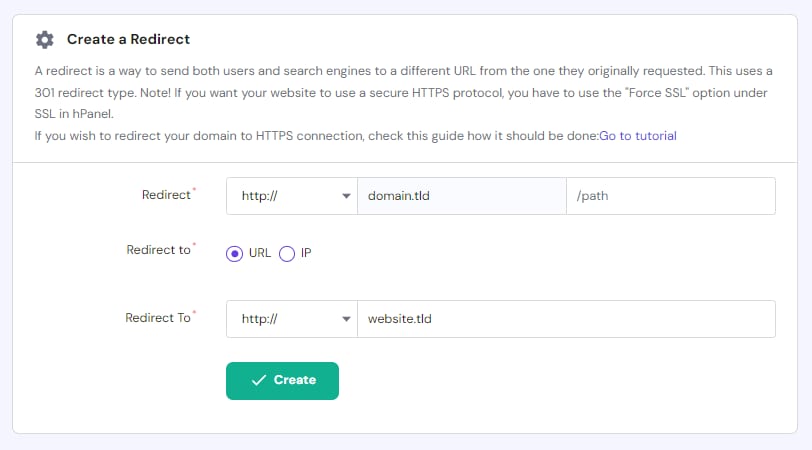
Next, set the destination where the subdomain will point. Enter a full URL or an IP address in the Destination field.
- Use
http://orhttps://for URLs. - For IP, input the numeric address directly.
This tells Hostinger where visitors should go after the redirect.
Specifying Optional Custom Path Redirects
Optionally, add a custom path if you want to redirect a specific subdomain path.
- In the /path field, type the subfolder or page.
- Leave blank to redirect the whole subdomain.
This allows more precise control over the redirect target.
Saving And Testing The Redirect
Finally, click Save to apply the redirect.
Test it by entering the subdomain URL in your browser. It should take you to the destination you set.
If it does not redirect, clear your browser cache and try again.
Step-by-step Guide To Setting Up A Subdomain Redirect In Hostinger
Hostinger offers subdomain redirect features that suit different budgets. The pricing structure is designed to give users access to essential redirect tools without heavy costs. Both free and paid plans include options for setting up redirects, making it accessible for beginners and advanced users alike.
This section breaks down the availability of redirect setup across plans, compares costs with other hosts, and highlights added value from Hostinger’s integrated domain management.
Redirect Setup Availability On Free And Paid Plans
Redirect setup is available on Hostinger’s paid plans, including Single, Premium, and Business Shared Hosting. These plans allow users to easily create and manage redirects via the hPanel dashboard.
Free plans, however, do not include redirect setup options. Users must upgrade to a paid plan to access the redirect feature.
- Paid Plans: Full redirect setup access, including subdomain and domain redirects.
- Free Plan: Redirect setup not available.
Cost Comparison With Other Hosting Providers
| Hosting Provider | Starting Price (Monthly) | Redirect Feature Availability | Notes |
|---|---|---|---|
| Hostinger | $1.99 | Included in all paid plans | Affordable pricing with easy redirect setup |
| Bluehost | $2.95 | Included in paid plans | Redirects often require manual DNS edits |
| GoDaddy | $5.99 | Available with some paid plans | Redirects may cost extra or need domain forwarding |
| SiteGround | $3.99 | Included in paid plans | Redirects managed via cPanel or hPanel |
Hostinger stands out as a low-cost provider with redirect features included in all paid tiers.
Value Added By Hostinger’s Integrated Domain Management
Hostinger’s control panel combines domain management and redirect setup in one place. This integration simplifies redirect creation and reduces technical steps.
- Manage domains, subdomains, and redirects from a single dashboard.
- Set up redirects with clear, user-friendly forms.
- Custom path redirects available for precise URL forwarding.
- Automatic SSL support ensures secure redirects.
This integrated system saves time and lowers the learning curve for users. It also reduces the need for external tools or manual DNS configuration.
Pricing And Affordability Of Hostinger Redirect Features
Hostinger offers a simple way to manage subdomain redirects. It suits beginners and users needing quick setups. Understanding its strengths and limitations helps decide if it fits your needs.
Pros: Ease Of Use
Hostinger’s interface is user-friendly. You can find the redirect option easily in the dashboard. The process involves just a few clicks:
- Go to Websites > Dashboard.
- Open the Redirects section from the sidebar.
- Select the subdomain to redirect.
- Enter the destination URL or path.
This clear workflow reduces errors and saves time. No coding or complex steps are needed.
Pros: Speedy Setup
Setting up a subdomain redirect takes only minutes. The process is fast due to Hostinger’s streamlined control panel. Changes apply quickly without long delays.
- Instant redirect activation after saving settings.
- No waiting for DNS propagation beyond standard times.
- Simple input fields avoid confusion.
This speed helps if you must change redirects often or on short notice.
Pros: Flexible Redirect Options
Hostinger supports various redirect types. You can set:
- Permanent (301) redirects for SEO-friendly moves.
- Temporary (302) redirects for short-term changes.
- Redirects with or without custom path specification.
These options cover most standard redirect needs without extra tools.
Cons: Limited Advanced Redirect Rules Compared To Third-party Tools
Hostinger lacks some advanced redirect features. It does not support:
- Conditional redirects based on user agent or location.
- Complex pattern matching with regular expressions.
- Chained or multi-step redirects in one setup.
For complex redirect rules, dedicated tools or server configurations are better choices.
Real-world User Feedback And Performance Insights
| Aspect | User Feedback | Performance |
|---|---|---|
| Usability | Easy to use for beginners and non-technical users. | Quick setup and activation reported consistently. |
| Reliability | Redirects work as expected with minimal downtime. | Stable performance, with redirects processed without errors. |
| Limitations | Advanced users miss more powerful redirect configurations. | Cannot handle complex redirect needs internally. |
Overall, Hostinger suits standard redirect tasks well. It offers a solid balance of simplicity and functionality.
Pros And Cons Of Using Hostinger For Subdomain Redirects
Setting up a subdomain redirect on Hostinger usually goes smoothly. Still, sometimes redirects do not work as expected. Knowing how to troubleshoot common problems saves time and keeps your site running well.
This section explains typical issues and how to fix them. It also covers SEO concerns and when to seek help from Hostinger support.
Redirect Not Working: Common Causes And Fixes
Redirect failures often result from simple mistakes. Check these key points to resolve most problems:
- Incorrect Redirect URL: Verify the target URL is entered correctly.
- DNS Propagation Delay: DNS changes may take up to 24 hours to update.
- Cache Issues: Clear your browser cache or test in incognito mode.
- Misconfigured Redirect Type: Use a 301 redirect for permanent moves and 302 for temporary.
- Missing Redirect Rules: Ensure redirect rules are properly set in Hostinger’s hPanel under the Redirects section.
If using .htaccess for redirects, confirm the syntax is correct. Example code for a subdomain redirect:
RewriteEngine On RewriteCond %{HTTP_HOST} ^subdomain.yourdomain.com$ [NC] RewriteRule ^(.)$ https://targetdomain.com/$1 [L,R=301]Ensuring Seo Rankings Are Maintained After Redirect
Redirects can impact SEO if not done properly. Follow these tips to protect your site’s rankings:
- Use 301 Redirects: They tell search engines the move is permanent.
- Update Internal Links: Replace old URLs with the new redirected URLs.
- Check Redirect Chains: Avoid multiple redirects as they slow down page loading.
- Submit Updated Sitemap: Include new URLs in Google Search Console.
Monitor traffic and rankings after the redirect to catch any SEO issues early.
When To Contact Hostinger Support For Assistance
Hostinger’s support team can help if issues persist after basic troubleshooting.
- Redirect does not work after 24 hours of setup and cache clearing.
- Confusing error messages appear when accessing the subdomain.
- Complex redirect rules or SSL certificate problems arise.
- DNS settings are unclear or need verification.
Contact support via Hostinger’s live chat or ticket system for quick help.
Credit: www.hostinger.com
Recommendations For Ideal Users And Use Cases
Hostinger makes managing subdomain redirects straightforward and efficient. Its user-friendly interface guides users through the entire setup quickly. Whether redirecting to another subdomain or a full URL, Hostinger handles the task with ease. This simplicity helps save time and avoid technical hurdles.
Clear steps and flexible options empower users to control their redirects confidently. Hostinger’s platform supports custom paths and multiple redirect types, offering versatility for diverse needs. This makes it a solid choice for anyone aiming to manage redirects without extra hassle.
Summary Of Benefits And Key Takeaways
- Easy Setup: Intuitive dashboard simplifies subdomain redirect creation.
- Flexible Options: Supports redirects with or without custom paths.
- Time-Saving: Quick process reduces configuration time significantly.
- Reliable Performance: Stable redirects ensure smooth user experience.
- Clear Management: Centralized control panel for monitoring redirects.
Encouragement To Try Hostinger’s Redirect Features
Start using Hostinger to manage your subdomain redirects with ease. The platform suits beginners and experienced users alike. Its straightforward tools allow fast setup without complex coding. Experiment with different redirect types and paths to fit your site’s needs.
Hostinger’s design focuses on clarity and simplicity, making redirect management accessible. Testing redirects is simple and instant, helping you confirm settings quickly. Taking a few minutes to explore these features can improve your website’s navigation and SEO.
Additional Resources And Support Links
| Resource | Description | Link |
|---|---|---|
| Hostinger Support Center | Official guides and tutorials for domain and subdomain redirects. | Visit Support |
| Hostinger hPanel Redirect Setup | Step-by-step instructions on setting up redirects in Hostinger’s control panel. | Redirect Setup Guide |
| Community Forums | Discussion threads and user experiences on subdomain redirects. | Cloudflare Redirect Rules |

Credit: domain-forward.com
Frequently Asked Questions
How Do I Redirect A Subdomain In Hostinger?
To redirect a subdomain in Hostinger, go to Websites → Dashboard, select Redirects, choose your subdomain, and enter the destination URL. Save changes to activate the redirect immediately.
How To Do A Subdomain Redirect?
Log in to your hosting panel, go to Domains → Redirects. Select the subdomain, enter the target URL, and save changes.
What Is 301 And 302 Redirect?
A 301 redirect permanently moves a URL to a new address, passing SEO value. A 302 redirect temporarily moves a URL without passing SEO value.
How To Redirect A Url In Hostinger?
Log in to Hostinger hPanel and go to Domains → Redirects. Select the domain, enter the destination URL, and save changes to redirect.
Conclusion
Setting up a subdomain redirect on Hostinger is simple and quick. Follow the steps carefully to avoid errors. Redirects help guide visitors to the right pages easily. Using Hostinger’s hPanel makes managing redirects straightforward. This improves your website’s user experience and navigation. Need reliable hosting to try this yourself? Check out Hostinger for affordable and easy hosting solutions. Start redirecting your subdomains today without hassle.