If you’re running a website on Hostinger, securing it with an SSL certificate is crucial. But what happens when your SSL isn’t working as it should?
You might see frustrating errors like “This site can’t provide a secure connection,” or your visitors might get warnings that your site isn’t safe. These issues can hurt your credibility and even impact your search rankings. Don’t worry—this Hostinger SSL Troubleshooting Guide is here to help you fix those problems quickly and easily. From checking your SSL certificate status to configuring DNS records and solving common errors, you’ll find clear, step-by-step solutions tailored just for Hostinger users. Ready to secure your website and keep your visitors safe? Let’s dive in and get your SSL working perfectly. If you haven’t chosen your hosting yet, consider starting with Hostinger’s affordable plans and free SSL certificates to enjoy hassle-free website security today!

Credit: www.hostinger.com
Introduction To Hostinger Ssl And Its Importance
SSL certificates protect websites by encrypting data between servers and visitors. This encryption keeps sensitive information safe from hackers and cyber threats. Hostinger offers easy SSL integration to help website owners secure their online presence.
Having an SSL certificate is vital for trust and search engine ranking. Websites without SSL show warnings in browsers, which can scare visitors away. Hostinger’s SSL services ensure smooth, secure connections for all users.
What Is Ssl And Why It Matters For Your Website Security
SSL stands for Secure Sockets Layer. It creates a secure link between a web server and a browser. This link encrypts data like passwords, credit card numbers, and personal details.
SSL matters because:
- It protects user data from theft.
- It confirms your website’s identity to visitors.
- It improves search engine rankings by enabling HTTPS.
- It prevents browser warnings that can reduce traffic.
Overview Of Hostinger’s Ssl Offering And Its Benefits
Hostinger provides free SSL certificates with all hosting plans. These certificates are easy to install and renew automatically.
| Feature | Benefit |
|---|---|
| Free SSL Certificates | Save money while securing your site. |
| Automatic Renewal | Keep your site secure without manual updates. |
| Easy Setup | Activate SSL with just a few clicks. |
| Compatibility | Works with Hostinger Website Builder and Cloudflare integration. |
Hostinger’s SSL helps maintain visitor trust and improves SEO rankings. It also reduces downtime caused by SSL errors.
Common Ssl Issues Faced By Hostinger Users
Some users face problems with SSL on Hostinger-hosted sites. Common issues include:
- Expired Certificates: Certificates that are not renewed cause security warnings.
- Improper Installation: Incorrect setup can block HTTPS connections.
- DNS Misconfiguration: Wrong DNS records prevent SSL from working properly.
- Browser Compatibility: Outdated browsers may not support modern SSL/TLS protocols.
- Date and Time Errors: Incorrect system time on the server or device causes SSL failures.
Proper troubleshooting and following Hostinger’s guide can resolve these issues quickly.
Key Features Of Hostinger Ssl And Their Benefits
Hostinger SSL offers essential features that improve website security and ease of use. These features help protect data, build visitor trust, and support website performance. Each function is designed to make SSL management simple and effective for all users.
Free Ssl Certificates: Enhancing Security Without Extra Cost
Hostinger provides free SSL certificates with all hosting plans. This means website owners can secure their sites at no extra charge. The certificates encrypt data, protecting it from hackers and boosting visitor confidence.
Benefits include:
- Cost savings by avoiding paid SSL services
- Improved search engine ranking due to HTTPS
- Increased trust with a secure padlock icon in browsers
Automated Ssl Installation: Simplifying Setup For Beginners
Hostinger automates the SSL installation process. This feature removes complex manual steps, making setup quick and easy. Users with little technical knowledge can secure their sites without hassle.
Key advantages:
- Automatic certificate issuance and renewal
- One-click activation from the control panel
- Elimination of human errors during setup
Compatibility With Various Browsers And Devices
Hostinger SSL certificates work across all major browsers and devices. This ensures visitors experience secure connections no matter their platform. Compatibility boosts website accessibility and trust.
| Supported Browsers | Supported Devices |
|---|---|
| Chrome, Firefox, Safari, Edge | Desktops, Smartphones, Tablets |
| Opera, Internet Explorer | Windows, macOS, Android, iOS |
Integration With Hostinger’s Dns And Website Builder For Seamless Security
Hostinger SSL integrates smoothly with its DNS management and Website Builder tools. This helps maintain correct DNS records required for SSL to function properly. It also allows automatic SSL updates within the Website Builder environment.
Benefits include:
- Consistent HTTPS enforcement across all website pages
- Reduced risk of SSL errors from DNS misconfiguration
- Easy SSL management without leaving the Hostinger dashboard
Step-by-step Guide To Troubleshooting Hostinger Ssl Issues
SSL issues can stop your website from showing as secure. This guide helps you fix common SSL problems on Hostinger quickly. Follow each step to find and solve SSL errors. Clear instructions make troubleshooting easy and fast.
Verifying Ssl Certificate Status In Hostinger Control Panel
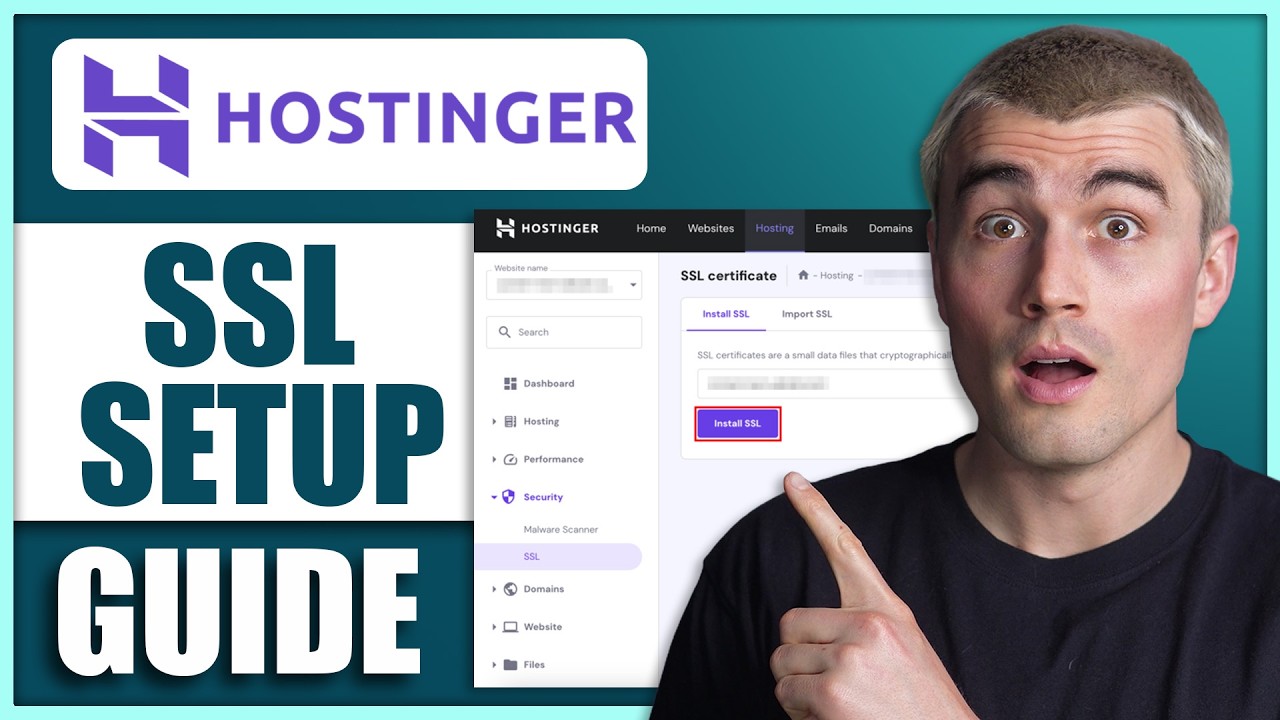
Start by checking your SSL certificate status in the Hostinger control panel. It shows if your SSL is active or needs attention.
- Log in to your Hostinger account.
- Go to the SSL section under your hosting dashboard.
- Check the certificate status: Active, Pending, or Expired.
- If pending, wait for issuance or try re-issuing the certificate.
Ensuring Correct Dns Configuration And Nameserver Settings
SSL depends on proper DNS and nameserver settings. Incorrect setup blocks SSL validation.
- Verify your domain’s A record points to Hostinger server IP.
- Check if nameservers match Hostinger’s recommended settings.
- Use online DNS tools to confirm DNS propagation.
Wrong DNS settings cause SSL errors like connection refusal or insecure warnings.
Fixing The “this Site Can’t Provide A Secure Connection” Error
This error means the browser can’t establish a secure HTTPS link.
- Check if SSL certificate is properly installed.
- Clear your browser cache and cookies.
- Make sure your site URL uses https:// in Hostinger settings.
- Disable conflicting browser extensions that may block SSL.
Resolving Ssl Certificate Expiry And Renewal Problems
Expired SSL certificates cause browsers to block your site.
| Step | Action |
|---|---|
| 1 | Check certificate expiry date in Hostinger panel. |
| 2 | Renew the SSL certificate before expiry to avoid downtime. |
| 3 | Reinstall the renewed certificate if needed. |
| 4 | Confirm renewal success by visiting your site via HTTPS. |
Clearing Browser Cache And Updating System Date/time
Old cache or incorrect system time may cause SSL errors.
- Clear your browser cache and cookies completely.
- Set your computer’s date and time correctly.
- Restart the browser and try visiting your site again.
Correct time settings help SSL certificates validate properly.
Checking Server Name Indication (sni) And Cipher Suites Compatibility
SNI allows multiple SSL certificates on one IP address. Compatibility issues cause SSL failures.
- Ensure your Hostinger server supports SNI (most do).
- Check cipher suite settings for modern encryption standards.
- Update your server software to support latest SSL/TLS protocols.
Proper SNI and cipher support ensure smooth SSL handshakes and secure connections.
Credit: www.youtube.com
Pricing And Affordability Breakdown Of Hostinger Ssl
Hostinger offers SSL certificates as part of its hosting packages. The pricing structure is straightforward and designed to suit different user needs. Understanding the difference between free and premium SSL options helps users choose the best fit for their website security.
Free Vs. Premium Ssl Certificates On Hostinger: What’s Included
Hostinger includes free SSL certificates with all its hosting plans. These certificates provide basic encryption to secure websites and enable HTTPS. Free SSL covers:
- Domain validation
- Automatic installation
- Renewal support
- Basic security for blogs, portfolios, and small businesses
Premium SSL certificates, available at an extra cost, offer:
- Extended validation (EV) for enhanced trust
- Warranty protection
- Multi-domain and wildcard support
- Higher encryption levels and stronger identity verification
Choosing premium SSL suits ecommerce sites and businesses needing higher security.
Cost Comparison With Other Hosting Providers
| Provider | Free SSL Included | Premium SSL Cost | Notes |
|---|---|---|---|
| Hostinger | Yes | $10 – $50 per year | Free SSL with all plans; affordable premium options |
| Bluehost | Yes | $49.99 – $199.99 per year | Free SSL on shared hosting; higher premium prices |
| SiteGround | Yes | $60 – $150 per year | Free SSL included; premium SSL costly |
| GoDaddy | No | $63.99 – $299.99 per year | No free SSL; premium SSL prices are high |
Value For Money: Assessing The Security Benefits Vs. Price
Hostinger’s free SSL certificates provide solid security at no extra cost. They are ideal for most websites requiring basic encryption. These free SSLs help:
- Protect user data
- Boost SEO rankings
- Build visitor trust
Premium SSL certificates offer advanced features. These include:
- Stronger validation methods
- Warranties against breaches
- Support for multiple domains
The cost of premium SSL is reasonable compared to other hosts. It balances security needs with budget limits.
Hostinger stands out for its free SSL inclusion and affordable premium options. This makes website security accessible to beginners and professionals alike.
Pros And Cons Of Hostinger Ssl Based On Real-world Usage
Hostinger SSL offers a mix of benefits and challenges based on actual user experiences. Many users appreciate its simplicity and security, while some face issues during setup or need more advanced features. This section breaks down the key advantages and drawbacks, along with common user feedback and support questions.
Advantages: Easy Installation, Free Options, And Reliable Security
Easy Installation: Hostinger SSL is straightforward to install. The process requires only a few clicks in the hosting panel. Even beginners find it simple to enable SSL and secure their websites quickly.
Free Options: Hostinger includes free SSL certificates with all hosting plans. Users do not pay extra for basic SSL, making it cost-effective for small and medium websites.
Reliable Security: The SSL certificates provide strong encryption, ensuring secure HTTPS connections. This builds trust with visitors and improves SEO rankings.
- Step-by-step setup guidance available
- Automatic SSL renewal included
- Compatibility with major browsers and devices
Drawbacks: Occasional Configuration Challenges And Limited Advanced Features
Occasional Configuration Challenges: Some users report errors like “This site can’t provide a secure connection.” These usually arise from DNS misconfigurations or expired certificates.
Troubleshooting requires checking DNS records, server settings, and sometimes clearing browser cache. Incorrect Server Name Indication (SNI) settings can also cause issues.
Limited Advanced Features: Hostinger SSL focuses on essential security. It lacks advanced options like Extended Validation (EV) certificates or wildcard SSL in free plans.
| Feature | Hostinger SSL | Advanced SSL Options |
|---|---|---|
| Free SSL | Yes | Varies by provider |
| Wildcard SSL | No (free plans) | Yes |
| Extended Validation (EV) | No | Yes |
| Automatic Renewal | Yes | Yes |
User Feedback And Common Support Queries
Users often ask about SSL errors and how to fix them. Common questions include:
- How to fix “This site can’t provide a secure connection”?
- Why is SSL showing as expired or invalid?
- How to properly set DNS records for SSL?
- Steps to enable HTTPS on Hostinger Website Builder sites
- Integrating SSL with Cloudflare for better performance
Hostinger’s Help Center offers clear tutorials and support responses to these issues. Most problems resolve with simple checks of SSL status, DNS setup, and browser compatibility.
User reviews highlight quick SSL activation and overall security improvements. Some users mention the need for more detailed support on advanced SSL configurations.
Ideal Users And Scenarios For Hostinger Ssl
Hostinger SSL suits a wide range of users who need reliable website security. It works well for those who want simple, cost-effective SSL certificates. The setup is easy, making it perfect for beginners and busy website managers. SSL helps protect data and builds trust with visitors. Below are key groups that benefit most from Hostinger SSL and when to consider advanced options.
Small To Medium Business Owners Looking For Cost-effective Security
Small and medium businesses require affordable security solutions. Hostinger SSL offers free certificates with hosting plans. This reduces costs while securing customer data and payment information. Business owners can:
- Enable HTTPS quickly without extra fees
- Improve search engine rankings with secured sites
- Boost customer confidence with visible security badges
Its easy setup and automatic renewal save time and prevent security lapses.
Bloggers And Personal Website Creators Needing Simple Ssl Solutions
Bloggers and personal site owners want hassle-free SSL. Hostinger SSL fits perfectly here. It requires no technical skills for installation. Key benefits include:
- One-click SSL activation inside Hostinger dashboard
- Automatic certificate renewal to avoid downtime
- Support for common SSL errors explained in the troubleshooting guide
This setup helps keep sites secure and accessible without complex configurations.
Developers And Agencies Managing Multiple Client Sites On Hostinger
Developers and agencies often handle many websites at once. Hostinger SSL simplifies SSL management across all client sites. Features that aid this group:
| Feature | Benefit |
|---|---|
| Free SSL certificates for all hosting plans | Cost savings across multiple sites |
| Central dashboard to activate and monitor SSL | Efficient management and troubleshooting |
| Compatibility with Cloudflare and other CDNs | Enhanced security and site speed |
Clear troubleshooting steps reduce support time and improve client satisfaction.
When To Consider Upgrading To Premium Ssl Or Third-party Certificates
Some websites need stronger SSL features beyond free certificates. Consider upgrades if your site:
- Handles sensitive user data like payment details or health info
- Requires Extended Validation (EV) to display company name in browser
- Needs wildcard SSL covering multiple subdomains
- Demands special encryption standards or compatibility
Premium or third-party SSL often includes warranties and higher trust indicators. Use Hostinger’s guide to verify if the free SSL meets your needs or if an upgrade is wise.
Additional Tips And Best Practices For Maintaining Ssl Health
Maintaining SSL health is vital for website security and trust. SSL issues can disrupt secure connections and harm your site’s reputation. Following simple tips and best practices helps keep your SSL certificate working smoothly. This section shares practical advice to ensure your SSL remains valid and effective.
Regularly Monitoring Ssl Status And Renewal Dates
Check your SSL certificate status often to avoid unexpected expiration. Expired SSL causes browsers to warn visitors and block access. Track renewal dates carefully and renew certificates before they expire.
- Set calendar reminders for SSL renewal dates
- Use Hostinger’s control panel to view SSL status
- Verify certificate validity period periodically
Regular monitoring prevents downtime and keeps HTTPS active.
Using Online Tools To Verify Ssl Installation And Configuration
Online SSL checkers help confirm correct installation and configuration. These tools identify common issues like incomplete certificate chains or mismatched domains.
| Tool | Purpose | Key Features |
|---|---|---|
| SSL Labs | Comprehensive SSL analysis | Grade SSL strength, detect errors, check chain |
| Why No Padlock? | Detect mixed content | Find insecure elements blocking HTTPS |
| Hostinger SSL Checker | Verify Hostinger SSL setup | Simple validation for Hostinger users |
Regular tests ensure SSL works properly and protects visitors.
Keeping Hosting Environment And Cms Updated For Optimal Security
SSL depends on a secure hosting setup and updated software. Outdated servers or CMS versions may cause SSL errors or vulnerabilities.
- Update Hostinger hosting environment regularly via control panel
- Keep CMS platforms like WordPress up to date
- Apply security patches and plugin updates promptly
- Ensure server time and date settings are correct
Proper updates reduce SSL conflicts and strengthen site security.
Leveraging Hostinger Support Resources For Quick Issue Resolution
Hostinger offers support resources to resolve SSL problems fast. Use these to save time and avoid prolonged SSL downtime.
- Access Hostinger’s help center for detailed guides
- Contact live chat support for personalized troubleshooting
- Utilize Hostinger forums and community advice
- Follow SSL setup tutorials specific to Hostinger hosting
Quick support helps fix SSL errors before they impact users.
Conclusion: Ensuring A Secure Website With Hostinger Ssl
Securing your website with Hostinger SSL is essential for protecting user data and boosting trust. Proper SSL setup stops security warnings and keeps connections safe. Troubleshooting SSL issues quickly helps maintain a smooth user experience and improves search rankings. Follow these key steps to keep your website secure and reliable.
Summary Of Key Troubleshooting Steps
- Check the SSL certificate status in your Hostinger control panel.
- Fix errors like “This site can’t provide a secure connection” by verifying DNS records.
- Ensure your SSL certificate is valid, not expired, and properly installed.
- Update your system date and time to avoid SSL mismatch errors.
- Confirm your browser supports the necessary SSL/TLS protocols.
- Verify server settings like Server Name Indication (SNI) are enabled.
- Use Hostinger’s tools to troubleshoot SSL with Website Builder or Cloudflare integration.
The Importance Of Proactive Ssl Management
SSL certificates need regular attention. Expired or misconfigured SSL can block site access. Proactive management means checking SSL status often. Renew certificates before they expire. Keep DNS records updated and server settings correct. This prevents downtime and security risks. Secure websites build trust and rank better in search engines.
Encouragement To Utilize Hostinger Ssl Features For Peace Of Mind
Hostinger offers free SSL certificates with all hosting plans. Use their tools to install and manage SSL easily. The Help Center provides clear guides and support. Enabling SSL brings peace of mind by securing your site and visitors. Take advantage of Hostinger SSL features to protect your website 24/7.

Credit: www.hostinger.com
Frequently Asked Questions
How To Troubleshoot Ssl Certificate Issues?
Check system date and time accuracy. Verify SSL certificate validity and expiration. Ensure server supports SNI and correct cipher suites. Configure browser for latest TLS protocols. Confirm DNS points to your hosting provider. Clear browser cache and restart it to apply changes.
How To Check If An Ssl Certificate Is Working Or Not?
Visit your website and look for a padlock icon in the browser’s address bar. Confirm the URL starts with “https://”. Use online SSL checker tools to verify certificate validity and expiration. Ensure your server and DNS settings support SSL properly for accurate results.
How To Check Ssl On Hostinger?
Log in to Hostinger hPanel, navigate to the SSL section under the Security tab. Check the SSL certificate status there.
Why Is My Website Not Secure Hostinger?
Your Hostinger website shows “not secure” if it lacks a valid SSL certificate, uses expired SSL, or has improper HTTPS setup. Ensure SSL is active, DNS points correctly, and clear browser cache to fix this issue.
Conclusion
Troubleshooting SSL on Hostinger can feel tricky at first. Small errors often cause big problems. Follow simple steps to check your SSL certificate status and settings. Fix DNS records and clear browser cache to improve connection. Keep your system date and time accurate for smooth SSL use. Use guides like the Hostinger SSL Troubleshooting Guide to stay on track. Secure your website and boost trust with proper HTTPS setup. For easy hosting with free SSL certificates, consider Hostinger. It helps keep your site safe and running well.