If you’re using Hostinger’s VPS service, knowing how to restart your VPS quickly and safely can save you from frustrating downtime and lost data. Whether you want to refresh your server’s performance, apply updates, or recover from errors, a proper VPS restart is key.
In this guide, you’ll discover step-by-step instructions to restart your Hostinger VPS like a pro. You’ll also learn important tips to avoid common mistakes and keep your server running smoothly. Ready to take control of your VPS and boost your hosting experience? Let’s dive into the easy Hostinger Restart VPS Guide that you can follow right now. Get started with Hostinger today: Hostinger VPS Hosting
Introduction To Hostinger Vps And The Importance Of Restarting
Hostinger VPS offers dedicated virtual servers with full control and flexibility. It suits websites and applications needing reliable performance and scalability. Managing a VPS includes tasks like restarting, which keeps the system stable and efficient.
Restarting your VPS is crucial. It helps refresh system resources, clear temporary glitches, and apply updates. This simple step ensures your server runs smoothly and delivers the best experience to users.
Understanding Vps Hosting And Its Benefits
A Virtual Private Server (VPS) divides one physical server into multiple virtual servers. Each VPS works independently with its own operating system and resources.
- Cost-effective: VPS is cheaper than dedicated servers but offers similar control.
- Scalable: Easily upgrade resources like CPU, RAM, and storage.
- Customizable: Install software and configure settings freely.
- Reliable: Better uptime compared to shared hosting.
Why Restarting Your Hostinger Vps Boosts Performance
Restarting a VPS frees up memory and resets running processes. It removes temporary errors slowing down performance.
Restart triggers fresh system start:
- Clears cache and temporary files.
- Applies pending software or security updates.
- Stops unresponsive or stuck services.
- Improves response time and stability.
Common Scenarios Requiring A Vps Restart
Knowing when to restart helps maintain your server’s health. Common reasons include:
- Installing system updates: Restart applies critical patches.
- Server slowdown: Restart clears resource hogs.
- Software crashes: Fixes frozen or malfunctioning apps.
- Configuration changes: Required to activate new settings.
- Security issues: Restart can stop suspicious processes.
Step-by-step Guide To Restarting Your Hostinger Vps
Restarting your Hostinger VPS can resolve many server issues quickly. This guide walks you through the process clearly. Follow each step carefully to restart your VPS safely and efficiently.
Accessing The Hostinger Vps Management Panel
Start by logging into your Hostinger account. Once logged in, navigate to My Products or Servers section.
Find the VPS hosting you want to restart. Click the Manage button next to it. This opens the VPS Management Panel where you control all server settings.
Locating The Restart Server Option
Inside the VPS Management Panel, look to the upper-right corner. Find the Server Actions dropdown menu.
Click on Server Actions, then select Restart Server from the list of options. This will prepare your VPS for a restart command.
Executing A Safe Vps Restart Without Downtime
To avoid downtime, warn users before restarting. Save all important work and close running applications on the VPS.
- Back up critical files and databases.
- Notify users about the restart time.
- Use the Restart Server option in the panel.
The VPS will shut down and boot up again automatically. This process usually takes a few minutes.
Check your server status after restart. Make sure all services are running properly.
Performing these steps carefully prevents data loss and ensures your VPS runs smoothly.
Advanced Restart Techniques And Os Reloading
Managing a Hostinger VPS requires more than a simple restart. Advanced restart methods and operating system (OS) reloading help keep your server running smoothly. These techniques allow you to handle system issues, apply updates, or switch OS versions efficiently.
Understanding the difference between a reboot, stop, and full reset is crucial. Each action serves a distinct purpose and affects your VPS differently. This guide explains how to reload your OS, use the VPS dashboard controls, and decide when a full reset is necessary.
How To Reload Your Operating System On Hostinger Vps
Reloading your OS on a Hostinger VPS means installing a fresh copy of your chosen system. This process erases all existing data and replaces it with a clean setup.
- Log in to your Hostinger account.
- Go to the VPS Management Panel.
- In the left sidebar, select Operating System (OS).
- Choose the desired OS version from the list.
- Confirm the reload to start the installation.
This method is useful for fixing system errors or preparing the server for new applications. Always back up your data before reloading the OS to avoid loss.
Using The Vps Dashboard For Reboot And Stop Functions
The Hostinger VPS dashboard provides simple controls to manage your server’s power state. You can restart or stop the VPS quickly without SSH commands.
| Function | Purpose | How to Use |
|---|---|---|
| Reboot | Restarts the VPS without changing data | Click Server Actions > Restart Server |
| Stop | Turns off the VPS safely | Click Server Actions > Stop Server |
Use reboot to apply updates or resolve temporary issues. Stop the server before making major changes or to save resources.
When To Consider A Full Vps Reset Instead Of Restart
A full VPS reset restores your server to its original state. It deletes all files, databases, emails, and settings, including domain redirects.
- Use reset if the VPS has serious errors or malware infections.
- Reset when you want to start fresh with no leftover data.
- Choose reset if the server configuration is irreversibly broken.
This action is irreversible. Always create backups before performing a reset.
The reset option is found in the VPS management area, usually labeled Reset Account or similar.
Key Features Of Hostinger Vps That Enhance Restart Efficiency
Hostinger VPS offers features designed to make server restarts smooth and fast. These features help users manage their servers with ease and keep data safe during restarts. The control panel, backup options, and monitoring tools all work together to improve restart efficiency. Understanding these key features helps users handle their VPS confidently and without delay.
Intuitive Control Panel For Quick Server Management
The Hostinger VPS control panel is simple and user-friendly. It allows quick access to restart options and server settings. Users can manage the VPS without technical struggles.
- One-click restart: Restart your VPS easily from the dashboard.
- Clear server status: View server health and performance instantly.
- Easy OS reload: Reinstall or reset the operating system in a few steps.
This control panel reduces the time needed to restart the server and fix issues.
Automated Backup Options To Protect Data Before Restart
Hostinger VPS provides automated backup tools to secure your data. Backups can be scheduled or done manually before restarting the server.
- Scheduled backups: Set automatic backups at regular intervals.
- Manual snapshots: Create a backup right before restarting.
- Easy restoration: Restore data quickly if anything goes wrong.
These backup features prevent data loss and ensure safety during restarts.
Real-time Server Status And Uptime Monitoring
Monitoring tools in Hostinger VPS keep track of your server’s status continuously.
| Feature | Benefit |
|---|---|
| Real-time status updates | Know exactly when your server needs a restart |
| Uptime monitoring | Track server availability and performance 24/7 |
| Alert notifications | Receive instant alerts if the server goes down |
These tools help users act quickly and restart the VPS only when needed.
Pricing And Affordability Of Hostinger Vps Plans
Hostinger VPS plans offer a balance between cost and performance. They suit users who want reliable hosting without overspending. Understanding pricing helps choose the best plan for your needs and budget.
Overview Of Hostinger Vps Pricing Tiers
Hostinger provides several VPS plans with different resources. Each plan fits different user requirements. Here is a simple table summarizing the main tiers:
| Plan | CPU Cores | RAM | Storage | Price (Monthly) |
|---|---|---|---|---|
| VPS 1 | 1 Core | 1 GB | 20 GB SSD | $3.95 |
| VPS 2 | 2 Cores | 2 GB | 40 GB SSD | $8.95 |
| VPS 3 | 3 Cores | 3 GB | 60 GB SSD | $12.95 |
| VPS 4 | 4 Cores | 4 GB | 80 GB SSD | $15.95 |
Prices vary based on resources like CPU, RAM, and storage size. Monthly payments keep plans affordable.
Cost-effectiveness Of Restarting Vs. Reinstalling
Restarting your VPS is a quick way to refresh the server without extra cost. It keeps your current settings and files intact.
Reinstalling means wiping the server clean and starting fresh. This process takes more time and may cause downtime.
- Restarting saves time and avoids extra fees.
- Reinstalling is useful for major changes but may cost more in time.
For most users, restarting the VPS is more cost-effective. It offers a performance boost with minimal interruption.
Value Added By Performance Boosts After Restart
Restarting the VPS clears temporary files and frees up memory. This improves server speed and stability.
Improved performance helps run websites and applications smoothly. It reduces lag and loading times.
These benefits increase the overall value of your Hostinger VPS plan. A simple restart can enhance your hosting experience without extra costs.

Credit: www.youtube.com
Pros And Cons Of Restarting Hostinger Vps Based On User Experience
Restarting a Hostinger VPS is a common task for users managing their virtual servers. It can resolve many technical issues and improve server health. Users have shared varied experiences highlighting both benefits and drawbacks. Understanding these pros and cons helps users make informed decisions before restarting their VPS.
Advantages: Improved Performance And Quick Troubleshooting
Restarting Hostinger VPS often leads to noticeable performance improvements. It clears temporary files and frees up server memory. This refresh can solve slow response times and glitches.
- Quickly resolves minor software conflicts
- Restarts services that may have crashed or frozen
- Improves server speed without complex troubleshooting
- Helps apply system updates effectively
Users appreciate the ease of performing a restart through the Hostinger control panel. It requires just a few clicks, making troubleshooting fast and accessible.
Limitations: Possible Downtime And Need For Proper Backup
Restarting a VPS causes temporary downtime. This interruption affects websites and applications hosted on the server. For businesses, even short downtimes can lead to user dissatisfaction or lost revenue.
| Limitation | Details |
|---|---|
| Downtime | Server is unavailable during reboot, lasting from a few seconds to minutes |
| Data Loss Risk | Unsaved data or incomplete processes may be lost without backups |
| Backup Requirement | Users must backup files and databases before restarting |
Users must plan restarts during low-traffic periods. Proper backups ensure no important data is lost during the process.
User Feedback And Common Challenges
Many users report successful restarts with improved server stability. Problems occur when restarts are done without preparation. Common challenges include:
- Forgetting to backup critical data before restarting
- Experiencing extended downtime due to server misconfiguration
- Needing additional technical support to fix issues post-restart
Hostinger’s support team often assists users facing post-restart difficulties. Clear instructions and proper restart timing reduce these challenges.
Who Should Restart Their Hostinger Vps And When
Restarting a Hostinger VPS can solve many server issues and improve performance. Knowing who benefits most and the right time to restart helps avoid downtime and data loss. This guide highlights ideal users, urgent situations, and best practices for restarting your VPS effectively.
Ideal Users: Developers, Small Businesses, And Growing Websites
Developers often need to restart their VPS after installing new software or updates. This ensures changes take effect and the server runs smoothly.
Small businesses with limited IT staff benefit from restarting to clear temporary errors or free up system resources.
Growing websites experience increased traffic and resource use. Restarting helps maintain speed and uptime during growth phases.
Situations That Demand Immediate Restart
- Server freezes or crashes: Restart your VPS to restore normal operation quickly.
- Applying critical security patches: Restart ensures patches fully activate and protect your server.
- Resource overload: When CPU or RAM usage hits high levels, a restart frees resources.
- Software malfunctions: Restart resolves errors caused by faulty or conflicting applications.
Best Practices To Maximize Restart Benefits
- Backup data: Always create a backup before restarting to prevent data loss.
- Schedule restarts: Perform restarts during low-traffic hours to reduce user disruption.
- Monitor server health: Use monitoring tools to decide the best time to restart.
- Use hPanel controls: Restart safely via Hostinger’s VPS management panel.
- Document changes: Keep a log of restarts and server changes for troubleshooting.
Credit: www.hostinger.com
Troubleshooting Common Issues Post-restart
Restarting your Hostinger VPS can solve many problems. Yet, some issues may appear after the reboot. Troubleshooting these issues fast helps keep your server stable. This section covers common problems and simple fixes. Follow these tips to maintain smooth VPS performance.
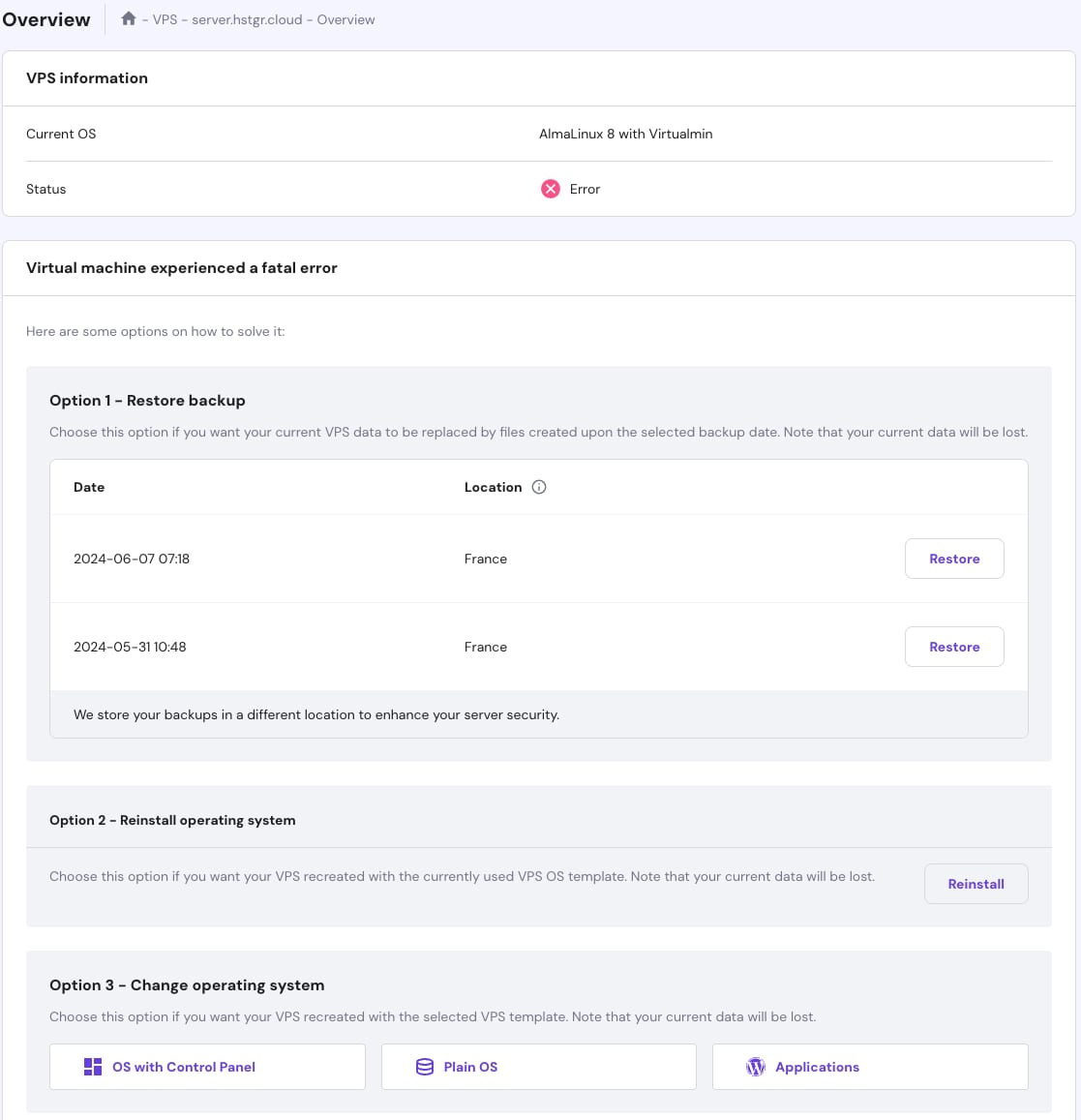
How To Fix Vps Status Errors After Restarting
After restarting, your VPS may show status errors. These errors often mean the server did not boot correctly or services failed to start.
- Check Server Status: Use the Hostinger control panel to view your VPS status.
- Verify Network Connection: Confirm your VPS has a proper IP and network access.
- Restart Services Manually: SSH into your VPS and restart essential services using commands like:
sudo systemctl restart apache2 sudo systemctl restart mysql Review Logs: Check system logs for errors with:
sudo journalctl -xe These steps usually resolve most status errors after rebooting.
Recovering From Filesystem Corruption
Filesystem corruption can occur if the VPS shuts down improperly. This causes data loss or boot failure.
To fix filesystem issues:
- Boot into recovery mode via the Hostinger VPS dashboard.
- Run filesystem check commands such as:
sudo fsck /dev/vda1 Replace /dev/vda1 with your VPS’s root partition. Follow prompts to repair errors.
After repair, reboot your VPS to verify the fix.
Keep backups to avoid data loss during these repairs.
When To Contact Hostinger Support
Some problems need expert help. Contact Hostinger support if:
- Your VPS fails to restart after multiple attempts.
- You see persistent errors in the control panel or logs.
- Filesystem repairs do not fix boot issues.
- You suspect hardware or network problems beyond your control.
Hostinger’s team can provide deeper diagnostics and solutions. Use the support chat or ticket system for quick responses.
Conclusion: Making The Most Of Hostinger Vps Restart
Using the Hostinger VPS Restart feature wisely can improve your server’s health and performance. It helps clear temporary glitches and apply updates smoothly. A quick restart can save time and avoid complex troubleshooting. Understanding when and how to restart your VPS is key to maintaining a reliable hosting environment.
Summary Of Key Takeaways
- Restarting refreshes your VPS, fixing minor issues quickly.
- Use the
Server Actions > Restart Serveroption in the Hostinger control panel. - Restarting does not delete files or settings; it only reboots the server.
- For a full reset (deleting files and settings), use the Reset Account feature carefully.
- Restart your VPS after installing updates or if the server becomes slow or unresponsive.
Encouragement To Use Restart As A Performance Tool
Restarting your VPS is a simple step that keeps your server running smoothly. It releases locked resources and clears memory. This can prevent crashes or slowdowns without needing deep technical fixes. Set a habit to restart regularly, especially after major changes or updates. It acts as a quick performance boost for your VPS environment.
Additional Resources And Support Links
| Resource | Description | Link |
|---|---|---|
| Hostinger VPS Management Guide | Step-by-step instructions for managing your VPS, including restart and reset options. | hostinger.com |
| Hostinger Support Center | Official help articles and troubleshooting tips related to VPS hosting. | hostinger.com/tutorials |
| YouTube Tutorials | Visual guides on restarting and resetting Hostinger VPS servers. | YouTube Search |

Credit: www.youtube.com
Frequently Asked Questions
How To Restart Vps In Hostinger?
To restart your VPS in Hostinger, log in to hPanel, go to Servers, select your VPS, click Manage, then choose Server Actions and click Restart Server.
How Do I Restart My Vps Server?
Access your VPS control panel, select your server, click “Manage,” then choose “Restart Server” from Server Actions.
How To Reset Vps?
To reset your VPS, log into the control panel, select your VPS, then choose the “Reset” or “Reinstall OS” option. Confirm to restore default settings and erase all data. Always back up important files before resetting to avoid data loss.
How Do I Restart On Hostinger?
To restart on Hostinger, go to your VPS Management panel, click “Server Actions,” then select “Restart Server. “
Conclusion
Restarting your Hostinger VPS is simple and quick. This process helps fix many common server issues. Always back up important data before restarting. Use the Hostinger control panel to reboot safely. Keeping your VPS running smoothly ensures better website performance. For easy and reliable hosting, consider Hostinger’s VPS plans. Learn more and get started here: Hostinger VPS Hosting.