If you’re looking to connect to your Hostinger MySQL database from anywhere, setting up remote MySQL access is exactly what you need. Imagine managing your databases smoothly without being tied to one location.
This guide will walk you through the Hostinger remote MySQL setup in simple steps, so you can control your data effortlessly and securely. Whether you want to link your local applications or third-party tools to your Hostinger database, mastering this setup will save you time and frustration. Ready to unlock full database freedom? Let’s dive in and get your remote MySQL connection up and running quickly! Before we start, if you’re looking for reliable and affordable hosting to go with your database setup, check out Hostinger’s Basic Plan here. It’s perfect for beginners and comes with powerful tools that make managing your site and databases easy.

Credit: www.youtube.com
Introduction To Hostinger Remote Mysql Setup
Hostinger offers MySQL hosting plans that fit different budgets and needs. The pricing is competitive and clear, making it easy to choose a plan. Each plan supports remote MySQL access, ideal for users managing databases from different locations. Affordability comes with solid features and reliable performance.
Comparison Of Hosting Plans Supporting Remote Mysql
| Plan | Price (Monthly) | Remote MySQL Access | MySQL Databases | Storage |
|---|---|---|---|---|
| Single Shared Hosting | $1.99 | Yes | 1 | 30 GB SSD |
| Premium Shared Hosting | $2.99 | Yes | Unlimited | 100 GB SSD |
| Business Shared Hosting | $4.99 | Yes | Unlimited | 200 GB SSD |
Note: Prices reflect initial term offers and may vary with renewals.
Value For Money: Features Vs. Cost
Hostinger balances cost with features well. Remote MySQL access is included in all plans, allowing flexible database management.
- Unlimited databases in higher-tier plans help with bigger projects.
- SSD storage speeds up database queries and site loading.
- Free SSL and daily backups add security without extra cost.
- 24/7 support helps solve database issues quickly.
For small websites, the Single Shared Hosting is affordable and sufficient. Larger businesses benefit from Premium or Business plans with more resources.
Additional Costs To Consider For Remote Access
Remote MySQL access itself does not add fees. But some factors may increase costs:
- Upgrading plans to handle more databases or storage.
- Purchasing dedicated IP addresses for enhanced security.
- Using premium security features or firewall services.
- Additional bandwidth if remote database queries are heavy.
Managing remote MySQL efficiently reduces unexpected expenses. Plan usage according to database needs and traffic.
Key Features Of Hostinger Remote Mysql Setup
Setting up remote MySQL access on Hostinger opens powerful database management options. Security is crucial to protect your data and server. Follow these best practices to ensure safe connections and prevent unauthorized access.
Regularly Updating Allowed Ip Addresses
Hostinger allows you to specify which IP addresses can access your MySQL database remotely. Regularly updating this list strengthens your security.
- Add only trusted IPs: Allow connections only from known and secure locations.
- Remove unused IPs: Delete any IP addresses that no longer require access.
- Use CIDR notation: To cover IP ranges securely, use CIDR blocks instead of wide-open access.
- Never use wildcard (%) unless necessary: This grants access to all IPs and increases risk.
Hostinger’s control panel makes it easy to manage these IP addresses under the Remote MySQL section.
Using Strong Passwords And User Permissions
Secure your MySQL users with strong passwords and proper permission settings. Weak credentials expose your database to attacks.
- Create complex passwords: Use a mix of letters, numbers, and symbols.
- Limit user privileges: Grant only the necessary permissions for each user.
- Separate accounts for different tasks: Avoid using one user for all database operations.
- Change passwords regularly: Update credentials to reduce the risk of compromise.
Use Hostinger’s database management tools to set user roles and update passwords safely.
Monitoring And Logging Database Access
Tracking who accesses your MySQL database helps detect unauthorized attempts early.
- Enable logging: Turn on MySQL query and access logs for detailed records.
- Review logs regularly: Check for unusual login times or IP addresses.
- Set up alerts: Use monitoring tools to notify you of suspicious activity.
- Analyze failed access attempts: Identify and block potential threats quickly.
Hostinger supports log access through cPanel or SSH, depending on your hosting plan.
Implementing Additional Security Measures
Extra layers of protection minimize risks beyond basic settings.
- Use SSH tunnels: Encrypt your connection by tunneling MySQL traffic over SSH.
- Enable SSL encryption: Protect data in transit by forcing SSL connections.
- Firewall configuration: Restrict MySQL port (default 3306) access to allowed IPs only.
- Regular backups: Keep frequent backups to restore data if a breach occurs.
Applying these measures makes remote MySQL access on Hostinger safer and more reliable.
Step-by-step Guide To Setting Up Remote Mysql Access On Hostinger
Setting up Hostinger Remote MySQL allows secure and easy database access from anywhere. It improves flexibility for developers and site owners managing databases. The process is straightforward and can save time on local database management.
Summary Of Key Benefits And Setup Tips
- Remote Access: Connect to your MySQL databases from different locations.
- Enhanced Security: Limit access by specifying IP addresses or using the wildcard ‘%’ for all IPs.
- Ease of Use: Access the Remote MySQL option via Hostinger’s control panel.
- Quick Setup: Add allowed IPs, create databases, and manage users in just a few steps.
Setup Tips:
- Log in to Hostinger’s control panel and go to the Remote MySQL section.
- Enter the IP address that needs access or use ‘%’ to allow all.
- Save changes and test the connection from your remote client.
Who Should Use Hostinger Remote Mysql Setup
This setup is ideal for:
- Developers managing databases from multiple locations.
- Website owners needing external database access.
- Teams working collaboratively on database-driven projects.
- Anyone requiring database access outside the Hostinger server environment.
Users who want a simple, secure way to manage MySQL databases remotely will benefit most.
Next Steps To Get Started
- Visit Hostinger and log in to your account.
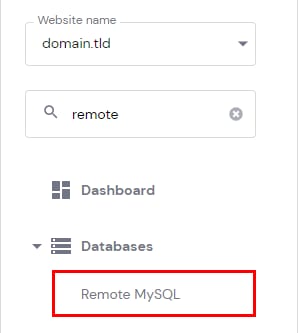
- Navigate to the control panel and locate the Remote MySQL option under Databases.
- Add the IP addresses allowed to connect remotely.
- Create or select an existing database for remote access.
- Use your preferred MySQL client or application to connect using the credentials.
Testing the connection ensures everything works correctly before using it in your projects.

Credit: stackoverflow.com
Credit: www.hostinger.com
Frequently Asked Questions
How To Access Hostinger Database Remotely?
Access Hostinger database remotely via hPanel. Go to Databases > Remote MySQL. Add your IP or % for all IPs. Save changes and connect using your database credentials.
How To Setup Mysql Remote Access?
SSH into your server and edit /etc/mysql/mysql. conf. d/mysqld. cnf to allow remote connections. Add your IP or ‘%’ in MySQL user host. Restart MySQL service. In Hostinger hPanel, go to Databases → Remote MySQL, add your IP, and save to enable remote access.
How To Use Mysql On Hostinger?
Access MySQL on Hostinger via hPanel by navigating to Websites → Dashboard → Databases Management. Select your site to view and manage databases. For remote access, go to Databases → Remote MySQL, add your IP, and save. Use credentials to connect with your preferred MySQL client.
How Do I Remotely Connect To Mysql In Cpanel?
Access cPanel, go to Databases > Remote MySQL. Add your remote IP address, or use % for any IP. Save to allow connection.
Conclusion
Setting up remote MySQL on Hostinger is simple and useful. It lets you manage databases from anywhere. Just follow the steps carefully and allow your IP address. This setup helps you connect your apps or websites smoothly. For reliable hosting and easy database access, consider using Hostinger. It offers good support and user-friendly tools. Start managing your MySQL databases remotely without hassle today.