Looking to redirect your domain smoothly and without losing traffic or SEO value? You’re in the right place.
Redirecting a domain might sound technical, but with Hostinger’s Redirect Domain Guide, you can do it easily—even if you’re not a tech expert. This guide walks you through every step, from using Hostinger’s control panel to setting up DNS records and even creating redirect rules with Cloudflare. Whether you want your visitors to see your new domain or keep the old URL visible, you’ll find the right method here. Ready to take control of your domain redirects and keep your website visitors happy? Dive into this guide and get started now. If you’re not yet using Hostinger for your hosting needs, check out their affordable plans and powerful tools here: Hostinger Hosting Plans.
Introduction To Hostinger Domain Redirect
Hostinger Domain Redirect offers a range of features that make domain redirection simple and effective. It helps users forward traffic from one domain to another with ease. The system supports various redirect types and integrates smoothly with Hostinger’s tools. These features ensure smooth management and SEO-friendly redirections.
Simple And User-friendly Redirect Setup
Setting up redirects with Hostinger is straightforward. The process uses Hostinger’s control panel (hPanel), designed for easy navigation. Users follow clear, step-by-step instructions to create redirects without technical hurdles.
- Intuitive interface for managing redirects
- Clear guidance for beginners
- No coding required
This setup method saves time and reduces errors.
Multiple Redirect Types Supported (301, 302, Dns-level)
Hostinger supports several redirect types to fit different needs:
| Redirect Type | Description | Use Case |
|---|---|---|
| 301 Permanent Redirect | Permanent redirection that passes SEO value | When moving a site permanently |
| 302 Temporary Redirect | Temporary redirection without passing SEO value | For short-term changes |
| DNS-level Redirect (CNAME/A records) | Redirect via DNS settings | Technical users preferring DNS control |
These options allow customization based on SEO and technical goals.
Seo-friendly Redirect Options
Hostinger ensures redirects support SEO best practices. The 301 redirect is recommended for permanent moves to keep search rankings intact. Users can also choose to keep the original URL visible in the browser, preserving branding.
- Preserves SEO rankings during redirect
- Supports URL masking to show original domain
- Prevents loss of traffic or search engine penalties
Integration With Hostinger’s Hpanel For Seamless Management
Redirects are fully integrated into Hostinger’s hPanel. This brings all domain management tasks into one place. Users can:
- Set up redirects alongside other domain settings
- Manage DNS records easily
- Monitor and modify redirects quickly
This integration provides a smooth experience without switching tools.
Cloudflare Redirect Rules For Enhanced Performance
Hostinger supports using Cloudflare redirect rules to boost performance and security. Cloudflare handles redirects at the edge, reducing load times. Features include:
- Fast DNS-level redirects
- Improved site speed
- Additional security layers
Users can create custom redirect rules in Cloudflare’s dashboard linked with Hostinger domains.
Key Features Of Hostinger Domain Redirect
Redirecting a domain on Hostinger is simple and straightforward. This guide walks you through each step using Hostinger’s hPanel and related tools. Follow clear instructions to forward your domain, set DNS records, use Cloudflare for advanced redirects, and verify your setup.
Accessing The Domain Redirect Section In Hostinger Hpanel
Start by logging into your Hostinger hPanel. Navigate to the Domains section from the main dashboard.
- Click on Domain Redirects.
- Select the domain you want to redirect.
- Access the redirect management interface.
This area lets you control where your domain traffic goes. It is the central place for all domain forwarding settings.
Setting Up A Basic Url Forwarding Redirect
In the Domain Redirects section, choose the redirect type:
- Permanent (301): Best for SEO and long-term redirects.
- Temporary (302): Use if redirect is short-term.
Enter the target URL where visitors should be sent. Then, save the changes.
Note: The browser will show the new URL after redirection.
Configuring Dns Records (cname And A Records) For Domain Redirect
Redirects can also be set via DNS records:
| Record Type | Purpose | Example |
|---|---|---|
| CNAME | Points a subdomain to another domain | www.example.com → example.net |
| A Record | Points domain to an IP address | example.com → 192.0.2.1 |
In hPanel, go to DNS Zone Editor, add or edit these records accordingly.
Using Cloudflare To Create Advanced Redirect Rules
Cloudflare offers advanced redirect options for better control.
- Connect your domain to Cloudflare.
- Go to the Page Rules section.
- Create a new rule for the URL pattern you want to redirect.
- Set the forwarding URL with the status code (301 or 302).
- Save and deploy the rule.
This method supports complex redirects and URL masking.
Verifying And Testing Your Redirect
Check your redirect with these methods:
- Open a browser and enter the original domain URL.
- Confirm it redirects to the new target URL.
- Use online redirect checkers to view HTTP status codes.
- Clear browser cache if the redirect does not appear.
Proper verification ensures your domain redirect works smoothly and helps maintain SEO value.
Step-by-step Guide To Redirect A Domain On Hostinger
Hostinger offers domain redirect services bundled with its hosting plans. This makes domain forwarding easy without extra charges for basic usage. Understanding the pricing helps to choose the right plan for your needs.
The domain redirect guide is free to access and use. Redirect features depend on your hosting plan, which varies in price. This section breaks down costs and compares Hostinger with other providers.
Cost Breakdown For Domain Registration And Hosting Plans
Hostinger charges separately for domain registration and hosting. Here is a simple overview:
| Service | Starting Price | Notes |
|---|---|---|
| Domain Registration | $8.99/year | Varies by domain extension |
| Shared Hosting | $1.99/month | Includes domain redirect feature |
| Premium Hosting | $2.99/month | Better performance, redirect included |
| Cloud Hosting | $9.99/month | Advanced features, domain redirect available |
Domain registration and hosting are billed separately. Hosting plans cover domain redirects without extra fees.
Is Domain Redirecting Included For Free Or Paid Plans?
Domain redirecting comes free with all paid Hostinger hosting plans. No separate payment is needed to use redirection tools.
- Redirect setup via Hostinger control panel is available on all paid plans.
- Free hosting or domain-only registration plans do not include redirect features.
- Using Cloudflare for redirects may involve additional costs if upgrading Cloudflare services.
Basic domain forwarding is a built-in feature for paid hosting customers. This keeps costs low and management simple.
Comparing Hostinger Redirect Costs With Other Providers
Hostinger offers competitive pricing for domain redirects versus popular hosting providers. Consider this comparison:
| Provider | Starting Hosting Price | Domain Redirect Included? |
|---|---|---|
| Hostinger | $1.99/month | Yes, free with hosting |
| GoDaddy | $5.99/month | Included, but domain redirects often require add-ons |
| Bluehost | $2.95/month | Included with hosting |
| SiteGround | $3.99/month | Included with hosting |
Hostinger’s plans start lower with domain redirect included. This offers good value for budget-conscious users.
Pricing And Affordability Of Hostinger Domain Redirect Services
Hostinger offers a straightforward way to redirect domains. It suits beginners and small business owners. The platform balances ease with useful features. Yet, some limits appear on entry plans. Understanding these pros and cons helps you decide if Hostinger fits your redirect needs.
Advantages: Ease Of Use
Hostinger’s control panel, hPanel, makes domain redirects simple. Clear step-by-step guides assist users in setting up redirects quickly. The interface is clean and intuitive, reducing confusion for beginners.
- Easy navigation for domain management
- Multiple redirect methods, including DNS record setup
- Options to keep original URLs visible in browsers
These features lower the technical barrier for redirecting domains effectively.
Advantages: Seo Benefits
Hostinger supports various redirect types that help preserve SEO rankings. Proper domain forwarding prevents loss of search engine traffic. Users can choose between permanent (301) and temporary (302) redirects.
- Maintains link equity during domain changes
- Prevents broken links and traffic drops
- Ensures smooth user experience for visitors
This focus on SEO helps protect your site’s online presence during domain moves.
Advantages: Integration
Hostinger integrates with popular tools like Cloudflare. This allows advanced redirect rules and better site performance. The platform also supports DNS record changes directly from hPanel.
- Cloudflare integration for flexible redirects
- Direct DNS record editing (CNAME, A records)
- Compatibility with Hostinger’s website builder redirects
These integrations provide versatility for different technical requirements.
Limitations: Support Challenges
Hostinger’s support for domain redirects can be limited. While tutorials are detailed, live support may lack depth for complex redirect issues. Response times vary depending on the plan.
- Basic plans have slower support response
- Advanced redirect problems may need external help
- Some users report needing more personalized assistance
Users with complex setups might face delays in resolving redirect problems.
Limitations: Feature Restrictions On Entry Plans
Entry-level Hostinger plans limit some redirect features. For example, advanced DNS options or Cloudflare rules may not be fully accessible. These restrictions can hinder customized redirect setups.
| Feature | Entry Plans | Higher Plans |
|---|---|---|
| Custom DNS Records (CNAME, A) | Limited or Restricted | Fully Available |
| Cloudflare Redirect Rules | Partial Access | Full Access |
| Priority Support | Not Included | Included |
Users needing advanced redirects may require higher-tier plans.
Pros And Cons Of Using Hostinger For Domain Redirects
Hostinger Domain Redirect suits users who want to manage domain traffic efficiently. It provides easy-to-use tools for forwarding domains, supporting SEO, and maintaining URL visibility. The service fits different users, from business owners to bloggers and SEO specialists. Understanding who benefits most helps pick the right tool for your needs.
Ideal For Small Business Owners Wanting To Consolidate Traffic
Small business owners often use multiple domains to attract customers. Hostinger’s redirect service helps funnel visitors to a main website. This consolidates traffic and improves user experience. It also protects your brand by ensuring all domains lead to your official site.
- Redirect old or unused domains to your main site
- Maintain SEO rankings by using proper redirect types
- Simplify domain management with Hostinger’s control panel
This method saves time and increases website authority by avoiding traffic splits.
Perfect For Bloggers And Content Creators Managing Multiple Domains
Bloggers often register various domains for different niches or campaigns. Hostinger Domain Redirect helps manage these domains smoothly. Redirects can point to a central blog or landing page, improving visitor navigation.
- Forward niche-specific domains to main content hub
- Use DNS or website builder redirects for flexibility
- Keep URLs visible or hidden based on branding needs
It makes content promotion easier without confusing visitors.
Recommended For Webmasters Focused On Seo And Traffic Optimization
Webmasters aiming to maximize SEO benefits find Hostinger redirects useful. The service supports redirect types that preserve search engine rankings. It offers detailed control via DNS records or Cloudflare rules.
| Feature | Benefit |
|---|---|
| 301 Redirect Support | Preserves SEO value by signaling permanent move |
| DNS Record Configuration | Precise control over domain pointing |
| Cloudflare Integration | Advanced redirect rules for performance |
This results in better traffic flow and search engine visibility.
When To Consider Alternative Providers
Hostinger redirects fit many users but may not suit everyone. Consider other providers if:
- You need complex redirect rules beyond Hostinger’s scope
- Your current host lacks support for advanced DNS options
- You want dedicated redirect services with specialized analytics
Checking features against your needs ensures the best fit for domain management.

Credit: www.youtube.com
Who Should Use Hostinger Domain Redirect?
Using Hostinger’s redirect tools can help move your visitors smoothly to the right pages. Redirects keep your site visitors and search engines happy. Follow these tips to get the best traffic results from your domain redirects.
Choosing The Right Redirect Type For Seo Preservation
Pick the correct redirect type to keep your SEO strength intact. The two main types are:
- 301 Redirect: Permanent redirect. Passes most SEO value to the new URL.
- 302 Redirect: Temporary redirect. SEO value usually does not transfer.
Use a 301 redirect for moved or replaced pages to keep rankings. Use a 302 only if the change is short-term.
Avoiding Common Redirect Mistakes That Hurt Traffic
Common errors can lower your traffic or confuse visitors. Avoid these mistakes:
- Redirect Chains: Multiple redirects in a row slow loading and lose SEO value.
- Redirect Loops: Redirects that point back to themselves cause errors.
- Wrong Redirect Type: Using 302 for permanent moves can drop rankings.
- Not Updating Internal Links: Links should point directly to the final URL.
Check redirects regularly using Hostinger’s control panel or online tools to fix issues fast.
Leveraging Analytics To Track Redirect Performance
Use analytics to measure how well redirects keep traffic flowing. Track these key metrics:
| Metric | Why It Matters |
|---|---|
| Traffic Volume | Shows if redirect drives visitors to the new site. |
| Bounce Rate | High bounce may mean users dislike the new page. |
| Page Load Speed | Slow redirects can lose visitors and hurt SEO. |
Use tools like Google Analytics and Hostinger’s hPanel reports. Adjust redirects based on data to keep traffic strong.
Tips For Maximizing Traffic Boost With Hostinger Redirect
Hostinger’s redirect domain tools offer a simple and efficient way to manage your website traffic. Redirecting domains helps move visitors smoothly from old sites to new ones without losing search engine ranking. This ensures your audience finds your content easily and quickly. The process is clear and supported by detailed guides, making it accessible for beginners and experts alike.
Summary Of Key Benefits And Features
- Step-by-step instructions using Hostinger’s control panel (hPanel) simplify setup.
- Multiple redirect types support SEO-friendly domain forwarding.
- Options to keep the original URL visible in the browser, improving user trust.
- Ability to configure redirects through DNS records like CNAME and A records.
- Integration with Cloudflare for advanced redirect rules.
- Free, detailed tutorials and a knowledge base improve ease of use.
- Included with Hostinger hosting plans, reducing extra costs.
| Feature | Benefit |
|---|---|
| Hostinger hPanel Redirect Setup | Easy and quick domain forwarding without coding |
| DNS Record Redirects (CNAME, A Record) | Flexible redirection options for different needs |
| Cloudflare Redirect Rules | Advanced control over domain redirects |
| SEO Preservation | Maintains search rankings during domain changes |
Final Recommendations For Getting Started
- Sign up for a Hostinger hosting plan to access redirect tools.
- Use the Hostinger control panel for step-by-step redirect setup.
- Choose the redirect method that fits your technical skill and needs.
- Follow the guides carefully to avoid errors and ensure SEO retention.
- Consider using Cloudflare for more complex redirect rules if needed.
- Test your redirects to confirm traffic flows correctly to the new domain.
Start with the simplest redirect in the Hostinger panel. Learn from tutorials to build confidence. Redirecting domains helps grow your web traffic quickly and keeps visitors connected to your content.

Credit: domain-forward.com
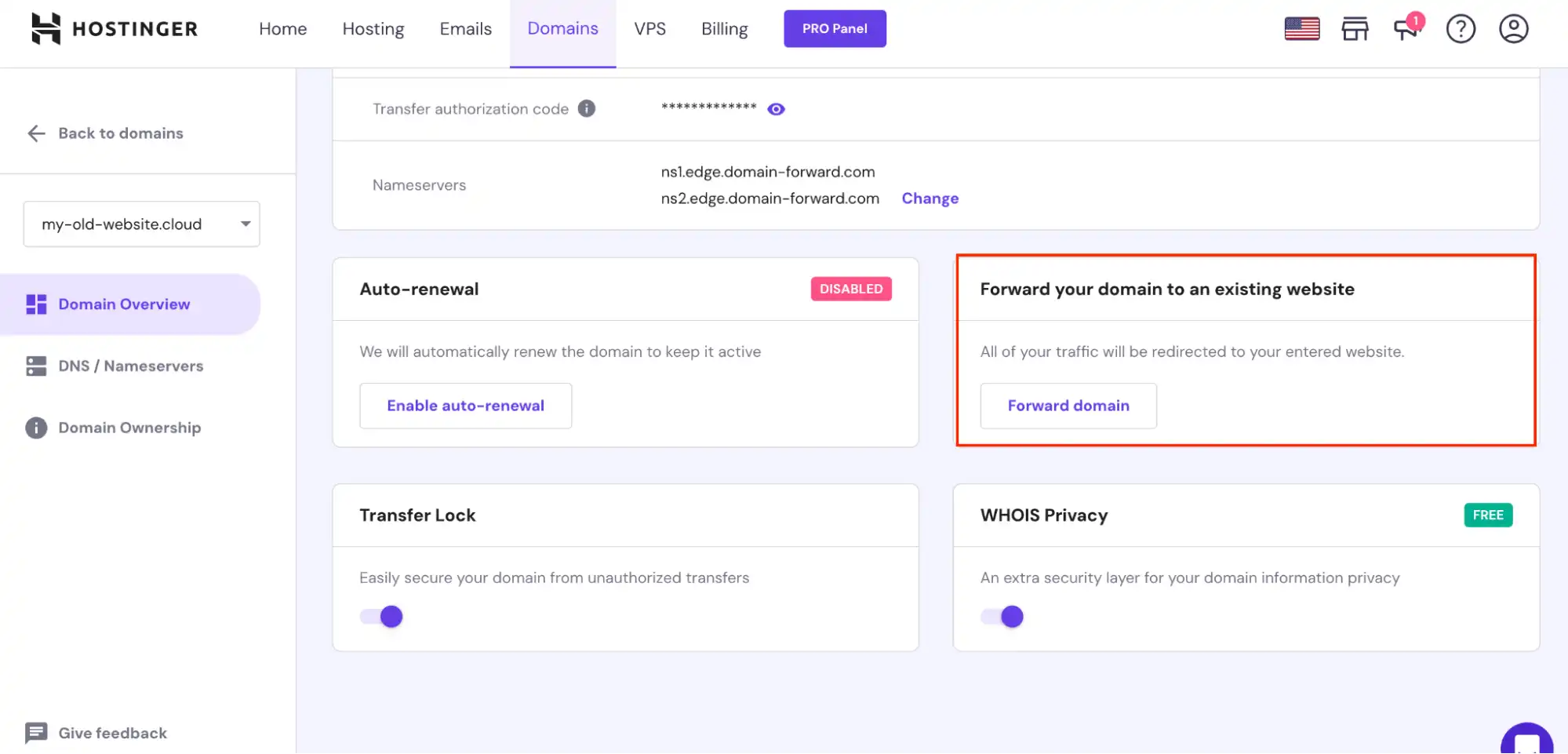
Credit: domain-forward.com
Frequently Asked Questions
How Do I Redirect A Hostinger Domain To Another Domain?
Log in to Hostinger hPanel, go to Websites → Redirects. Select your domain, enter the destination URL, and click Save.
What Is The Disadvantage Of Hostinger?
Hostinger’s disadvantages include limited features in the entry-level plan, older SSD storage, and difficulty reaching human support beyond the AI chatbot.
How Do I Redirect A Domain To Another Domain?
Log in to your domain registrar or hosting control panel. Find domain forwarding or redirect settings. Enter the new domain URL. Save changes to activate the redirect. This forwards visitors from the old domain to the new one quickly and efficiently.
What Is 301 And 302 Redirect?
A 301 redirect permanently sends users and search engines to a new URL. A 302 redirect temporarily redirects traffic without passing SEO value.
Conclusion
Redirecting domains with Hostinger is simple and clear. This guide helps you set up redirects step-by-step. You can use Hostinger’s control panel or DNS records. Keeping your SEO intact during redirection is easy here. The tutorials explain everything in plain language. For more details, visit Hostinger and start managing your domains smoothly today.