Looking to set up your own online learning platform with Moodle? You’re in the right place.
Installing Moodle on Hostinger is easier than you might think, and this guide will walk you through every step. Whether you’re a teacher, trainer, or entrepreneur, having Moodle up and running quickly can save you time and headaches. By the end of this article, you’ll have a fully functional Moodle site hosted on Hostinger, ready to deliver engaging courses to your users. Don’t worry if you’re not tech-savvy — this guide uses simple language and clear instructions just for you. Ready to get started? First, check out Hostinger’s affordable and reliable hosting plans that make installing Moodle a breeze: Hostinger Hosting Plans. Let’s dive in and get your Moodle site live today!
Introduction To Installing Moodle On Hostinger
Setting up Moodle on Hostinger is simple and effective for building an online learning platform. This guide explains key points about Moodle and why Hostinger fits well for your Learning Management System (LMS). It also outlines the installation process and the benefits you gain from using this setup.
What Is Moodle And Why Choose Hostinger For Your Lms
Moodle is a free, open-source platform for creating online courses and managing learning activities. It supports quizzes, assignments, forums, and more. Many educators and institutions trust Moodle for its flexibility and strong community support.
Hostinger provides affordable, fast, and reliable web hosting. It offers easy tools to install Moodle quickly, even for beginners. Hostinger’s hPanel allows one-click installation for Moodle, reducing technical challenges.
- Affordable pricing with good performance
- One-click Moodle installation via hPanel
- 24/7 customer support for hosting issues
- Secure servers with regular backups
- Scalable plans to grow your LMS
Overview Of The Installation Process And Its Benefits
Installing Moodle on Hostinger involves a few clear steps. You start by logging into Hostinger’s hPanel. Then, select Moodle LMS from the auto-installer menu. Hostinger downloads and sets up Moodle files and creates a database for you.
- Log in to Hostinger hPanel
- Choose Moodle LMS from the one-click installer
- Fill in your site details and database info
- Wait for the installer to complete setup
- Access your new Moodle site and start adding courses
This process saves time and avoids manual errors. Benefits include:
| Benefit | Description |
|---|---|
| Quick Setup | Launch your Moodle site in minutes without technical skills. |
| Easy Management | Hostinger’s hPanel simplifies updates and backups. |
| Cost-Effective | Low hosting costs keep your LMS affordable. |
| Reliable Performance | Fast loading times improve learner experience. |
| Scalability | Grow your platform smoothly with flexible hosting plans. |
Using Hostinger to install Moodle offers a smooth path to build your online learning environment.
Key Features Of Hostinger’s Moodle Installation
Hostinger offers a smooth way to set up Moodle for online learning. Its features simplify installation and boost Moodle’s performance. Users gain easy access to tools and options that enhance their Moodle experience. These features suit beginners and tech-savvy users alike.
One-click Moodle Installation Via Hostinger Hpanel
Hostinger’s hPanel includes a one-click installer for Moodle. This tool installs Moodle quickly without manual steps. Users just log into the hPanel, select Moodle from the app list, and start the setup.
- No need to download or upload files manually
- Automatic database and file configuration
- Fast setup, ready to use in minutes
This feature saves time and avoids complex commands, making Moodle accessible for beginners.
Optimized Vps Hosting For Enhanced Moodle Performance
Hostinger’s VPS hosting is tuned to run Moodle smoothly. It offers dedicated resources, which improve site speed and reliability. VPS hosting supports more users and complex courses without lag.
| Feature | Benefit for Moodle |
|---|---|
| Dedicated CPU & RAM | Handles multiple users and tasks efficiently |
| SSD Storage | Faster loading of course content and media |
| Root Access | Full control to customize Moodle environment |
This setup suits growing Moodle sites needing stable and fast hosting.
Access To Moodle Plugins And Customization Options
Hostinger allows easy installation of Moodle plugins. Users can extend Moodle’s functions by adding tools for quizzes, analytics, and more.
- Browse and install plugins from Moodle’s official directory
- Customize site appearance and user roles
- Adjust settings to fit specific teaching needs
This flexibility helps create a unique and powerful learning platform tailored to any course style.
Step-by-step Guide To Installing Moodle On Hostinger
Installing Moodle on Hostinger is simple and straightforward. This guide breaks down the process into clear steps. Follow each stage carefully to set up your Moodle Learning Management System (LMS) smoothly. No technical skills required.
Logging Into Hostinger Hpanel And Selecting Moodle Lms
Start by logging into your Hostinger hPanel. Use your username and password to access the dashboard. Once logged in, locate the Auto Installer or Website section.
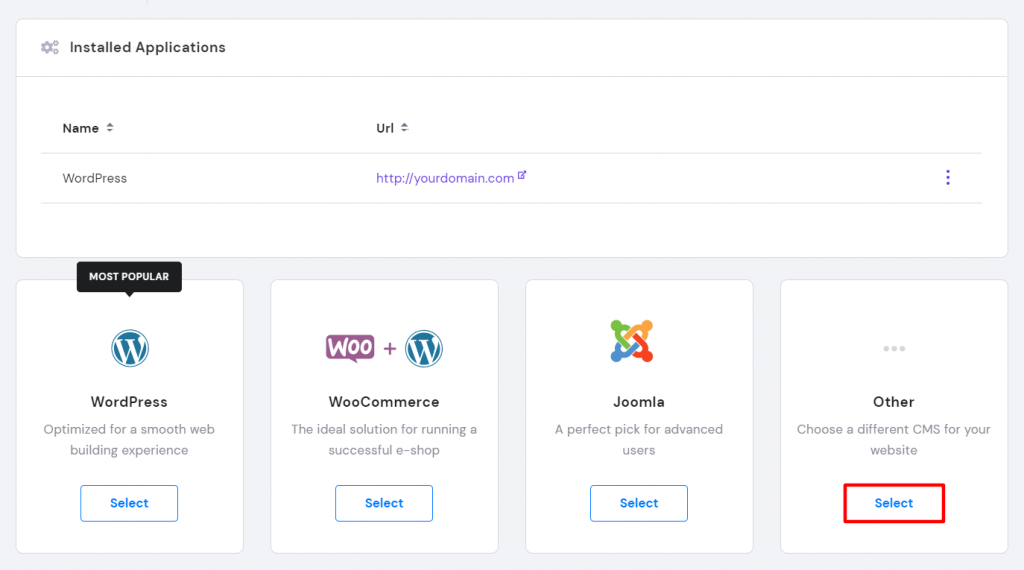
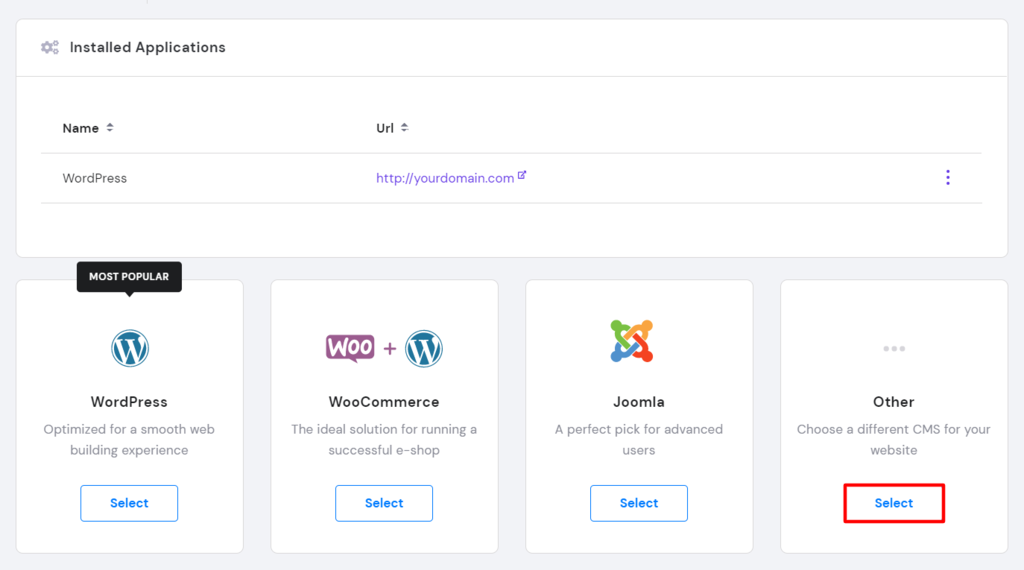
From the list of available applications, find and select Moodle LMS. Click the Select button to start the installation process. This step prepares the Hostinger server to host your Moodle site.
Downloading And Uploading The Latest Moodle Package
Visit the official Moodle download page to get the latest version. Download the Moodle package as a ZIP file to your computer.
Next, return to the Hostinger hPanel and open the File Manager. Upload the downloaded Moodle ZIP file into your website’s root directory, usually public_html. Use the Extract option to unzip the package on the server.
- Ensure all files extract correctly.
- Check file permissions to allow proper access.
Configuring Database And Setting Up Moodle
Create a new MySQL database to store Moodle data. In Hostinger hPanel, go to Databases > MySQL Databases. Fill in the database name, username, and password, then save.
| Step | Details |
|---|---|
| Create Database | Unique name for Moodle database |
| Create Database User | Assign username and password |
| Assign User to Database | Grant full privileges |
After setting up the database, open your website URL in a browser. Moodle’s installation wizard will start. Enter the database details created earlier. Set your site name, admin account, and basic settings.
Finalizing Installation And Initial Setup
Complete the Moodle setup by configuring the admin account. Use a strong password and valid email address. Customize basic site settings such as language and timezone.
The installation wizard will check your server environment. It confirms all requirements are met. After successful verification, Moodle will finalize the installation.
Log into your new Moodle dashboard. Start adding courses, users, and plugins. Your e-learning platform is ready for use.

Credit: www.youtube.com
Pricing And Affordability Of Hosting Moodle On Hostinger
Choosing the right hosting plan for Moodle depends on the size and needs of your LMS. Hostinger offers various options that balance cost and performance well. Understanding pricing helps you pick a plan that fits your budget and supports your Moodle site smoothly.
Shared Hosting Plans Suitable For Small To Medium Lms
Hostinger’s shared hosting plans are ideal for smaller Moodle sites or those just starting out. These plans offer affordable pricing with enough resources to run an LMS with moderate traffic and users.
- Single Shared Hosting: Lowest cost, suitable for testing or very small classes.
- Premium Shared Hosting: Supports multiple websites and increased speed, good for growing LMS.
- Business Shared Hosting: Offers more resources and daily backups, perfect for medium-sized Moodle deployments.
Shared hosting plans generally start at just a few dollars per month. They include easy Moodle installation via Hostinger’s control panel, making setup quick and simple.
Vps Hosting Options For Larger, Scalable Moodle Deployments
For larger or more complex Moodle sites, Hostinger offers VPS hosting. This option provides dedicated server resources, allowing better performance and scalability.
| VPS Plan | CPU Cores | RAM | Storage | Price (per month) |
|---|---|---|---|---|
| VPS 1 | 1 | 1 GB | 20 GB SSD | $3.95 |
| VPS 2 | 2 | 2 GB | 40 GB SSD | $8.95 |
| VPS 3 | 4 | 8 GB | 160 GB SSD | $38.99 |
VPS hosting supports higher user loads and more plugins. It requires some technical knowledge but offers full control over your Moodle environment.
Comparing Cost-effectiveness And Value For Money
Hostinger’s plans offer a strong balance of price and features. Shared hosting suits small to medium LMS projects with limited budgets.
VPS hosting adds power and flexibility for larger sites but costs more. The choice depends on your LMS size and growth plans.
- Shared Hosting: Best for budget-conscious users with moderate traffic.
- VPS Hosting: Best for scalability, performance, and control.
Both options come with 24/7 support and easy Moodle installation. Hostinger’s affordable pricing makes it an attractive choice for hosting Moodle LMS.
Pros And Cons Of Using Hostinger For Moodle Hosting
Hostinger offers a solid platform to host Moodle sites. It combines affordability with features suited for e-learning. The choice to use Hostinger depends on your needs and expectations. Understanding its strengths and weaknesses helps make the right decision. Below, explore user experiences and ways to handle possible challenges.
Advantages Based On Real-world User Experiences
Many users find Hostinger reliable for hosting Moodle. The speed and uptime are often praised, ensuring courses remain accessible. Users appreciate the easy installation process through the control panel (hPanel), which simplifies Moodle setup.
- Affordable pricing plans fit small to medium educational projects.
- One-click Moodle installer saves time for beginners and experts.
- Good customer support with responsive live chat helps solve issues quickly.
- Scalable hosting options allow upgrading as your Moodle site grows.
- Free SSL certificates enhance site security and trust.
Users also mention the user-friendly dashboard that eases managing files and databases.
Potential Limitations And How To Overcome Them
Some users report limits in resource allocation on shared plans. Moodle can be resource-heavy, so this may affect performance during peak use.
| Limitation | Impact | Solution |
|---|---|---|
| Limited CPU and RAM on shared hosting | Slow loading times with many users online | Upgrade to VPS or cloud hosting for more resources |
| Restrictions on plugin installation | Cannot add some custom Moodle features | Use VPS hosting or contact support for assistance |
| Backup options limited on basic plans | Risk of data loss without manual backups | Regularly export backups manually or use paid backup tools |
Choosing VPS hosting from Hostinger improves performance and control. Also, scheduling regular backups prevents data loss. In case of plugin needs, checking compatibility with Hostinger’s environment is key.
Recommendations For Ideal Users And Use Cases
Choosing the right hosting for your Moodle LMS is essential for smooth operation. Hostinger offers flexible options that fit different user needs and scenarios. Understanding who benefits most from Hostinger and when to select shared hosting or VPS helps optimize your learning platform.
Who Should Use Hostinger To Host Moodle
Hostinger suits educators, trainers, and small to medium institutions. It fits users who want a reliable, affordable hosting solution for Moodle. Beginners appreciate Hostinger’s easy setup via hPanel and one-click installation.
- Teachers creating online courses
- Small schools and training centers
- Freelancers offering e-learning
- Organizations needing a simple LMS
Hostinger supports those who prefer a straightforward hosting service with good performance and 24/7 support.
Best Scenarios For Shared Hosting Vs Vps Hosting
| Hosting Type | Ideal Use Case | Key Features |
|---|---|---|
| Shared Hosting | Small user base, low traffic courses |
|
| VPS Hosting | Medium to large user base, growing traffic |
|
Tips For Maximizing Your Moodle Lms Experience On Hostinger
- Choose the right plan based on your user count and traffic.
- Use Hostinger’s auto-installer to quickly set up Moodle.
- Regularly update Moodle and plugins for security and features.
- Optimize your site speed by enabling caching and compressing images.
- Back up your data often using Hostinger’s backup tools.
- Monitor server resources to avoid overload and downtime.
- Explore Moodle plugins to enhance learning and user engagement.
Following these tips ensures a smooth and effective Moodle LMS on Hostinger hosting.
Troubleshooting Common Installation Issues
Installing Moodle on Hostinger is straightforward but can present some challenges. Common issues often involve database connections, permissions, and plugin compatibility. Understanding these problems helps solve them quickly and keeps your Moodle site running smoothly.
Resolving Database Connection And Permission Errors
Database errors are the most frequent during Moodle installation. These usually occur because of incorrect credentials or insufficient permissions.
- Check database credentials: Verify the database name, username, and password in your Moodle config file.
- Set correct database host: Use
localhostor the specific Hostinger database server address. - Adjust user permissions: Ensure the database user has
CREATE,SELECT,INSERT,UPDATE, andDELETEprivileges.
Use this basic command to grant permissions in MySQL:
GRANT ALL PRIVILEGES ON moodle_db. TO 'moodle_user'@'localhost' IDENTIFIED BY 'your_password';Double-check your config.php for any syntax errors or typos. Fixing these details often resolves connection failures.
Handling Plugin Compatibility And Updates
Plugins extend Moodle’s features but can cause issues if incompatible or outdated.
- Verify plugin version: Ensure each plugin matches your Moodle version.
- Update Moodle core first: Always update the main Moodle system before plugins.
- Disable problematic plugins: If errors appear after a plugin install, disable it via the database or Moodle admin panel.
- Use trusted sources: Download plugins only from official Moodle repositories to avoid conflicts.
Keep plugins updated regularly to maintain security and performance.
Where To Find Support And Resources
Help is available through multiple channels if issues persist.
| Resource | Description | Access |
|---|---|---|
| Moodle Docs | Official documentation with detailed installation and troubleshooting guides. | docs.moodle.org |
| Hostinger Support | Customer support for hosting-related issues and server configuration. | hostinger.com/contact |
| Moodle Community Forums | User forums for peer support and advice from Moodle experts. | moodle.org/forums |
Use these resources to find solutions, ask questions, and stay updated about Moodle on Hostinger.
Credit: www.hostinger.com
Conclusion And Next Steps
Installing Moodle on Hostinger sets the stage for a powerful online learning platform. This final section highlights key benefits and motivates you to start your learning management system (LMS) without delay.
Summary Of Benefits Of Installing Moodle On Hostinger
- Easy installation: Hostinger’s hPanel simplifies Moodle setup with a few clicks.
- Cost-effective hosting: Shared hosting plans fit small to medium LMS budgets.
- Reliable performance: Fast servers ensure smooth access for learners and educators.
- Customizable platform: Add plugins and features to tailor Moodle to your needs.
- Scalability: Upgrade to VPS hosting as your user base grows.
- 24/7 support: Hostinger offers round-the-clock help for any technical issues.
Encouragement To Launch Your Lms Quickly And Efficiently
Start your Moodle LMS today. Follow the simple steps in Hostinger’s tutorial. Focus on creating courses and enrolling users rather than technical setup.
Take advantage of Hostinger’s quick installation tools and reliable hosting environment. Avoid delays and launch your platform fast.
Regularly update Moodle and explore new plugins. This keeps your LMS secure and feature-rich.
Remember, a well-hosted Moodle site boosts learner engagement and course success.
Credit: www.hostinger.com
Frequently Asked Questions
How Do I Install Moodle On Hostinger Step-by-step?
Log in to Hostinger hPanel, select Moodle LMS from apps, and click install. Download the latest Moodle package if manual setup is preferred. Follow on-screen prompts to complete installation smoothly.
Can I Use Hostinger Vps To Host Moodle?
Yes, Hostinger VPS supports Moodle with easy template deployment. VPS offers better performance, scalability, and control for larger eLearning platforms.
What Are The System Requirements For Moodle On Hostinger?
Moodle requires PHP 7. 4+, MySQL or MariaDB database, and at least 200 MB disk space. Hostinger plans typically meet these prerequisites.
How Do I Secure My Moodle Site On Hostinger?
Enable SSL via Hostinger’s free SSL certificate, keep Moodle updated, and use strong passwords. Regular backups also protect your data.
Conclusion
Setting up Moodle on Hostinger is simple and quick. This guide helps you install Moodle step-by-step. You can manage your learning site easily with Hostinger’s tools. Hosting your Moodle site here ensures good speed and uptime. Ready to start? Choose Hostinger for reliable and affordable hosting by visiting Hostinger. Start building your e-learning platform today with confidence and ease.