Struggling with slow website performance or frequent errors on your Hostinger-hosted site? The culprit might be your current memory limit.
If your WordPress or other applications keep hitting memory caps, it’s time to boost your PHP memory limit to keep things running smoothly. But don’t worry—you don’t need to be a tech expert to do this. In this straightforward guide, you’ll learn exactly how to increase your memory limit on Hostinger step by step, ensuring your site stays fast and responsive. Ready to get started and unlock better performance for your website? Check out Hostinger’s affordable and reliable hosting plans here: Hostinger Hosting Plans. Now, let’s dive into how you can easily increase your memory limit and give your site the power it deserves!

Credit: www.youtube.com
Introduction To Increasing Memory Limit On Hostinger
Increasing the memory limit on Hostinger improves your website’s speed and stability. This guide explains why memory matters and how Hostinger’s hosting affects your site’s memory use. Understanding these basics helps in managing your website better and avoiding errors caused by low memory.
Understanding The Importance Of Memory Limit For Website Performance
The memory limit defines how much RAM your website can use during its operation. A higher memory limit allows your site to handle more data and visitors without crashing.
- Prevents errors like “Allowed memory size exhausted”
- Improves loading times for complex scripts and plugins
- Supports smoother user experience during traffic spikes
- Helps run resource-heavy applications and themes
Low memory limits can cause slow performance and frequent crashes. Increasing memory ensures your website runs efficiently and handles growth well.
Overview Of Hostinger’s Hosting Environment And Memory Constraints
Hostinger offers various hosting plans, each with specific memory limits. The limits depend on the plan you select.
| Hosting Plan | CPU Cores | Memory (RAM) | Disk Space | Inodes |
|---|---|---|---|---|
| Web Single | 1 | 1 GB | 10 GB | 200 |
| Web Business | 2 | 3 GB | 50 GB | 200 |
Hostinger uses a shared hosting environment. This means your website shares server resources with others.
- Memory limits are fixed per hosting plan
- Changing plans can increase memory and CPU allocation
- PHP memory limit can be adjusted within plan limits
Managing memory settings properly ensures optimal use of your plan’s resources and better website performance.
Key Features Of Hostinger’s Memory Limit Settings
Hostinger offers flexible and user-friendly options to adjust your website’s memory limits. These settings help improve performance, especially for WordPress sites or other PHP-based applications. The memory limit controls how much RAM your site can use, which is crucial for handling complex scripts and plugins.
Here are the main features that make Hostinger’s memory limit settings simple and effective.
Easy Access Via Hpanel: Navigating To Php Configuration
Hostinger’s custom control panel, hPanel, provides a clear path to manage PHP memory limits.
- Login to your Hostinger account.
- Open the dashboard for your website.
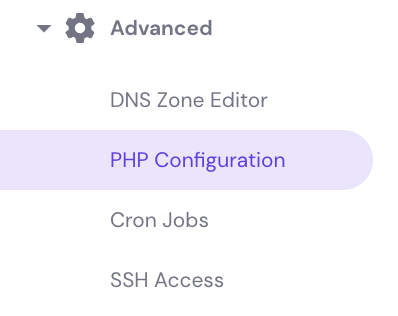
- In the sidebar, click Advanced > PHP Configuration.
- On the PHP Configuration page, select PHP Options.
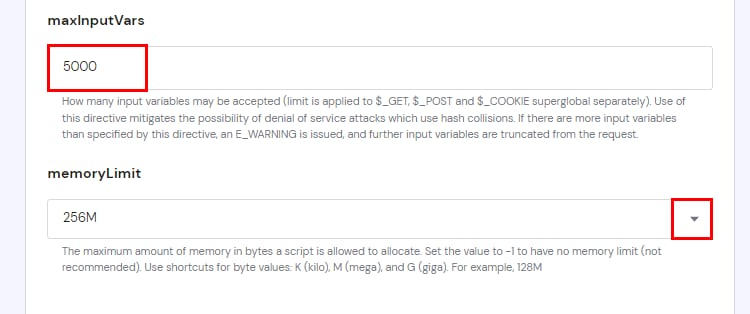
- Adjust the memory_limit value using a dropdown menu.
- Save changes to apply the new memory limit.
This interface removes the need for manual code editing or complex commands.
Multiple Methods to Increase Memory: PHP Configuration,wp-config.php, and .htaccessHostinger supports several ways to increase memory limits, offering flexibility depending on your skill level and needs.
- PHP Configuration: Change memory limits directly via hPanel as described above.
- wp-config.php: Edit this WordPress file in the root directory to increase memory by adding:
define('WP_MEMORY_LIMIT', '256M'); - .htaccess: Add the following line at the end of your
.htaccessfile:php_value memory_limit 256M
Each method offers a way to customize memory limits based on your setup.
Customizable Memory Limits According To Hosting Plan Specifications
Hostinger allows memory limit changes within the bounds of your hosting plan.
| Hosting Plan | Max Memory Limit | CPU Allocation |
|---|---|---|
| Single Web Hosting | 128M | 1 CPU Core |
| Web Business Hosting | 256M | 2 CPU Cores |
Memory limits increase with higher-tier plans, supporting more demanding websites.
Adjust your memory limit according to the plan’s maximum to avoid service issues.
Step-by-step Guide: How To Increase Memory Limit On Hostinger
Increasing the memory limit on Hostinger improves your website’s performance. It helps handle more visitors and run complex plugins smoothly. This guide walks you through each step to raise the memory limit using Hostinger’s hPanel and WordPress files.
Logging Into Hostinger Account And Accessing Site Dashboard
First, open Hostinger and log into your account.
- Enter your email and password on the login page.
- Once logged in, go to the hPanel dashboard.
- Select the website you want to manage from the list.
Accessing the dashboard allows you to change PHP settings and edit files easily.
Modifying Memory Limit Through Php Configuration In Hpanel
Hostinger’s hPanel has a simple interface to adjust PHP memory limits.
- In the dashboard sidebar, click Advanced.
- Select PHP Configuration.
- Scroll to PHP Options.
- Find memory_limit and select a higher value from the dropdown, like
256Mor512M. - Click Save to apply changes.
This method increases the memory available for your website scripts directly.
Editing Wp-config.php File To Raise WordPress Memory Limit
For WordPress sites, editing wp-config.php helps increase memory limits.
- Go to File Manager in hPanel.
- Open the root folder of your WordPress installation.
- Locate and edit the file named
wp-config.php. - Add this line before the comment
/ That's all, stop editing! /:
define('WP_MEMORY_LIMIT', '256M');Save the file to raise WordPress memory limit to 256MB. Adjust the number as needed.
Adjusting .htaccess File For Additional Memory Control
The .htaccess file can also control PHP memory limits.
- In the File Manager, find the
.htaccessfile in your website root. - Edit the file and add this line at the end:
php_value memory_limit 256MSave changes. This sets the memory limit at the server level.
Note: Sometimes, this method may cause errors if your server does not allow overriding PHP settings.
Verifying Changes And Testing Website Speed Improvements
After updating memory limits, verify if changes took effect.
- Use the phpinfo() function to check memory_limit value.
- Alternatively, install a WordPress plugin like WP Server Info to view PHP settings.
- Test your website speed using tools like Google PageSpeed Insights or GTmetrix.
Increased memory often reduces errors and improves loading times.
Credit: www.hostinger.com
Pricing And Affordability Of Upgrading Memory Limits
Increasing your website’s memory limit can improve performance and handle more visitors. Hostinger offers various hosting plans with different memory limits and prices. Understanding these options helps you pick the best plan for your budget and needs.
Memory Limits Across Different Hostinger Plans
| Hostinger Plan | CPU Cores | Memory (RAM) | Monthly Price (Approx.) |
|---|---|---|---|
| Web Single | 1 | 1 GB | $1.99 |
| Web Business | 2 | 3 GB | $3.99 |
| Cloud Hosting | 2-4 | 3-6 GB | $9.99+ |
Note: Prices may vary based on promotions and billing cycles.
Cost Benefits Of Upgrading Plans Vs. Optimizing Memory Settings
Upgrading your hosting plan increases your memory limit instantly. This helps if your website needs more resources.
Optimizing memory settings costs nothing but may only improve performance a little. It involves:
- Editing PHP memory limits
- Adjusting WordPress configuration
- Using caching plugins
Upgrading costs more but offers better long-term stability and speed. Optimization is useful for small tweaks and short-term fixes.
When To Consider Upgrading Hosting Plan For More Ram
Consider upgrading your plan if:
- Your website shows memory errors or crashes.
- You run resource-heavy plugins or scripts.
- Your traffic grows steadily and slows your site.
- Optimization efforts do not improve performance.
- You want faster loading times and better user experience.
Choosing the right plan depends on your website’s size and goals. More RAM means smoother operation and less downtime.
Pros And Cons Of Increasing Memory Limit On Hostinger
Increasing the memory limit on Hostinger affects your website’s performance and resource use. It brings benefits like faster loading and better plugin management. Yet, it may cause resource overuse and requires some technical skills. Understanding both sides helps you decide the best approach for your site.
Pros: Enhanced Site Speed, Better Handling Of Plugins And Traffic
Enhanced Site Speed: More memory allows your website to process data faster. This reduces page load times, improving user experience and SEO rankings.
Better Handling of Plugins and Traffic: Websites with many plugins or high visitor numbers need extra memory. Increasing the limit helps handle these smoothly without crashes or slowdowns.
- Supports resource-heavy plugins
- Improves performance during traffic spikes
- Reduces errors from memory exhaustion
Cons: Potential Overuse Of Resources, Need For Technical Know-how
Potential Overuse of Resources: Raising the memory limit can strain your hosting plan’s resources. This might lead to slower server response or extra costs.
Need for Technical Know-How: Changing memory limits often requires editing PHP or configuration files. Beginners may find this challenging or risky without proper guidance.
- Risk of setting limits too high
- Possible conflicts with server settings
- May require troubleshooting if errors occur
Balancing Memory Usage With Other Performance Optimization Techniques
Increasing memory alone is not enough for optimal website performance. Combine it with other methods to get the best results.
- Use caching: Store copies of pages to reduce server load.
- Optimize images: Compress images to speed up loading.
- Minimize plugins: Keep only essential plugins active.
- Use a Content Delivery Network (CDN): Deliver content faster worldwide.
Balancing memory increase with these techniques keeps your site fast and stable without wasting resources.
Credit: www.hostinger.com
Recommendations For Ideal Users And Use Cases
Increasing the memory limit on Hostinger benefits different users depending on their website needs. Adjusting memory ensures smooth performance and prevents errors related to low memory. Understanding who needs to increase memory helps optimize hosting plans effectively.
Best Practices For Bloggers And Small Business Websites
Bloggers and small businesses usually run websites with moderate traffic and content. For them, a memory limit of 128MB to 256MB is often sufficient.
- Use memory increase to handle multiple plugins or themes.
- Avoid setting memory too high without need; it may cause waste.
- Regularly check website speed and error logs to decide if memory upgrade is needed.
Most blog platforms and simple business sites perform well within this range. This setup keeps costs low and maintains good website stability.
When E-commerce And High-traffic Sites Should Increase Memory Limit
E-commerce stores and websites with high traffic require more memory for smooth operation. Complex plugins, payment gateways, and user sessions consume more resources.
| Use Case | Recommended Memory Limit | Reason |
|---|---|---|
| Growing E-commerce Website | 256MB to 512MB | Supports multiple plugins and payment processes |
| High-Traffic Blogs or News Sites | 512MB or higher | Handles many simultaneous visitors and dynamic content |
Increasing memory here prevents timeouts and slow page loads. Monitor traffic spikes and upgrade memory to maintain user experience.
Memory Settings For Developers Running Resource-intensive Applications
Developers working on heavy applications or testing environments need more memory to avoid crashes.
- Set memory limit to 512MB or more for running scripts and frameworks smoothly.
- Adjust
php.inior Hostinger’s PHP Configuration settings for custom limits. - Test memory usage during development to find optimal settings.
Proper memory allocation helps in debugging and running complex code without interruptions.
Troubleshooting Common Issues When Increasing Memory Limit
Increasing the memory limit on Hostinger can improve your website’s performance. Sometimes, issues arise during or after the increase. This section helps you solve common problems fast. Follow clear steps to ensure your memory increase works smoothly without downtime or errors.
Common Errors After Memory Limit Increase And How To Fix Them
Errors may appear after raising the memory limit. Typical problems include:
- Internal Server Error (500) – caused by incorrect PHP settings.
- Memory Exhausted Error – means the new limit is still too low.
- White Screen of Death – often a sign of conflicting plugins or themes.
Fix these issues by:
- Double-checking your
php.iniorwp-config.phpchanges for typos. - Increasing the memory limit step-by-step rather than jumping to a high value.
- Disabling plugins or themes to find conflicts causing errors.
- Reverting to the previous memory limit if the site crashes.
Checking Memory Limit Values And Server Compatibility
Confirm your memory limit changes took effect:
- Use a PHP info file: create a file named
info.phpwithphp phpinfo(); ?. - Upload it to your site root and open it in a browser.
- Look for the memory_limit value to verify the new limit.
Check server compatibility by ensuring:
| Server Type | Max Memory Limit | Notes |
|---|---|---|
| Shared Hosting | Up to 256MB | May restrict memory changes for stability. |
| VPS Hosting | Depends on RAM allocated | More flexible for higher limits. |
| Cloud Hosting | Customizable | Adjust based on plan resources. |
Contacting Hostinger Support For Assistance
When problems persist, reach out to Hostinger support. They provide expert help for memory limit issues.
- Prepare details about the error and steps taken.
- Use Hostinger’s live chat for quick responses.
- Submit a support ticket with screenshots if needed.
Support can check server logs and recommend the best memory limit for your plan. They ensure your website runs smoothly without memory errors.
Conclusion: Boosting Site Speed By Optimizing Memory Limit On Hostinger
Optimizing the memory limit on Hostinger plays a key role in improving your website’s speed. Increasing this limit helps your site handle more data and run scripts smoothly. This reduces loading time and enhances user experience. Proper memory settings prevent slowdowns and errors during high traffic. Managing memory effectively keeps your website reliable and fast.
Summary Of Benefits And Steps To Take
Increasing the memory limit on Hostinger offers clear advantages:
- Faster site loading due to better resource handling.
- Reduced errors like “out of memory” during peak use.
- Smoother operation of plugins and themes.
- Improved SEO from better site speed.
Follow these simple steps to increase memory limit:
- Log in to your Hostinger account dashboard.
- Navigate to Advanced > PHP Configuration.
- In the PHP Options, select a higher memory limit from the dropdown.
- Save the changes.
- Alternatively, edit the
wp-config.phpfile in your WordPress root folder by adding:define('WP_MEMORY_LIMIT', '256M');
Encouragement To Monitor And Adjust Memory Settings Regularly
Memory needs can change as your site grows. Monitor performance often to catch slowdowns or errors early. Adjust the memory limit based on traffic and plugin demands. Regular checks help maintain optimal speed and reliability.
- Use Hostinger’s dashboard tools to track resource usage.
- Watch for warning messages about low memory.
- Increase memory limit gradually if needed.
- Keep backups before making changes.
Final Tips For Sustained Website Performance Improvement
Optimizing memory is one part of keeping your site fast. Combine it with these tips:
- Use lightweight themes and plugins.
- Optimize images for faster loading.
- Enable caching to reduce server load.
- Regularly update WordPress and plugins.
- Choose a hosting plan that fits your traffic needs.
Stay proactive. Regular maintenance ensures your site stays quick and user-friendly over time.
Frequently Asked Questions
How To Increase Memory Limit In Hostinger?
Log in to Hostinger hPanel, go to Advanced > PHP Configuration. Find PHP Options, increase memory_limit, then save changes.
How To Increase Website Memory Limit?
Increase website memory limit by editing the wp-config. php or. htaccess file. Alternatively, use Hostinger’s hPanel PHP Configuration to raise the memory_limit value. Save changes and restart your server if needed. Ensure the new limit does not exceed your hosting plan’s maximum memory allowance.
How To Increase Upload Limit In Hostinger?
To increase the upload limit in Hostinger, edit the. htaccess file. Add: php_value upload_max_filesize 64M and php_value post_max_size 64M. Save changes and restart your server. Adjust values as needed within your hosting plan limits.
How Much Ram Does Hostinger Give?
Hostinger offers RAM based on your hosting plan. Shared hosting starts with 1 GB RAM, while Business plans provide up to 3 GB RAM. You can increase PHP memory limits within these plan constraints through the control panel.
Conclusion
Increasing the memory limit on Hostinger helps your website run smoothly. You can change settings easily via the hPanel or by editing files like wp-config.php. This simple step prevents errors caused by low memory. A stable site improves user experience and keeps visitors happy. Try adjusting your memory limit today to support growing traffic. For affordable and reliable hosting, consider Hostinger. It offers easy tools to manage your website’s performance. Taking control of memory settings keeps your site fast and reliable.