Are you struggling to figure out why your website isn’t working as expected on Hostinger? Knowing how to access and read your Hostinger error logs can be a game-changer.
These logs hold the key to spotting issues quickly, fixing them faster, and keeping your site running smoothly. In this guide, you’ll discover simple, step-by-step instructions to locate and understand your error logs in Hostinger’s hPanel. Whether you’re a beginner or looking to sharpen your troubleshooting skills, this article will help you take control of your website’s health. Ready to unlock the secrets behind your site’s errors and boost your performance? Let’s dive in! If you haven’t chosen a reliable hosting provider yet, Hostinger offers excellent features and easy-to-use tools that make managing your website a breeze. Check it out and see how it can simplify your hosting experience!

Credit: www.hostinger.com
Introduction To Hostinger Error Logs
Hostinger error logs serve as a key tool for website owners and developers. They record all errors occurring on your website or server. These logs help identify problems quickly and keep your site running smoothly.
Understanding how to access and use these logs improves your website management. Hostinger provides easy ways to view error logs through its control panel, known as hPanel.
Understanding The Purpose Of Error Logs
Error logs track issues related to your website’s code, server, or configuration. They capture:
- PHP errors like syntax mistakes or runtime problems
- Server issues such as failed database connections
- Security warnings and unauthorized access attempts
These logs help pinpoint exact error details. Without them, fixing website problems can be slow and uncertain.
Why Accessing Error Logs Is Crucial For Website Management
Accessing error logs regularly helps you:
- Detect issues early before they affect visitors
- Understand error causes for faster troubleshooting
- Improve website performance by fixing bugs
- Maintain security by spotting suspicious activities
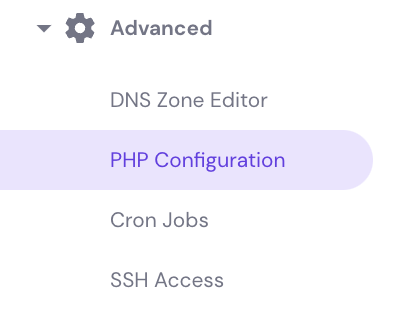
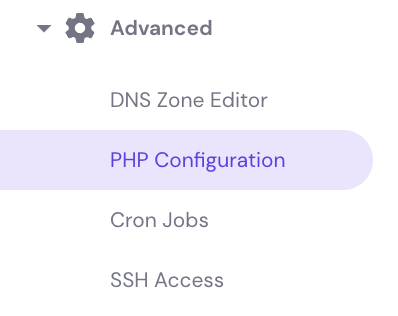
Hostinger makes error log access simple. You can activate error logging in hPanel under Advanced → PHP Configuration → PHP options by enabling the logErrors option.
To view logs, go to File Manager → [username]/.logs → error_log_[domain]. This file holds all recent error entries for your site.
How To Access Hostinger Error Logs
Accessing error logs on Hostinger helps identify website issues fast. These logs record errors that occur on your site. Checking them reveals problems with scripts, plugins, or server settings. Hostinger provides easy tools to activate and find these logs through its hPanel and File Manager. Follow simple steps to view error details and fix your website quickly.
Activating Error Logging Via Hpanel
Start by logging into your Hostinger hPanel. This is the control panel for managing your hosting account.
- Go to the Advanced section.
- Select PHP Configuration.
- Find the PHP options area.
- Tick the box labeled
logErrorsto enable error logging.
Once enabled, PHP will record errors into log files. This setup is essential to track issues on your website.
Locating The .logs Folder In File Manager
Next, open Hostinger’s File Manager from your hPanel dashboard.
- Navigate to your website’s root directory, usually named after your username.
- Look for the hidden folder named
.logs. - This folder stores all error log files generated by PHP.
If you do not see the .logs folder, enable showing hidden files in File Manager settings.
Navigating To The Error_log_[domain] File
Inside the .logs folder, find the file named error_log_[yourdomain]. This file contains the error records for your website.
- Click the file to open it in the File Manager editor.
- Review the list of errors with timestamps and error messages.
- Use this information to diagnose issues and improve your site’s performance.
Regularly checking this file helps catch problems early and keeps your site running smoothly.
Key Features Of Hostinger Error Logs
Hostinger Error Logs provide essential tools for website troubleshooting. They help spot and fix issues quickly by showing detailed error messages. These features make it easier to maintain a smooth website experience.
With Hostinger, error logs are accessible directly in the hPanel. This setup supports faster identification of problems and reduces downtime. The logs capture real-time data and offer clear, detailed reports.
Real-time Error Tracking For Faster Troubleshooting
Hostinger error logs update in real-time, allowing immediate detection of issues. This means errors appear as they happen, so you can act without delay.
Real-time tracking helps prevent extended website problems. Developers and site owners can quickly see what went wrong and fix it fast.
Comprehensive Log Details To Identify Specific Issues
Error logs in Hostinger provide detailed information about each problem. They include error type, file location, and timestamps.
This detailed data helps users understand the exact cause of an error. It also supports pinpointing issues in complex sites with many scripts.
| Log Detail | Description |
|---|---|
| Error Type | Shows the specific kind of error (e.g., PHP warnings, fatal errors) |
| File Location | Indicates which file caused the error |
| Timestamp | Records the exact time the error occurred |
User-friendly Interface Within Hostinger’s Hpanel
The error logs are easy to find and read inside Hostinger’s hPanel. This user-friendly interface suits beginners and experts alike.
To access logs:
- Log in to hPanel.
- Go to Advanced > PHP Configuration.
- Enable
logErrorsin PHP options. - Open File Manager and navigate to
/.logs/error_log_[domain].
This simple process ensures quick access to vital error data without technical barriers.
Step-by-step Guide To Fixing Issues Using Error Logs
Error logs are essential tools for troubleshooting website problems on Hostinger. They record all errors your site encounters. This guide shows how to use these logs to find and fix issues quickly.
Access error logs by going to hPanel → Advanced → PHP Configuration → PHP options, then tick the logErrors box. Next, open File Manager → [username]/.logs → error_log_[domain] to view the log file. The steps below explain how to read and act on the information found.
Interpreting Common Error Messages
Error logs contain different types of messages. Understanding these helps pinpoint the problem. Common messages include:
- 404 Not Found: A requested page or file is missing.
- 500 Internal Server Error: Server failed to complete a request.
- PHP Fatal Errors: Critical PHP issues stopping scripts.
- Warnings: Non-critical problems affecting functionality.
Each message shows a timestamp, error type, and file location. Check these details to identify where and when the error happened.
Using Logs To Diagnose Php Configuration Problems
PHP errors often stem from misconfigurations. Error logs reveal issues like:
- Missing extensions
- Syntax errors
- Memory limits exceeded
- Deprecated functions
Example from a log:
[26-Jun-2024 14:22:10 UTC] PHP Fatal error: Uncaught Error: Call to undefined function mysql_connect() in /home/user/public_html/index.php on line 10This means the mysql_connect() function is missing, likely due to wrong PHP version or missing extensions.
Fix this by adjusting PHP settings in hPanel or updating your code.
Implementing Quick Fixes Based On Log Insights
Use error log details to apply fast solutions:
- Fix missing files: Upload or restore the missing page or resource.
- Correct code errors: Edit PHP scripts to fix syntax or logic mistakes.
- Adjust PHP settings: Increase memory limits or enable required extensions via hPanel.
- Update software: Use supported PHP versions and plugins.
After changes, clear your browser cache and refresh the site to check results.
Follow these steps regularly to keep your Hostinger-hosted website running smoothly and error-free.
Pricing And Affordability Of Hostinger Plans For Error Log Access
Hostinger offers a variety of plans that include error log access. Understanding the pricing helps you pick the best plan for your needs. Plans are affordable and fit different website sizes. You get important features without paying too much. Knowing what each plan offers can save money and improve website management.
Overview Of Hostinger Plans Supporting Error Logs
Hostinger provides several plans with error log support. These plans include:
- Single Web Hosting: Best for beginners and small websites.
- Premium Shared Hosting: Suitable for growing websites needing more resources.
- Business Shared Hosting: Designed for business sites requiring advanced features.
All plans allow access to error logs through Hostinger’s hPanel. This feature helps track and fix website issues quickly.
Cost-effectiveness For Small To Medium Websites
Hostinger’s plans offer great value for small and medium websites. The Single Web Hosting plan is very budget-friendly. It includes essential tools like error log access and PHP configuration.
Medium websites benefit from Premium or Business plans. These provide more storage, bandwidth, and faster performance. The price increase is small compared to the extra features.
Overall, Hostinger balances cost and functionality well. This makes it a smart choice for websites needing reliable error logging without high costs.
Comparing Features Across Pricing Tiers
| Feature | Single Web Hosting | Premium Shared Hosting | Business Shared Hosting |
|---|---|---|---|
| Error Log Access | ✔️ Included | ✔️ Included | ✔️ Included |
| Storage | 30 GB SSD | 100 GB SSD | 200 GB SSD |
| Bandwidth | 100 GB | Unlimited | Unlimited |
| Number of Websites | 1 | Unlimited | Unlimited |
| Daily Backups | ✖️ No | ✖️ No | ✔️ Yes |
| SSL Certificate | ✔️ Free | ✔️ Free | ✔️ Free |
The Single Web Hosting plan is ideal for simple sites. Premium and Business plans add resources and backups. All support error log access, crucial for troubleshooting.
Credit: www.hostinger.com
Pros And Cons Of Using Hostinger Error Logs
Hostinger’s error logs provide valuable insights for website management. They help detect and fix issues quickly. Accessing these logs is straightforward but comes with some limitations. Understanding the advantages and drawbacks helps users make the best of this tool.
Advantages: Easy Access And Detailed Reporting
Hostinger offers simple access to error logs through its hPanel. Users can enable error logging by navigating to:
hPanel → Advanced → PHP Configuration → PHP options → logErrors (tick box)Once activated, error logs are stored in the File Manager under:
[username]/.logs/error_log_[domain]
This setup allows users to:
- Quickly identify PHP errors and server issues
- View detailed error reports with timestamps
- Trace problems without needing extra software
The clear organization of logs helps beginners and advanced users alike. It supports faster troubleshooting and website stability.
Limitations: Support Challenges And Feature Gaps
Hostinger’s error log system faces some challenges:
- Customer support can be slow to reach beyond AI chatbots
- Entry-level plans lack advanced features like CDN and ecommerce support
- Uses older-generation SSD storage, impacting speed and reliability
Some users find it difficult to get direct human assistance for complex issues. The error logs don’t cover all server activities, limiting full diagnostics.
Balancing Benefits With Known Drawbacks
The error logs provide valuable data for website troubleshooting. Easy access and detailed reports support quick fixes. Yet, users must be aware of:
- Possible delays in support response
- Missing advanced hosting features in basic plans
- Limitations in log coverage for deep technical errors
Balancing these points helps users decide how much to rely on Hostinger’s error logs. They serve well for routine issues but may require extra tools or support for complex problems.
Who Should Use Hostinger Error Logs And When
Hostinger error logs serve as a vital tool for diagnosing issues and improving website health. Understanding who benefits most and the right moments to use these logs helps maintain smooth website operations. Both technical experts and site owners can leverage error logs to spot and fix problems quickly.
Ideal Users: Web Developers And Site Owners
Web developers rely on error logs to debug code and track server issues. They analyze logs to find bugs and improve website functionality. Site owners also use logs to monitor their site’s stability and identify errors affecting user experience.
- Developers fix coding errors and optimize scripts.
- Site owners detect broken links or plugin conflicts.
- Both can monitor security issues and unauthorized access attempts.
Best Scenarios For Utilizing Error Logs
Error logs are most useful during these situations:
- Website crashes: Identify the root cause quickly.
- Slow loading pages: Detect server errors or heavy scripts.
- Plugin or theme conflicts: Pinpoint problematic code.
- Security monitoring: Watch for suspicious activities.
- Server misconfigurations: Adjust settings based on error messages.
Maximizing Website Performance With Error Monitoring
Using error logs regularly can boost website performance. Here’s how:
| Action | Benefit |
|---|---|
| Monitor logs daily | Catch errors early before they affect users |
| Fix errors promptly | Improve site speed and reliability |
| Analyze recurring issues | Prevent future breakdowns with proper fixes |
| Optimize server settings | Reduce load time and resource use |
Hostinger’s error logs provide clear reports that help maintain a healthy website. Regular review keeps the site running smoothly and visitors satisfied.
Additional Tips For Effective Website Troubleshooting
Effective website troubleshooting requires more than just reading error logs. Combining different tools and regular maintenance helps find and fix issues fast. It also keeps your website running smoothly over time. Use these tips to enhance your troubleshooting skills and reduce downtime.
Combining Error Logs With Other Diagnostic Tools
Error logs are a key resource but not the only one. Use them alongside other diagnostic tools for better results.
- Browser Developer Tools: Inspect HTML, CSS, and JavaScript errors directly on your site.
- Ping and Traceroute: Check server response time and network issues.
- Performance Monitoring: Use tools like GTmetrix or Google PageSpeed Insights to identify slow loading parts.
- Security Scanners: Detect malware or vulnerabilities affecting your website.
Cross-checking information from these tools with error logs helps pinpoint the root cause quickly.
Regular Maintenance Practices To Prevent Errors
Prevent many issues by following simple maintenance steps regularly.
- Update Software: Keep CMS, plugins, and scripts updated to avoid compatibility problems.
- Backup Data: Schedule backups often to restore your site after errors or attacks.
- Clear Cache: Remove old cache to ensure users see the latest content and avoid conflicts.
- Monitor Uptime: Use uptime monitors to get alerts about downtime or server failures.
- Check Logs Frequently: Review error logs weekly to catch small issues early.
Routine care reduces unexpected errors and improves website stability.
Resources And Support For Hostinger Users
Hostinger offers several resources to help users troubleshoot effectively.
| Resource | Description | How to Access |
|---|---|---|
| Hostinger Tutorials | Step-by-step guides on common issues and features | Visit hostinger.com/tutorials |
| hPanel Support | Manage error logs, PHP settings, and other configurations | Login to hPanel → Advanced → PHP Configuration |
| Customer Support | Live chat and ticket system for technical help | Access via Hostinger website dashboard |
| Community Forums | Ask questions and share solutions with other users | Search online for Hostinger forums and groups |
Use these tools to resolve problems faster and learn best practices.
Credit: www.hostinger.com
Frequently Asked Questions
How To See Error Logs In Hostinger?
To see error logs in Hostinger, enable PHP error logging via hPanel → Advanced → PHP Configuration. Then, open File Manager and access the. logs folder to find the error_log_[domain] file.
How To Look At Error Logs?
Access error logs by enabling PHP error logging in Hostinger’s hPanel under Advanced → PHP Configuration. Then, open File Manager, go to the. logs folder, and view the error_log_[domain] file to check website errors easily.
What Is The Disadvantage Of Hostinger?
Hostinger’s main disadvantage is limited customer support, with difficulty reaching human agents beyond AI chatbots. Entry-level plans lack CDN, ecommerce tools, and use older SSDs.
How To Check Website Server Logs For Errors?
Access your hosting control panel like cPanel or Plesk. Navigate to Metrics or Logs section. Open the error logs file to review errors. Check files named error_log or similar in your website’s root or. logs folder. Analyze entries for issues causing website errors.
Conclusion
Accessing error logs in Hostinger helps fix website problems fast. You only need to follow simple steps in hPanel to find logs. Regularly checking error logs keeps your site running smoothly. This guide makes the process easy for everyone. Start managing your website errors today with Hostinger’s tools. For reliable hosting with easy error log access, consider Hostinger. It offers user-friendly features and good support. Don’t let errors slow your site down—stay informed and proactive.