Are you ready to say goodbye to your Hostinger website but not sure where to start? Deleting a website might sound tricky, but with the right steps, it’s quick and simple.
Whether you want to clear out an old project or just tidy up your hosting account, this guide will walk you through every click you need to make. Don’t risk confusion or mistakes—follow along and delete your website confidently and safely. Plus, if you’re still looking for reliable hosting options, check out Hostinger’s affordable plans here. Keep reading to take control of your online space now!
Credit: www.hostinger.com
Introduction To Hostinger Website Deletion
Deleting a website on Hostinger is a straightforward process. It helps users manage their online presence by removing outdated or unwanted sites. Understanding this process ensures you can handle your hosting account effectively.
What Is Hostinger And Its Website Hosting Services
Hostinger is a popular web hosting provider known for affordable and reliable services. It offers various hosting plans like shared hosting, VPS hosting, and cloud hosting. These plans support different types of websites, from personal blogs to business portals.
- Easy-to-use control panel
- Fast SSD storage
- 24/7 customer support
- Free SSL certificates
- One-click app installations
Hostinger’s services are designed for beginners and experienced users alike, providing tools to build and manage websites efficiently.
Why You Might Need To Delete Your Website On Hostinger
Deleting a website on Hostinger might be necessary for several reasons:
- You no longer need the website
- The website is outdated or replaced by a new one
- You want to free up server space
- You want to avoid extra hosting charges
- Security concerns or site compromise
Removing unused sites keeps your hosting account organized and reduces clutter.
Overview Of The Website Deletion Process
The website deletion process on Hostinger is simple and secure. Follow these main steps:
- Log in to your Hostinger account
- Go to the hosting control panel
- Select the website you want to delete
- Click the Delete Website button
- Confirm the deletion by typing the website URL
- Complete the process by clicking the final delete option
Once confirmed, the website and its files are permanently removed from your hosting space.
Important: Deletion cannot be undone. Backup your data before proceeding.

Credit: www.youtube.com
Step-by-step Guide To Deleting Your Website On Hostinger
Deleting a website on Hostinger is a simple process that requires careful steps. This guide walks you through each phase, ensuring you remove your site safely and fully. Follow these clear instructions to delete your website without hassle.
Accessing The Hostinger Hpanel Dashboard
Start by logging into your Hostinger account. You will reach the hPanel dashboard, the control center for managing your websites and hosting plans.
Here is how to access it:
- Go to Hostinger.com.
- Click Login at the top right corner.
- Enter your email and password.
- Click Sign In.
Once logged in, you will see the main dashboard with all your hosted websites listed.
Locating The Website You Want To Remove
On the hPanel dashboard, find the section labeled Websites. This shows all your active sites hosted on Hostinger.
Steps to locate your website:
- Scroll through the list to find your site’s domain name.
- Use the search bar if you have many websites.
- Click the website entry to highlight it.
Ensure you select the correct website before proceeding to delete.
Using The Ellipsis Menu To Initiate Deletion
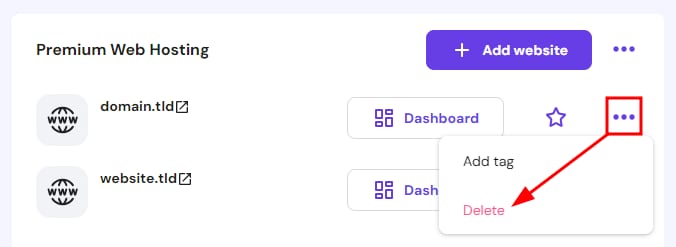
Next to your website listing, find the ellipsis icon (three dots). This menu contains options for managing your site.
To start deletion:
- Click the ellipsis icon.
- Select Delete Website from the dropdown menu.
This action will open a prompt asking for confirmation to proceed.
Confirming Website Deletion Safely
Hostinger requires you to confirm deletion to avoid mistakes.
Follow these steps to confirm:
- Read the warning message carefully.
- Type the website URL exactly as shown in the prompt.
- Check the box confirming you understand the deletion is permanent.
- Click Delete.
After confirmation, Hostinger will permanently remove the website from your account.
What Happens After Deletion: Data And Backup Considerations
Deleting your website on Hostinger removes files and databases linked to it.
- Data loss: All site content, emails, and databases are deleted.
- Backups: Hostinger may keep backups for a limited time, but do not rely on them.
- Recommendation: Always download and save a backup before deleting.
Without a backup, your data cannot be recovered after deletion.
Deleting Specific Website Elements On Hostinger
Managing your website on Hostinger includes removing certain elements without deleting the entire site. This helps keep your content fresh and relevant.
Deleting specific parts like pages or product listings can improve site performance and user experience. Hostinger’s control panel allows easy editing and removal of these elements.
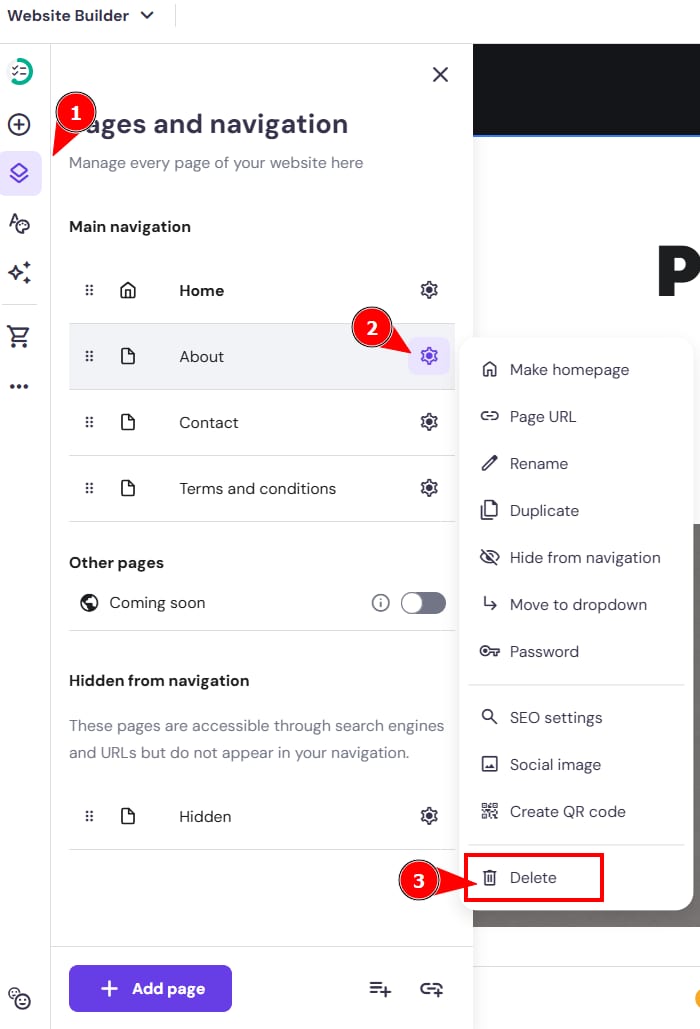
How To Delete Individual Pages Within Your Website
To delete a single page on Hostinger, follow these steps:
- Log in to your Hostinger dashboard.
- Go to the Website Builder or CMS section.
- Find the list of pages in your site editor.
- Select the page you want to delete.
- Click the delete or remove option.
- Confirm the deletion when prompted.
Deleting pages removes them from your navigation and search engine indexing. Keep backups of important pages before deletion.
Removing Product Pages And Other Content Types
Product pages and other content types are managed similarly:
- Access your Hostinger dashboard.
- Open the eCommerce or content section.
- Locate the product or content item to remove.
- Click the delete button next to the item.
- Confirm the action to complete removal.
Removing outdated products keeps your store updated and avoids confusing customers. Other content types like blog posts or galleries follow the same process.
Changing The Homepage Before Deleting It
Deleting your homepage needs care. You must set a new homepage first to avoid site errors.
- Open your Hostinger site editor.
- Choose a new page to make the homepage.
- Find the option
Set as Homepageor similar. - Confirm the change so visitors see the new homepage.
- Now delete the old homepage safely.
This process ensures your site remains accessible and functional after homepage deletion.
Deleting WordPress Websites Hosted On Hostinger
Deleting a WordPress website on Hostinger is a straightforward process. You can remove your site either by using Hostinger’s built-in tools or manually deleting files and databases. Proper deletion ensures your site no longer takes up space or appears online. Follow the steps below to delete your WordPress website safely and completely.
Using Hostinger’s Auto Installer To Delete WordPress Sites
Hostinger’s Auto Installer allows easy management of WordPress sites, including deletion. To delete a WordPress website using this tool:
- Log in to your Hostinger hPanel.
- Navigate to the Auto Installer section.
- Find the WordPress installation you want to remove.
- Click the Delete button next to that installation.
- Confirm the deletion by typing the site URL when prompted.
- Click Yes, I understand what I’m about to do and finalize the deletion.
This method removes all WordPress files and database connected to that installation automatically.
Manual Deletion Of WordPress Files And Databases Via Hpanel
Manual deletion offers more control over the process. Use these steps to remove WordPress files and databases manually:
- Log in to your Hostinger hPanel.
- Go to the File Manager under the Files section.
- Locate the WordPress directory, usually named
public_htmlor a subfolder. - Select all WordPress files and folders, then delete them.
- Next, go to Databases > MySQL Databases.
- Identify the database used by your WordPress site.
- Delete the database and the associated database user.
Manual deletion removes all website files and database content permanently.
Ensuring Complete Removal Of WordPress Content
Complete removal requires checking several points after deletion:
- Confirm no WordPress files remain in your hosting folders.
- Verify the database is fully deleted in hPanel.
- Clear your browser cache to avoid loading old site data.
- Check your domain settings and remove any redirects or DNS entries linked to the deleted site.
- Inspect backups or auto-backup settings to avoid accidental restoration.
Following these steps guarantees your WordPress site is fully removed from Hostinger.
Pricing And Affordability Considerations Related To Website Deletion
Deleting a website on Hostinger involves understanding costs tied to your hosting plan and deletion policies. This clarity helps avoid unexpected charges and manage your budget better. Website removal itself usually has no direct fee, but related factors can influence overall affordability.
Understanding Hostinger’s Plans And Deletion Policies
Hostinger offers several hosting plans, each with unique features and pricing. Plans include:
- Single Shared Hosting: Ideal for small websites, the most affordable plan.
- Premium Shared Hosting: Suitable for multiple websites with more resources.
- Business Shared Hosting: Best for eCommerce or high-traffic sites.
Hostinger allows website deletion through its control panel without extra fees. Users must confirm deletion by entering the site URL. Deleted websites cannot be restored, so caution is needed.
Potential Costs Associated With Website Removal
Website deletion on Hostinger typically does not cost extra. However, consider these points:
- Domain Name: Deleting a site does not cancel domain registration. Domains renew yearly and have separate fees.
- Unused Hosting Plans: Cancel hosting to avoid ongoing charges after deletion.
- Backups: Some backups may require paid plans. Losing backups can lead to recovery costs.
Free Vs Paid Options For Website Management And Deletion
Hostinger offers both free and paid tools for website management. Understanding these options helps control costs.
| Feature | Free Option | Paid Option |
|---|---|---|
| Website Deletion | Delete site from control panel at no cost | Not applicable |
| Domain Management | Basic DNS and renewals available | Domain privacy and premium domains |
| Backups | Manual backups with limitations | Automated daily backups on higher plans |
| Support | AI chatbot and knowledge base | 24/7 live chat and priority support |
Free deletion tools suit most users. Paid plans offer extra security, backup, and support benefits.
Pros And Cons Of Deleting Your Website On Hostinger
Deleting a website on Hostinger can be straightforward but comes with trade-offs. It offers control and quick removal but also some challenges. Understanding the advantages and drawbacks helps make the right choice.
Advantages Of Using Hostinger’s Deletion Tools
- Simple Interface: The deletion process uses clear prompts and confirmations.
- Fast Execution: Websites get deleted instantly after confirmation.
- Direct Control: Users manage site deletion without needing support.
- Clear Warnings: Hostinger requires URL confirmation to avoid mistakes.
This makes deleting websites quick and safe for most users.
Common Challenges Users Face During Deletion
- Support Access: It can be hard to reach live support if problems arise.
- Data Backup: Users may forget to back up files before deletion.
- Permanent Action: Deletion is irreversible; mistakes can cause data loss.
- Confusing Steps: Some users find the confirmation steps unclear.
These challenges require careful attention to avoid issues.
Limitations And Support Availability During The Process
| Aspect | Details |
|---|---|
| Support Access | AI chatbots handle most queries; human support is limited. |
| Feature Limits | Entry-level plans lack advanced tools like CDN or eCommerce support. |
| Deletion Process | Requires manual URL confirmation to complete deletion. |
| Backup Options | Users must create backups themselves before deleting. |
Support availability is limited during deletion. Users should prepare before starting.
Recommendations For Ideal Users And Scenarios
Deleting a website on Hostinger suits specific needs and situations. Understanding when to delete or explore other options helps maintain your online presence wisely. This section guides on who should delete, managing site lifecycles, and alternatives to deletion.
Who Should Consider Deleting Their Website On Hostinger
Website deletion fits users who:
- Have a site no longer relevant or needed.
- Want to remove outdated or low-quality content permanently.
- Are closing a business or project hosted on Hostinger.
- Need to free up server space or hosting resources.
- Wish to stop ongoing costs linked to hosting a particular site.
Deleting is irreversible. Only proceed if sure about removing the website completely.
Best Practices For Managing Website Lifecycle On Hostinger
Proper website lifecycle management improves site performance and resource use.
- Regular backups: Always save website data before deletion or major changes.
- Review content: Update or archive content instead of deleting instantly.
- Monitor site usage: Check traffic and engagement to decide if deletion is needed.
- Plan downtime: Schedule deletions during low traffic to avoid disruption.
- Use Hostinger tools: Utilize control panel features for smooth site management.
Following these practices ensures safe and effective handling of your website on Hostinger.
Alternatives To Deletion: Archiving And Temporary Disabling
Deleting a site is final. Consider these options before deletion:
| Option | Description | Benefits |
|---|---|---|
| Archiving | Store website files and data offline or in cloud storage. | Preserves content for future use or reference without hosting costs. |
| Temporary Disabling | Pause website access by turning off hosting or using maintenance mode. | Keeps content intact; easy to reactivate without rebuilding. |
These methods help maintain control over your website without losing data.
Additional Tips And Troubleshooting For Website Deletion
Deleting a website on Hostinger is straightforward, but some challenges may arise. This section offers valuable advice on handling common issues and securing your data after deletion. Follow these tips to ensure a smooth process and peace of mind.
How To Handle Unwanted Search Results After Deletion
After deleting your website, some pages might still appear in search engine results. These results can confuse visitors or affect your online reputation.
- Use Google’s Removal Tool: Submit a removal request through Google Search Console to speed up the removal of outdated content.
- Clear Cached Pages: Request Google to clear the cached version of your deleted pages.
- Update Sitemap: Remove deleted URLs from your sitemap to guide search engines.
- Wait Patiently: Search engines take time to update their index after website deletion.
These steps help minimize unwanted search results and maintain your online presence.
Contacting Hostinger Support For Deletion Issues
Issues during website deletion are rare but can occur. Hostinger offers support to resolve such problems quickly.
- Access Hostinger Help Center: Visit the official support page for guides and FAQs.
- Use Live Chat: Connect with a support agent for real-time assistance. Note that reaching a human agent can sometimes be challenging.
- Submit a Ticket: Provide detailed information about your deletion issue for faster resolution.
- Check Status: Monitor your deletion request status via your Hostinger control panel.
Contacting support ensures your website deletion completes without lingering problems.
Ensuring Data Security And Privacy Post-deletion
Website deletion does not always mean immediate data removal. Protect your privacy with these steps:
- Backup Important Data: Save any essential files before deletion.
- Clear Hosting Files: Manually delete leftover files from the Hostinger file manager.
- Remove Database Entries: Delete associated databases to avoid data leaks.
- Revoke Access: Change passwords and remove linked accounts to secure your hosting environment.
- Monitor Account Activity: Keep an eye on your Hostinger account for any unusual actions post-deletion.
Following these steps protects your sensitive information and maintains privacy after website removal.
Conclusion: Efficiently Managing Website Deletion On Hostinger
Deleting a website on Hostinger requires careful steps to ensure the process is smooth and final. Proper management helps avoid data loss and maintains control over your online presence. This section breaks down the key actions and shares best practices for handling website deletion efficiently.
Summary Of Key Steps And Best Practices
Follow these steps to delete your website safely on Hostinger:
- Log in to your Hostinger account.
- Navigate to the Website Management section.
- Select the website you want to delete.
- Click the Delete Website button.
- Confirm the deletion by typing the site URL as requested.
- Click the final Delete button to complete the process.
Keep these best practices in mind:
- Backup all important files and databases before deletion.
- Double-check the URL you enter during confirmation.
- Understand that deletion is permanent and cannot be undone.
- Clear cached data or DNS if you plan to reuse the domain.
Final Thoughts On Maintaining Control Over Your Online Presence
Deleting a website is a major step. It affects your digital footprint and online business.
Keep control over your content by managing backups regularly.
Review your hosting plans and domains often to avoid unwanted charges or content lingering online.
Use Hostinger’s tools wisely to keep your website portfolio organized and secure.
Stay informed about your hosting features and limitations to make smart decisions.
Credit: www.hostinger.com
Frequently Asked Questions
How Do I Delete A Website On Hostinger?
Log in to Hostinger hPanel and go to the Websites section. Find your site, click the ellipsis (⋯), select Delete, confirm by typing the URL, then hit Delete to remove the website.
How Do I Delete An Existing Website?
To delete an existing website, go to your hosting dashboard. Locate the site, click the options menu, then select “Delete. ” Confirm by entering the site’s URL if prompted. The website will be permanently removed from your hosting account.
What Is The Disadvantage Of Hostinger?
Hostinger’s main disadvantage is limited customer support, with difficulty reaching human agents quickly. Entry-level plans lack some features like CDN and advanced ecommerce tools.
How Do I Remove Unwanted Websites?
To remove unwanted websites, access your hosting dashboard, locate the site, and click the delete option. Confirm the action to permanently remove it. For search results, submit a removal request through Google’s online forms or contact the site owner directly.
Conclusion
Deleting a website on Hostinger is simple and quick. Follow the steps carefully to avoid mistakes. Always double-check before confirming deletion. Remember, this action cannot be undone later. Hostinger offers an easy-to-use control panel for managing sites. For reliable hosting services, consider using Hostinger. It suits beginners and experts alike. Manage your websites with confidence and ease.