Are you ready to take full control of your website files with ease? Connecting Hostinger to FileZilla is the key to effortlessly managing and transferring your website data without hassle.
Whether you’re updating your site, backing up files, or uploading new content, knowing how to set up this connection saves you time and frustration. In this guide, you’ll discover simple steps to link your Hostinger hosting account with FileZilla, so you can handle your website like a pro—even if you’re just starting out. Don’t miss out on mastering this essential skill that will empower your online presence. Get started today with reliable hosting from Hostinger and enjoy seamless FTP access!

Credit: www.hostinger.com
Introduction To Hostinger Connect And Filezilla
Hostinger Connect is a user-friendly FTP service that helps you upload and manage website files quickly. FileZilla is a popular FTP client that works perfectly with Hostinger. Together, they simplify website management by making file transfers easy and secure.
Overview Of Hostinger’s Ftp Services
Hostinger offers FTP services to help users transfer files between their computers and web servers. The FTP service includes:
- Access through hPanel dashboard for easy management
- Ability to create and manage unlimited FTP accounts
- Support for both FTP and secure SFTP protocols
This allows smooth control over website files without needing complex technical skills.
Purpose Of Using Filezilla With Hostinger
FileZilla acts as the bridge between your local computer and Hostinger’s FTP server. It helps you:
- Connect securely to Hostinger’s server using FTP credentials
- Navigate local and remote directories with an easy interface
- Upload, download, and organize website files efficiently
FileZilla’s quickconnect feature and site manager simplify repeated connections.
Benefits Of Seamless Ftp Uploads For Website Management
Using Hostinger Connect with FileZilla offers many benefits for website owners:
- Fast file transfers: Upload large files quickly without errors
- Reliable connections: Resume interrupted uploads to avoid data loss
- Secure access: Protect files with encrypted SFTP connections
- Easy file management: Edit, delete, and organize files on the server
These advantages reduce downtime and help maintain your website effectively.
Key Features Of Hostinger Connect With Filezilla
Hostinger Connect integrated with FileZilla offers a smooth way to transfer files between your computer and hosting server. The connection process is simple and efficient, designed for users of all skill levels. This guide highlights the main features that make managing your website files easier and faster.
Easy Ftp Account Setup Via Hostinger Hpanel
Setting up an FTP account is straightforward using Hostinger’s hPanel. Follow these steps:
- Log in to your Hostinger account.
- Go to Files → FTP Accounts in the dashboard.
- Create new FTP accounts as needed with custom usernames and passwords.
- Access all FTP details required for FileZilla connection.
This setup allows quick access without complex configurations.
Quickconnect Feature For Instant Server Access
FileZilla’s Quickconnect bar lets you connect instantly to your Hostinger server. Enter these details:
- Host (your domain or IP address)
- Username (FTP account username)
- Password (FTP account password)
- Port (usually 21 for FTP)
Clicking Quickconnect opens a direct session without saving the information.
Site Manager For Organized And Reusable Connections
The Site Manager stores your FTP server details for repeated use. Benefits include:
- Saving multiple server profiles
- Easy switching between projects
- Secure storage of login credentials
To add a site, open Site Manager, click New Site, and fill in your Hostinger FTP info.
Support For Both Ftp And Secure Sftp Protocols
Hostinger Connect supports both FTP and SFTP. This means:
| Protocol | Description | Security |
|---|---|---|
| FTP | Standard file transfer protocol | Less secure |
| SFTP | Secure file transfer over SSH | Encrypted and safer |
Choose SFTP for sensitive data to protect your files during transfer.
User-friendly Navigation Between Local And Remote Directories
FileZilla shows two panels side by side:
- Left panel: Your local computer files
- Right panel: Remote server files
Switch folders easily by double-clicking. This layout helps you compare and manage files quickly.
Drag-and-drop File Uploads For Efficient Transfers
FileZilla allows dragging files from your local panel directly to the remote panel. This feature:
- Simplifies file uploads
- Speeds up transferring multiple files
- Reduces manual commands
Just select files, drag, and drop them to upload to your Hostinger server instantly.
Step-by-step Guide To Connecting Filezilla With Hostinger
Connecting FileZilla with Hostinger lets you manage website files easily. This guide walks through each step clearly. Follow these instructions to start transferring files smoothly.
Downloading And Installing Filezilla
First, download FileZilla from the official website. Choose the version for your operating system (Windows, Mac, or Linux).
- Open the installer file after download.
- Follow the on-screen instructions to install.
- Launch FileZilla once installation finishes.
FileZilla is free and safe to use for managing FTP connections.
Locating Ftp Credentials In Hostinger Hpanel
Access your Hostinger account at hostinger.com. Then:
- Open the hPanel dashboard.
- Navigate to Files > FTP Accounts.
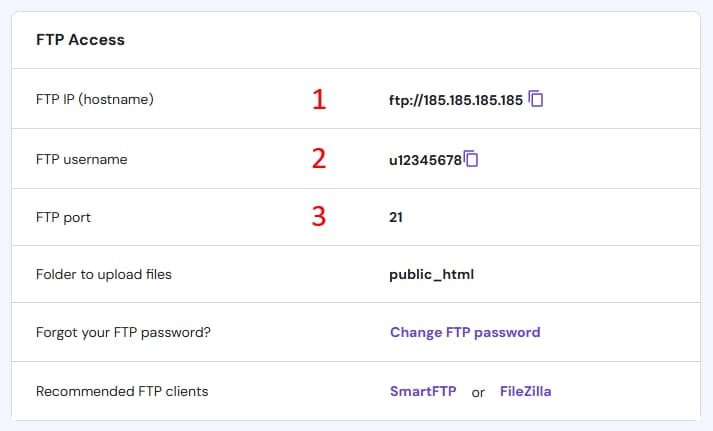
- Find your FTP hostname, username, and password.
- Note the port number, usually 21.
If needed, create new FTP accounts on this page for different users.
Using The Quickconnect Bar For Immediate Connection
FileZilla’s Quickconnect bar allows fast FTP login without saving settings. Steps:
- Open FileZilla.
- Enter Host (FTP hostname from Hostinger).
- Type your Username and Password.
- Enter Port 21.
- Click Quickconnect.
FileZilla will connect and show your server files on the right panel.
Setting Up A New Site In Filezilla’s Site Manager
Save your FTP info for easier access later. Use Site Manager:
- Open FileZilla.
- Go to File > Site Manager.
- Click New Site and name it (e.g., Hostinger).
- Fill in these details:
| Field | Value |
|---|---|
| Host | Your Hostinger FTP hostname |
| Port | 21 |
| Protocol | FTP – File Transfer Protocol |
| Encryption | Use explicit FTP over TLS if available |
| Logon Type | Normal |
| User | Your FTP username |
| Password | Your FTP password |
Click Connect to save and open the connection.
Navigating Your Computer And Server Directories
FileZilla’s interface splits into two panels:
- Left panel: Your local computer files and folders.
- Right panel: Files and folders on Hostinger server.
Use these panels to browse and select files. Double-click folders to open them. Right-click files for more options.
Uploading Files To Hostinger Server Seamlessly
To upload files:
- Locate files on your computer in the left panel.
- Drag and drop files or folders to the right panel.
- Wait for the transfer to complete (status shown at the bottom).
You can also right-click files and select Upload. This moves files to your Hostinger server instantly.
Keep FTP connection open while transferring multiple files for smooth uploading.

Credit: www.youtube.com
Pricing And Affordability Breakdown
Understanding the costs behind hosting and FTP access is key for budget-conscious users. Hostinger offers competitive pricing plans that support FTP connections, making it easier to manage website files. Combining Hostinger’s affordable hosting with FileZilla, a free FTP client, users get excellent value without extra expenses.
Hostinger Hosting Plans Supporting Ftp Access
Hostinger provides several hosting plans that include FTP access. Each plan allows users to connect via FTP and manage files efficiently. Here is a brief overview:
| Hosting Plan | Monthly Price (Starting At) | FTP Access | Unlimited FTP Accounts |
|---|---|---|---|
| Single Shared Hosting | $1.99 | Yes | No |
| Premium Shared Hosting | $2.99 | Yes | Yes |
| Business Shared Hosting | $4.99 | Yes | Yes |
FTP access is standard across all plans. Higher-tier plans allow creating unlimited FTP accounts, offering more flexibility for team management.
Cost Benefits Of Using Filezilla As A Free Ftp Client
FileZilla is a free, open-source FTP client. It connects smoothly with Hostinger’s servers without extra charges. This saves money compared to paid FTP software.
- No licensing fees or subscriptions needed
- User-friendly interface reduces time spent on file transfers
- Supports FTP, FTPS, and SFTP for secure connections
- Compatible with multiple operating systems
Using FileZilla with Hostinger means you avoid additional software costs. The combination is budget-friendly and efficient.
Value Added By Unlimited Ftp Accounts On Hostinger
Hostinger’s plans with unlimited FTP accounts add significant value. Users can create multiple login credentials for different team members or projects. Benefits include:
- Improved security by limiting access per user
- Better organization of file management roles
- Easy tracking of individual user activity
- Convenience for agencies or businesses managing multiple sites
This feature enhances collaboration without raising costs.
Comparing Hostinger’s Ftp Features With Competitors
| Feature | Hostinger | Competitor A | Competitor B |
|---|---|---|---|
| FTP Access | Included in all plans | Included, but limited on basic plans | Extra fee required |
| Unlimited FTP Accounts | Yes on Premium and Business plans | No | Yes, but at higher cost |
| Free FTP Client Support | FileZilla recommended | Supports FileZilla | Supports FileZilla |
| Monthly Price (Starting) | $1.99 | $3.49 | $4.00 |
Hostinger stands out for affordable pricing and strong FTP features. Unlimited FTP accounts and free FileZilla use improve overall value.
Pros And Cons Of Using Hostinger Connect With Filezilla
Using Hostinger Connect with FileZilla offers a mix of benefits and challenges. It simplifies file transfers and server management. Still, users may face occasional technical issues. Understanding these pros and cons helps optimize your FTP experience.
Advantages: Speed, Security, And User Experience
Hostinger Connect combined with FileZilla provides a fast and reliable connection to your server. File transfers happen quickly, saving time. The connection uses secure FTP protocols like FTPS, protecting your data during transfer.
The user interface is simple and clear. FileZilla’s drag-and-drop feature makes uploading files easy. Hostinger’s hPanel allows quick access to FTP details, streamlining setup.
- Fast file transfers reduce waiting times
- Encrypted connections ensure data safety
- Intuitive interface improves ease of use
- Unlimited FTP accounts support team collaboration
Limitations: Potential Connection Issues And Troubleshooting
Despite its strengths, connection problems can occur. Some common issues include:
- Incorrect FTP credentials causing login failures
- Firewall or network blocking FTP ports
- Timeouts during large file uploads
Resolving these problems requires troubleshooting steps like verifying login details, checking firewall settings, and adjusting timeout limits in FileZilla.
Users should also confirm the correct FTP host and port from Hostinger’s hPanel. Sometimes switching between FTP and FTPS helps improve connection stability.
Real-world User Feedback And Common Challenges
Users appreciate Hostinger Connect’s speed and security. Many find FileZilla’s interface easy for managing files. Still, some report occasional disconnections or failed uploads.
Common challenges include:
- Difficulty setting up FTP for the first time
- Confusion about passive vs active FTP modes
- Slow upload speeds during peak hours
Most users recommend reading Hostinger’s guides carefully and testing settings to avoid errors.
How Hostinger Support Enhances Ftp Usage Experience
Hostinger offers responsive customer support to help with FTP issues. Their team assists with:
- Providing correct FTP credentials
- Guiding through FileZilla setup
- Troubleshooting connection errors
- Explaining FTP account management in hPanel
This support reduces downtime and ensures smoother FTP file transfers. Users often praise Hostinger’s clear and helpful responses.
Ideal Users And Use Cases For Hostinger Connect With Filezilla
Hostinger Connect with FileZilla offers a reliable and user-friendly FTP solution. It suits various users who need to transfer files between their computers and hosting servers efficiently. This section highlights the main groups of users and their typical use cases for this powerful combination.
Website Developers And Designers Managing Multiple Sites
Developers and designers often handle many websites simultaneously. Hostinger Connect with FileZilla simplifies managing files across multiple projects.
- Quickly switch between different site directories using Site Manager.
- Upload and update website files seamlessly.
- Maintain organized file structures with easy drag-and-drop features.
- Save multiple FTP account details securely for fast access.
This setup speeds up workflow and reduces errors during file transfers.
Small Business Owners Uploading Content Regularly
Small business owners need a straightforward way to update their website content often. Hostinger Connect with FileZilla provides an easy method to upload new images, documents, and webpages.
- Simple interface helps avoid technical confusion.
- Supports regular updates without extra software complexity.
- Reliable connection minimizes downtime during uploads.
Keeping websites fresh and relevant becomes hassle-free for business owners.
Tech-savvy Users Seeking Secure File Transfers Via Sftp
Users with technical skills often prefer secure transfer methods like SFTP. Hostinger supports SFTP connections through FileZilla to enhance security.
- Encrypts data to protect sensitive files during transfer.
- Works well with Hostinger’s FTP server settings found in hPanel.
- Allows creation of multiple FTP accounts with tailored permissions.
This ensures data safety and control over who accesses the server files.
Beginners Looking For An Intuitive Ftp Solution
New users benefit from an easy-to-use FTP client paired with clear instructions. Hostinger Connect with FileZilla fits this need perfectly.
- Step-by-step setup guides simplify connecting to the FTP server.
- Quickconnect feature enables instant server access without complex settings.
- User-friendly interface reduces the learning curve.
- Access to extensive tutorials and customer support through Hostinger.
Beginners can manage website files confidently without technical stress.
Tips And Best Practices For Seamless Ftp Uploads
Uploading files via FTP can be simple and fast with the right approach. Using Hostinger with FileZilla needs careful handling to avoid errors and delays. Follow these tips to ensure smooth and secure file transfers every time.
Ensuring Correct Ftp Credentials And Permissions
Correct FTP credentials are the key to connecting successfully. Double-check your FTP host, username, password, and port before connecting.
- Find FTP details in your Hostinger hPanel under Files > FTP Accounts.
- Use the exact password linked to your FTP account.
- Verify file and folder permissions to avoid upload errors.
Permissions like 755 for folders and 644 for files usually work well. Incorrect permissions can block uploads or cause files to malfunction on your website.
Regularly Updating Filezilla For Enhanced Security
FileZilla updates fix bugs and improve security. Run the latest version to protect your data during transfers.
- Check for updates in FileZilla under Help > Check for updates.
- Download updates from the official FileZilla website only.
- Updates often include better encryption methods for safer connections.
Using old FileZilla versions risks security leaks and connection problems. Stay updated to keep your uploads safe.
Utilizing Site Manager To Save Time On Repeated Connections
Site Manager in FileZilla stores your Hostinger FTP details. It saves time by avoiding manual input every session.
| Step | Action |
|---|---|
| 1 | Open FileZilla and click File > Site Manager. |
| 2 | Click New Site and name it (e.g., Hostinger). |
| 3 | Enter your FTP host, port, username, and password. |
| 4 | Set Protocol to FTP – File Transfer Protocol. |
| 5 | Set Encryption to “Use explicit FTP over TLS if available”. |
| 6 | Save settings and connect with one click next time. |
Site Manager boosts efficiency by storing settings securely on your computer.
Backing Up Files Before Uploading To Prevent Data Loss
Backing up files is critical. It stops data loss from accidental overwrites or upload failures.
- Copy important files to a separate backup folder.
- Use Hostinger’s backup tools available in your hPanel.
- Maintain multiple backup versions for safety.
Before uploading, compare your local files with server versions. This step avoids overwriting newer files on the server.
Simple backups give peace of mind and quick recovery options if something goes wrong.
Credit: www.hostinger.com
Conclusion: Maximizing Your Ftp Experience With Hostinger And Filezilla
Using Hostinger with FileZilla offers a smooth way to manage your website files. The FTP connection lets you transfer files quickly and securely. This guide showed simple steps to connect and use FTP effectively.
Proper use of FTP saves time and avoids common file management errors. It makes updating your website easy, even for beginners. With Hostinger’s reliable hosting and FileZilla’s user-friendly interface, managing your site becomes hassle-free.
Summary Of Key Benefits And Features
- Easy setup: Connect FileZilla to Hostinger using FTP details from hPanel.
- Fast file transfers: Quickly upload, download, and manage website files.
- Secure connection: Supports FTP and SFTP for safe data transfer.
- Multiple accounts: Create unlimited FTP accounts via Hostinger’s dashboard.
- Directory navigation: Seamlessly browse local and server folders in FileZilla.
Encouragement To Leverage Ftp For Efficient Website Management
Managing your website files through FTP improves control and efficiency. Updating content, fixing errors, or adding new pages happens faster. Instead of relying on slow web interfaces, use FileZilla for direct server access.
FTP access also helps in backing up files regularly. Keep your website safe by downloading copies of important data. This simple practice avoids data loss and keeps your site running smoothly.
Resources For Further Learning And Support
| Resource | Description | Link |
|---|---|---|
| Hostinger FTP Configuration Guide | Step-by-step instructions to connect FileZilla to Hostinger. | hostinger.com/filezilla-ftp-configuration |
| Hostinger hPanel FTP Accounts | Manage and create FTP accounts from your hosting control panel. | hostinger.com |
| FileZilla Official Website | Download FileZilla and find support articles. | filezilla-project.org |
Explore these resources to deepen your FTP knowledge. Use video tutorials and support forums for quick answers. With patience and practice, FTP file management will become second nature.
Frequently Asked Questions
How To Connect Filezilla To Hostinger Server?
Download and install FileZilla. Get FTP details from Hostinger’s hPanel under FTP Accounts. Enter host, username, password, and port in FileZilla. Click Quickconnect or save in Site Manager. Access and transfer files between your computer and Hostinger server easily.
How Do I Access Ftp On Hostinger?
Log in to Hostinger hPanel, go to Files → FTP Accounts. Use provided FTP details to connect via FileZilla or another FTP client.
How To Connect Ftp Using Filezilla?
Open FileZilla. Enter your Host, Username, Password, and Port in Quickconnect. Click “Quickconnect” to connect. Manage files easily.
How To Use Sftp Hostinger?
To use SFTP on Hostinger, get your SSH/SFTP details from hPanel. Open FileZilla, choose SFTP, enter host, username, password, then connect. Transfer files securely between your computer and Hostinger server.
Conclusion
Connecting Hostinger with FileZilla makes file transfer simple and quick. Follow the steps carefully to avoid errors. Use the FTP details from your Hostinger hPanel to set up FileZilla. This guide helps you manage your website files smoothly. For reliable hosting, consider Hostinger’s affordable plans. Start your hosting journey here: Hostinger. Stay organized, transfer files easily, and keep your website updated with ease.