Are you looking to add a CNAME record in Hostinger but don’t know where to start? You’re in the right place.
Adding a CNAME record might sound technical, but with the right steps, you can do it quickly and easily. Whether you want to point your domain to a different service or set up email verification, this guide will walk you through everything you need to know. By the end, you’ll have full control over your DNS settings without any confusion. Ready to get started? If you haven’t chosen a hosting provider yet, Hostinger offers an easy-to-use platform with powerful features that make managing your domain simple. Check out Hostinger here: Hostinger Hosting. Keep reading to unlock the step-by-step process for adding a CNAME record in Hostinger and take full control of your website’s DNS settings!
Introduction To Adding Cname Records In Hostinger
Adding a CNAME record in Hostinger helps point your subdomain to another domain name. It is essential for tasks like connecting your website to third-party services or managing multiple domains. This guide explains the basics of CNAME records and how Hostinger’s DNS tools make the process simple.
What Is A Cname Record And Why It Matters
A CNAME record, or Canonical Name record, links one domain name to another. Instead of pointing to an IP address, it points to another domain.
Why it matters:
- Helps organize domains by redirecting subdomains.
- Makes website management easier with fewer DNS entries.
- Supports services like email, CDN, and external web apps.
- Allows seamless domain changes without updating all DNS records.
Overview Of Hostinger’s Dns Management Interface
Hostinger offers a user-friendly DNS management interface for adding or editing DNS records.
Key features include:
| Feature | Description |
|---|---|
| DNS Zone Editor | Central place to view and manage all DNS records. |
| Record Types | Supports A, AAAA, CNAME, MX, TXT, and more. |
| Add Record Button | Simple process to add new DNS records like CNAME. |
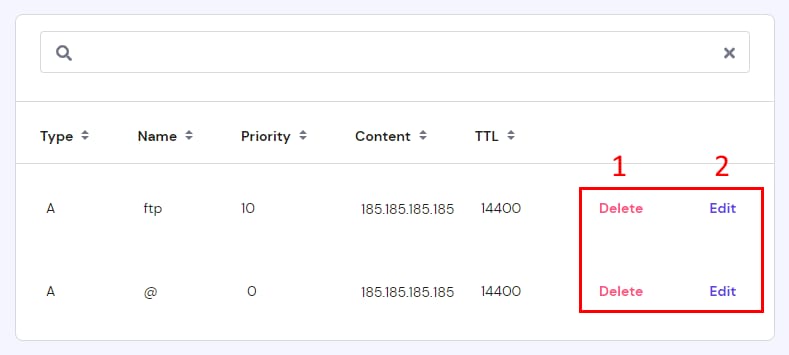
| Edit and Delete | Modify or remove existing DNS records easily. |
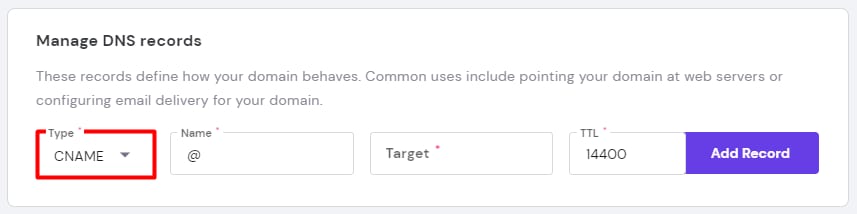
Steps to add a CNAME record:
- Log in to Hostinger and go to the DNS Zone Editor.
- Select CNAME as the record type.
- Enter the host (subdomain) and the target domain.
- Save the record to update DNS settings.
Credit: www.hostinger.com
Step-by-step Guide To Adding A Cname Record In Hostinger
Adding a CNAME record in Hostinger helps you point one domain to another. This is useful for setting up subdomains or connecting services like email or website builders. This guide walks you through the process in clear, simple steps.
Accessing The Dns Zone Editor In Hostinger
Start by logging into your Hostinger account. Navigate to the Hosting section where your domain is listed.
- Click on the domain you want to manage.
- Find the DNS Zone Editor option in the control panel.
- Open the DNS Zone Editor to see existing DNS records.
This editor allows you to add, edit, or remove DNS records for your domain.
Selecting The Cname Record Type
Inside the DNS Zone Editor, you will see an option to add a new record.
- Click on Add Record.
- From the record type dropdown, choose CNAME.
Selecting CNAME ensures the record will redirect one domain or subdomain to another domain.
Entering The Host And Target Values
Next, enter the details for your CNAME record.
| Field | Description | Example |
|---|---|---|
| Host | The subdomain or hostname to point from | blog (for blog.yourdomain.com) |
| Target | The domain you want to point to | example.targetdomain.com |
Make sure to enter the correct host and target values. The host is often a subdomain. The target is the destination domain.
Saving And Verifying Your Cname Record
After entering the values:
- Click the Save or Add Record button.
- Wait for the DNS changes to propagate. This may take from a few minutes up to 24 hours.
- Verify the CNAME record using online DNS tools or by checking your domain’s status in Hostinger.
Correctly added CNAME records ensure your domain points to the right service without issues.
Key Features Of Hostinger’s Dns Management For Cname Records
Hostinger offers a reliable and efficient DNS management system for handling CNAME records. It focuses on simplicity, speed, and seamless integration. Users can easily manage their DNS settings without technical hurdles. The platform ensures quick updates and smooth website performance. Here are some key features that make Hostinger’s DNS management stand out for CNAME records.
User-friendly Interface Simplifies Dns Management
The DNS Zone Editor in Hostinger provides a clear and simple interface. Users can quickly find and add CNAME records with just a few clicks. The interface uses straightforward labels like Label/Host and Points to, making the process easy to understand.
- Clear navigation to DNS settings
- Simple forms to add or edit records
- Instant access to all DNS record types, including CNAME
This setup reduces errors and saves time for beginners and experts alike.
Real-time Dns Record Updates And Propagation
Hostinger supports real-time updates for DNS records, including CNAME entries. Once a record is added or changed, the system starts propagation immediately.
- Fast propagation speeds reduce downtime
- Instant validation to ensure records are correct
- Minimal delay for DNS changes to take effect globally
This helps keep websites running smoothly and ensures domain aliases point to the right targets without long waits.
Integration With Hostinger Cdn And Potential Impact
Hostinger’s DNS management works well with its Content Delivery Network (CDN). This integration can improve site speed by caching content closer to visitors.
| Feature | Impact on CNAME Records |
|---|---|
| CDN Caching | Reduces load times for domains using CNAME aliases |
| Automatic SSL | Secures CNAME target domains with HTTPS |
| Optimized Routing | Improves reliability of domain redirects via CNAME |
Users benefit from faster content delivery and better security when using CNAME records linked to Hostinger’s CDN.
Pricing And Affordability Of Hostinger’s Dns Services
Hostinger offers DNS services that balance cost and features well. Its pricing structure suits individuals and small businesses. The affordability makes it a practical choice for managing domain names and DNS records.
Understanding the costs involved in domain registration and DNS management helps in planning budgets effectively. Hostinger includes many DNS features within hosting plans, adding value without extra fees. Comparing Hostinger’s DNS pricing with other providers reveals its competitive stance.
Cost Of Domain Registration And Dns Management
Domain registration prices at Hostinger start low, often with discounts for new customers.
- Typical domain registration costs range from $8 to $15 per year, depending on the domain extension.
- DNS management is free with domain registration, allowing easy control of DNS records like CNAME.
- No additional charges apply for basic DNS record updates or management.
This pricing model helps users avoid surprise fees. You get full DNS control as part of your domain package.
Value Of Included Dns Features In Hosting Plans
Hostinger’s hosting plans include advanced DNS features at no extra cost. These features add significant value beyond simple domain registration.
- DNS Zone Editor: Manage all DNS records easily from the control panel.
- Free SSL Certificates: Improve security and trust without added fees.
- Multiple DNS Records: Add CNAME, A, MX, TXT, and more without limits.
- Fast DNS propagation: Speeds up changes for better website uptime.
Bundling DNS tools with hosting saves money and simplifies website management.
Comparison With Other Hosting Providers’ Dns Pricing
| Provider | Domain Registration Cost (Yearly) | DNS Management Fee | Included DNS Features |
|---|---|---|---|
| Hostinger | $8 – $15 | Free | Full DNS Zone Editor, SSL, Multiple Records |
| Namecheap | $10 – $18 | Free | Basic DNS Management, Free DNSSEC |
| GoDaddy | $12 – $20 | Free | Basic DNS Editor, Limited Records |
| Bluehost | $12 – $15 | Included with Hosting | DNS Editor with Hosting, No standalone DNS |
Hostinger offers one of the lowest domain registration prices with full DNS features included. Other providers may charge more or limit DNS tools.
This makes Hostinger a cost-effective option for managing domains and DNS records together.
Pros And Cons Of Managing Cname Records On Hostinger
Managing CNAME records on Hostinger offers a mix of benefits and some drawbacks. Understanding these points helps users decide how well Hostinger fits their DNS management needs. This guide breaks down the key advantages and limitations clearly.
Advantages: Ease Of Use, Speed, And Support Resources
Ease of Use: Hostinger provides a simple DNS Zone Editor. Users can add CNAME records quickly by selecting the CNAME type and filling out minimal fields. The interface is clean and intuitive, suitable for beginners and experienced users alike.
Speed: Changes to CNAME records update fast in Hostinger’s system. This ensures domain aliasing and redirection take effect without long delays. Quick propagation helps maintain website uptime and smooth service.
Support Resources: Hostinger offers detailed tutorials and guides about DNS management. Video guides and step-by-step instructions help users handle CNAME records properly. This support minimizes errors during configuration.
Limitations: Support Accessibility And Cdn Considerations
Support Accessibility: Hostinger’s customer support relies heavily on an AI chatbot. Reaching a human agent can be challenging, especially for complex DNS issues. This may delay problem resolution for some users.
CDN Considerations: The entry-level Hostinger plan does not include a Content Delivery Network (CDN). Without CDN integration, CNAME records pointing to external services might not perform optimally in terms of speed and caching. Users requiring advanced CDN features may need to upgrade plans or configure third-party solutions.
Best Practices And Tips For Using Cname Records On Hostinger
CNAME records are essential for pointing one domain name to another. On Hostinger, managing these records correctly ensures your website and services run smoothly. Applying best practices helps avoid downtime and DNS conflicts.
Use clear labels and verify targets before saving CNAME entries. Keeping DNS records organized prevents confusion and errors. Always double-check your entries for accuracy to maintain website functionality.
When To Disable Cdn Before Editing Cname Records
Disabling your Content Delivery Network (CDN) is crucial before changing CNAME records. CDNs cache your site’s content, which can delay DNS updates.
- Turn off CDN temporarily to avoid propagation issues.
- Make your DNS changes in the Hostinger DNS Zone Editor.
- Wait for DNS propagation to complete before enabling CDN again.
This approach avoids conflicts and ensures your new CNAME settings take effect immediately.
Common Mistakes To Avoid When Adding Cname Entries
| Mistake | Impact | Tip |
|---|---|---|
| Using incorrect target domain | Website or service becomes unreachable | Copy and paste the exact target domain |
| Adding CNAME record at the root domain | Breaks other DNS records like MX or A records | Use CNAME only for subdomains, not root domains |
| Duplicating CNAME records | Causes DNS conflicts and errors | Check existing records before adding new ones |
| Forgetting to save changes | Updates not applied, causing confusion | Always click Add Record and confirm |
How To Test And Troubleshoot Your Cname Configuration
Testing your CNAME record is simple and important. Follow these steps to confirm it works:
- Use the
nslookupordigcommand in your terminal:
nslookup subdomain.yourdomain.comordig subdomain.yourdomain.com - Check if the output shows the correct target domain.
- Use online DNS checkers like DNSChecker.org to verify global propagation.
- Clear your browser cache or use incognito mode to avoid cached results.
Troubleshoot by:
- Confirming no conflicting DNS records exist for the same subdomain.
- Waiting up to 24-48 hours for DNS propagation.
- Rechecking the exact spelling of your CNAME target.
Who Should Use Hostinger’s Cname Record Feature?
Hostinger’s CNAME record feature suits users who want to manage their domain names easily. It helps connect subdomains to main domains or external services without changing IP addresses.
This feature is valuable for anyone needing flexible domain management and smooth integration with other platforms. The following sections explain who benefits most and the common uses of CNAME records on Hostinger.
Ideal Users: Small Businesses, Bloggers, And Developers
Small businesses often use CNAME records to point custom subdomains to marketing tools or customer portals. It helps keep their branding consistent across services.
Bloggers benefit by linking their blog subdomains to content platforms or social networks. This makes sharing easier and improves site organization.
Developers rely on CNAME records to manage multiple environments like staging and production. It simplifies domain routing and testing on Hostinger’s platform.
Use Cases: Domain Forwarding, Subdomain Management, And Third-party Integrations
- Domain Forwarding: Redirect a domain or subdomain to another website without showing the target URL.
- Subdomain Management: Point subdomains to different servers or services, such as a blog or store, while keeping the main domain intact.
- Third-Party Integrations: Connect your domain to services like email providers, content delivery networks (CDNs), or website builders seamlessly.
| Use Case | Benefit | Example |
|---|---|---|
| Domain Forwarding | Simple URL redirection | Redirect example.com to exampleblog.com |
| Subdomain Management | Separate services under one domain | shop.example.com points to ecommerce platform |
| Third-Party Integrations | Connect to external tools effortlessly | Email service linked via cname.emailprovider.com |

Credit: www.youtube.com
Conclusion And Final Recommendations
Adding a CNAME record in Hostinger is a straightforward task that helps connect your domain to other services. This final section recaps the process, highlights why Hostinger stands out for DNS management, and stresses the importance of best practices for a smooth setup.
Summary Of The Cname Addition Process
The steps to add a CNAME record in Hostinger are simple and clear:
- Log in to your Hostinger account and go to the DNS Zone Editor.
- Find the option to Manage DNS Records.
- Select CNAME as the record type.
- Enter the Host/Label and the Target address.
- Click Add Record to save your changes.
Changes usually take some time to update, so be patient and verify the record after a few minutes.
Why Hostinger Is A Good Choice For Dns Management
- User-friendly interface: Hostinger’s DNS management tools are easy for beginners.
- Fast record updates: DNS changes usually propagate quickly.
- Comprehensive support: Guides and tutorials are available to assist users.
- Affordable plans: Hostinger offers cost-effective hosting with DNS features.
- Reliable uptime: Ensures your domain remains accessible without interruptions.
Encouragement To Follow Best Practices For Smooth Setup
Applying best practices prevents errors and downtime:
- Double-check the Host and Target values before saving.
- Clear your browser cache or use DNS lookup tools to verify updates.
- Wait at least 30 minutes for DNS propagation.
- Use Hostinger’s support resources if issues arise.
- Keep your domain and hosting details organized for future changes.
Following these tips ensures a smooth and successful CNAME record setup in Hostinger.
Credit: www.hostinger.com
Frequently Asked Questions
How To Add A Cname Record In Hostinger?
Log in to Hostinger, go to DNS Zone Editor, select your domain, choose CNAME type, enter details, and click Add Record.
How Do I Add A Cname Record?
To add a CNAME record, access your domain’s DNS settings. Choose “CNAME” as the record type. Enter the desired alias in the Host field and the target domain in the Points to field. Save the changes to update your DNS records.
What Is The Disadvantage Of Hostinger?
Hostinger’s main disadvantage is limited customer support, relying heavily on AI chatbots, and its basic plan lacks advanced features like CDN and ecommerce tools.
How Do I Add Dns Records To Hostinger?
Log in to Hostinger, go to the Domains section, select your domain, and open the DNS Zone Editor. Choose the record type, enter details, and click Add Record to save.
Conclusion
Adding a CNAME record in Hostinger is simple and quick. Just follow the steps carefully in the DNS Zone Editor. This helps point your domain to another address easily. Managing DNS records correctly ensures your website works well. For reliable hosting and easy DNS management, consider using Hostinger. Their user-friendly platform supports smooth domain setups. Keep your website running smoothly with the right DNS settings. This guide makes the process clear and easy to follow. Start managing your CNAME records today for better control.