
Are you ready to get your website online without the hassle? Setting up your Hostinger account is the first step to launching your online presence quickly and smoothly.
Whether you’re building a blog, an online store, or a business site, this Hostinger Account Setup Guide will walk you through every step, making it easy to get started—even if you have zero experience. By the end of this guide, you’ll have your hosting plan activated, your domain connected, and your website ready to shine. Don’t wait to turn your ideas into reality—start your Hostinger setup now and take control of your online journey today! Ready to dive in? Click here to get started with Hostinger: Hostinger Basic Plan
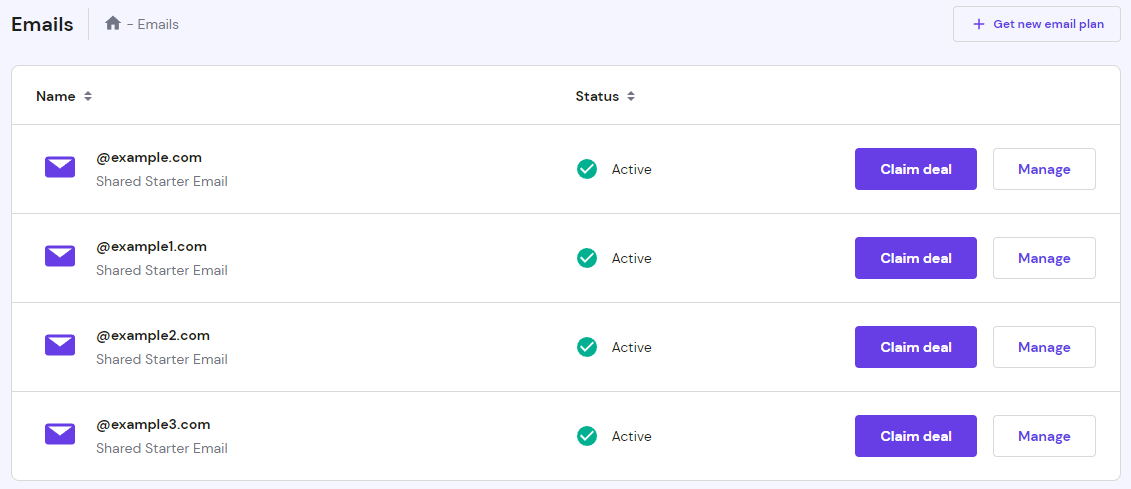
Credit: www.hostinger.com
Introduction To Hostinger Account Setup
Creating a Hostinger account is the first step to building your online presence. The setup process is simple and quick, designed to help beginners start without hassle. This guide explains what Hostinger offers and why having an account is essential for your website’s success.
What Is Hostinger And Who Is It For?
Hostinger is a web hosting service that provides fast and affordable hosting solutions. It suits individuals and small businesses who want to launch websites with ease. Hostinger offers:
- Shared hosting for beginners
- VPS hosting for advanced users
- WordPress hosting tailored for blogs and online stores
Hostinger is ideal for people who want simple tools and helpful support. Its user-friendly control panel makes website management straightforward. Beginners find it easy to navigate, while experienced users enjoy more advanced options.
Why Setting Up A Hostinger Account Is Important For Your Website
Setting up a Hostinger account is crucial to start your website hosting. Without an account, you cannot access Hostinger’s services or control your website.
Benefits of having a Hostinger account include:
- Access to the hosting dashboard for managing websites
- Ability to buy and manage domains
- Tools to install website builders like WordPress
- Customer support and service management
An account keeps your website data safe and organized. It also allows easy upgrades and changes to your hosting plan.
| Feature | Benefit |
|---|---|
| Hosting Dashboard | Manage websites and resources from one place |
| Domain Management | Buy, transfer, or renew domains easily |
| One-Click Installers | Quickly set up WordPress and other apps |
| Customer Support | Get help through chat and ticket systems |
Step-by-step Guide To Creating Your Hostinger Account
Setting up a Hostinger account is quick and simple. This guide walks you through every step. It helps you start your web hosting journey with ease.
Navigating To Hostinger’s Sign-up Page
First, open your web browser and go to Hostinger’s official website.
- Look for the “Sign Up” or “Get Started” button on the homepage.
- Click the button to open the registration page.
- You will see options to create your account using an email or social media accounts like Google or Facebook.
This page is the starting point for your hosting setup.
Choosing The Right Hosting Plan For Your Needs
Hostinger offers multiple hosting plans. Choose one that fits your website’s needs and budget.
| Plan | Best For | Key Features | Price Range |
|---|---|---|---|
| Single Shared Hosting | Small personal sites | 1 Website, 30 GB SSD, 100 GB Bandwidth | Lowest |
| Premium Shared Hosting | Growing blogs, small businesses | 100 Websites, 100 GB SSD, Free Domain | Medium |
| Business Shared Hosting | Business websites | Unlimited Websites, 200 GB SSD, Daily Backups | Higher |
Consider how many websites you want and the traffic expected. Check for extra features like free SSL and domain privacy.
Filling Out Personal And Payment Information
- Enter your full name and valid email address.
- Create a strong password for account security.
- Provide payment details. Hostinger accepts credit cards, PayPal, and other methods.
- Review your order summary carefully to confirm the plan and price.
- Agree to Hostinger’s terms and privacy policy by checking the box.
- Click the “Submit” or “Complete Purchase” button to proceed.
Ensure all information is accurate to avoid delays in account setup.
Verifying Your Email And Activating The Account
After registration, Hostinger sends a verification email to your inbox.
- Open your email client and find the message from Hostinger.
- Click the verification link inside the email.
- This activates your account and confirms your email address.
- You can now log in to your Hostinger control panel.
Check your spam folder if you don’t see the email in your inbox.
Exploring Hostinger’s Key Features During Setup
Setting up a Hostinger account introduces you to a range of tools designed for easy website management. The setup process is straightforward, guided by a user-friendly interface. Hostinger focuses on simplicity without sacrificing powerful features. This section covers the main tools you will use as you start your hosting journey.
Understanding The Hpanel Dashboard And Its Benefits
The hPanel dashboard is Hostinger’s custom control panel. It replaces traditional cPanel with a cleaner, simpler design. The dashboard helps you manage domains, emails, and websites from one place.
- Easy navigation: Clear menus help find features fast.
- Resource monitoring: View bandwidth and disk space at a glance.
- One-click access: Quickly open file manager, databases, and SSL settings.
This dashboard suits beginners and advanced users. It saves time and reduces confusion during setup.
Setting Up Your Domain: Free Domain Options And Privacy Protection
Hostinger often includes a free domain with certain plans. Claiming this domain is part of the initial setup. You can select from popular extensions like .com, .net, or country-specific domains.
Protecting your personal data is crucial. Hostinger offers domain privacy protection that hides your contact details from public WHOIS records.
| Feature | Benefit |
|---|---|
| Free Domain | Save on domain registration costs for the first year |
| Privacy Protection | Keep your personal information private and secure |
Setting up your domain is simple through hPanel, guiding you step-by-step.
Creating And Managing Email Accounts For Professional Communication
Hostinger allows you to create custom email accounts linked to your domain. This gives a professional image for your business.
- Set up multiple email addresses easily.
- Access emails via webmail or connect with clients like Outlook and Gmail.
- Manage spam filters and forwarders for better control.
Email management occurs through hPanel. The interface helps you add, delete, or modify accounts without hassle.
Utilizing One-click Installer For Easy WordPress Setup
Hostinger’s one-click installer simplifies WordPress installation. This tool eliminates manual steps like database creation or file uploads.
- Open the Auto Installer in hPanel.
- Select WordPress from the list.
- Fill in site details like title and admin username.
- Click install and wait a few moments.
The installer configures everything automatically. Your WordPress site will be ready to use quickly.
This feature suits beginners wanting fast setup without technical knowledge.
Pricing And Affordability Breakdown
The cost of hosting plays a major role in choosing the right provider. Hostinger offers plans suited for different needs and budgets. Understanding the pricing and features helps you pick the best option. This section breaks down Hostinger’s pricing plans and the value at each level.
Overview Of Hostinger’s Pricing Plans
Hostinger provides several plans starting from very low prices. Plans are designed for beginners and advanced users alike. The main categories include:
- Single Shared Hosting: Ideal for one website, very affordable.
- Premium Shared Hosting: Supports multiple websites, more resources.
- Business Shared Hosting: Best for small businesses, added speed and backup features.
Prices vary based on subscription length. Longer plans offer bigger discounts.
Comparing Features Across Entry-level And Premium Plans
| Feature | Single Shared Hosting | Premium Shared Hosting | Business Shared Hosting |
|---|---|---|---|
| Number of Websites | 1 | Unlimited | Unlimited |
| SSD Storage | 30 GB | 100 GB | 200 GB |
| Bandwidth | 100 GB | Unlimited | Unlimited |
| Daily Backups | No | No | Yes |
| Free SSL | Yes | Yes | Yes |
| Free Domain | No | Yes | Yes |
Value For Money: What You Get At Each Price Point
Single Shared Hosting suits those with a single website and basic needs. It offers essential features at a low cost. However, advanced options like backups and free domains are missing.
Premium Shared Hosting is great for users needing more websites and resources. It includes unlimited bandwidth and a free domain. This plan balances cost and features well.
Business Shared Hosting targets small businesses needing reliability and security. It adds daily backups and more storage. The extra cost matches the value of these features.
- Entry-level plans are very budget-friendly but limited in features.
- Premium plans provide good scalability and more perks.
- Business plans offer advanced features essential for professional sites.
Choosing the right plan depends on your website size, traffic, and needed tools.
Pros And Cons Of Hostinger Account Setup Based On User Experience
Hostinger’s account setup draws mixed reviews from users. The process is generally straightforward, but some aspects affect the overall experience. Understanding the advantages and disadvantages helps new users prepare better.
Advantages: Ease Of Use, Speed, And Support
Many users praise Hostinger for its simple setup process. The interface is clean and guides users step-by-step. This makes it ideal for beginners with little technical knowledge.
- Ease of Use: The dashboard is intuitive and user-friendly.
- Speed: Account creation is fast, allowing quick access to hosting features.
- Support: Hostinger offers 24/7 live chat support which is helpful for most setup questions.
These features make starting with Hostinger smooth and less stressful.
Disadvantages: Support Accessibility And Feature Limitations In Basic Plans
Some users find it hard to reach a human agent beyond the AI chatbot. This limits quick problem resolution for complex issues.
| Disadvantage | Details |
|---|---|
| Support Accessibility | Difficulty bypassing AI chatbot to get human support. |
| Feature Limitations | Basic plans lack CDN, ecommerce tools, and latest SSD storage. |
These limitations can restrict growth for users needing advanced hosting features.
Common User Challenges And How To Overcome Them
Users often face these issues during setup:
- Getting stuck with chatbot support: Try clear, simple questions or use the ticket system for urgent help.
- Limited features on entry plans: Consider upgrading plans early if you need ecommerce or faster servers.
- Initial setup confusion: Follow official Hostinger tutorials and community forums for guidance.
Overcoming these hurdles improves the hosting experience and reduces delays.
Credit: austinwebanddesign.com
Recommendations For Ideal Users And Use Cases
Hostinger is a web hosting service designed to suit a variety of users and website types. It offers easy setup, affordable pricing, and useful features. This section guides who benefits most from Hostinger, the best scenarios for its features, and tips for beginners to start quickly.
Who Should Choose Hostinger For Hosting Their Website?
Hostinger fits well for users who want:
- Affordable hosting with good performance.
- Simple control panel for easy management.
- Shared hosting for small to medium websites.
- Support for WordPress and other CMS platforms.
- Fast setup without complex technical steps.
It suits:
- Small business owners starting online.
- Bloggers and content creators.
- Developers testing projects.
- Students learning web development.
Not ideal for large enterprise sites or high-traffic ecommerce stores needing advanced resources.
Best Scenarios For Using Hostinger’s Features
| Use Case | Hostinger Feature | Benefit |
|---|---|---|
| Personal Blogs | One-click WordPress install | Fast setup with no coding needed |
| Small Business Sites | Shared hosting with SSL and email | Secure and professional online presence |
| Portfolio Websites | Custom domain and easy website builder | Showcase work with a unique domain |
| Learning & Testing | Affordable plans and simple dashboard | Practice without high costs or complexity |
Tips For Beginners To Ensure Quick And Smooth Setup
- Choose the right plan based on your site needs.
- Register your domain during signup for convenience.
- Use the auto-installer for WordPress or other CMS.
- Follow Hostinger’s setup wizard step-by-step.
- Enable SSL to secure your website from the start.
- Check email setup if you need professional communication.
- Use Hostinger’s knowledge base for guidance.
- Contact support via chat if stuck, but expect chatbot first.
These simple steps help beginners avoid confusion and launch fast.
Conclusion And Final Tips For Quick Success With Hostinger
Setting up your Hostinger account is the first step to building your online presence. Following clear steps helps avoid common mistakes. Use the right tools and support to launch smoothly.
Recap Of Key Steps To Set Up Your Hostinger Account
- Choose a hosting plan that fits your needs and budget.
- Create your Hostinger account by entering your email and setting a strong password.
- Confirm your email to activate the account.
- Purchase your plan by filling in the payment details.
- Access the control panel to manage your website and domain.
- Install WordPress or other CMS with one click for easy site setup.
- Set up your domain or connect an existing one.
- Enable SSL for website security through the control panel.
Additional Resources And Support Channels
Hostinger offers several ways to assist users:
| Resource | Description |
|---|---|
| Knowledge Base | Step-by-step guides and tutorials for common tasks. |
| Live Chat Support | 24/7 chat with support agents for quick help. |
| AI Chatbot | Instant answers to simple questions and troubleshooting. |
| Community Forums | Connect with other users to share tips and solutions. |
Note: Some users find it hard to reach human support fast. Be patient or try multiple channels.
Encouragement For Getting Started Confidently
Start your Hostinger journey with confidence. The setup process is simple and user-friendly. Take small steps and explore features slowly.
Don’t hesitate to use available help resources. Each small success builds your skills and website growth. Your online project deserves a solid foundation.
Remember, every expert was once a beginner. Your Hostinger account is ready. Begin today and watch your website come alive.

Credit: www.youtube.com
Frequently Asked Questions
What Is The Disadvantage Of Hostinger?
Hostinger’s main disadvantage is limited customer support access and fewer features in entry-level plans. Older SSD storage may affect speed.
Is Hostinger Email Imap Or Pop?
Hostinger email supports both IMAP and POP protocols. Users can choose either for sending and receiving emails. IMAP syncs emails across devices, while POP downloads emails to one device only.
How To Create An Account In Hostinger?
Visit Hostinger’s website and click “Sign Up. ” Enter your email and create a strong password. Verify your email to activate the account.
Is Hostinger Good For Beginners?
Hostinger suits beginners with its easy-to-use interface and helpful support. It offers affordable plans and simple setup. Some users report occasional slowdowns, but overall, it remains beginner-friendly for small websites and personal projects.
Conclusion
Setting up your Hostinger account is simple and quick. Follow the steps carefully for smooth hosting. You can manage your website and email with ease. Hostinger offers good features for beginners and small sites. Visit Hostinger to get started today. Take your first step toward online presence now.